Your own attributes in reports
Reports can now show your custom attributes as columns, such as the employee’s payroll number, an activity’s or a time account’s payroll code, or an org unit’s cost center.
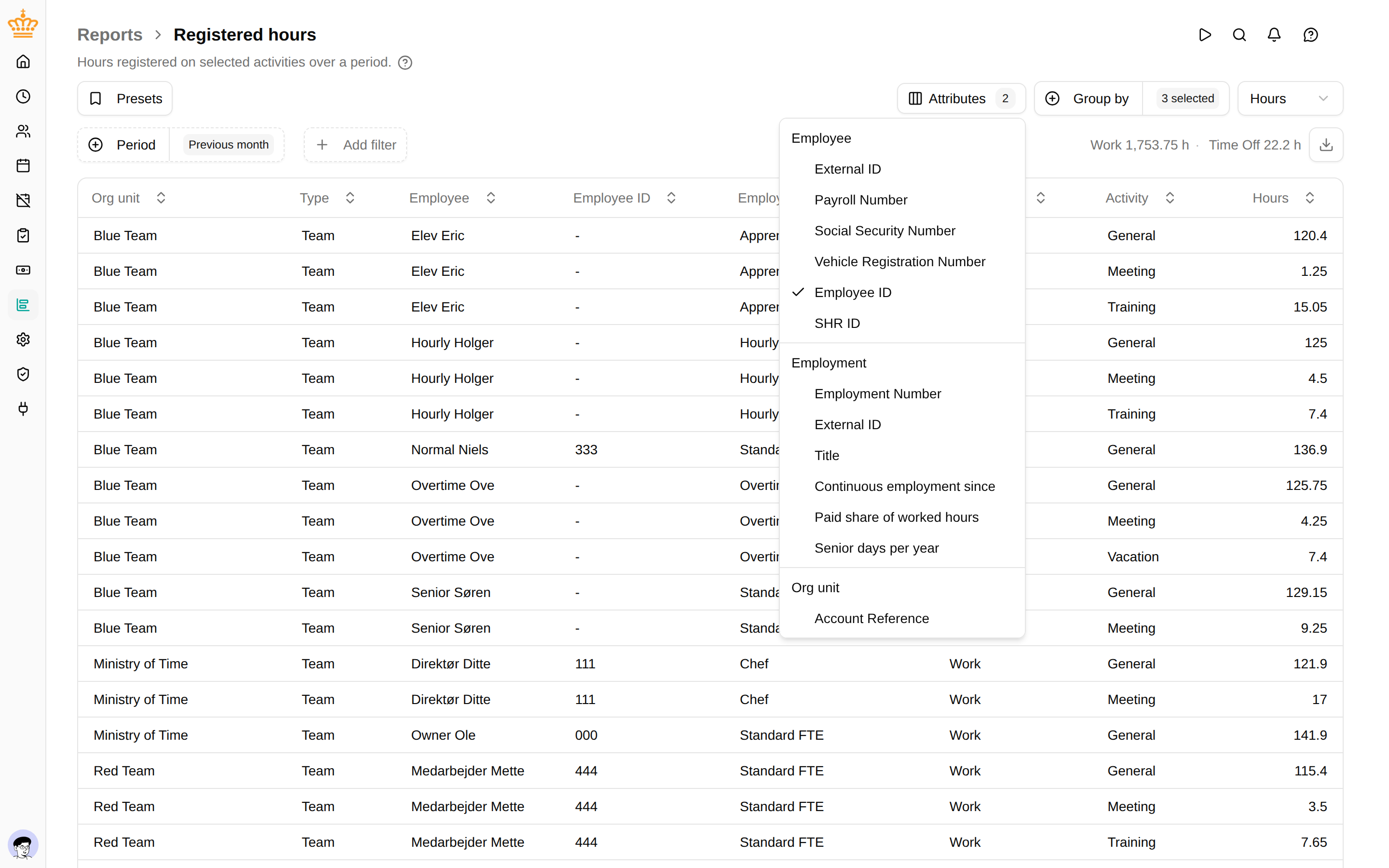
Pick your columns
Click Attributes above the table of Payroll, Registered hours, Absence overview, Account movements, Account balances, SLS absence, Check in/out, Work time compliance or Sickness, and tick the attributes you need. Each one appears right after the column it belongs to, on screen and in the Excel export.
Made for payroll files
If your payroll system has no integration with mTime, the export can now carry the payroll system’s own numbers on every row. Save the view as a preset once, and open it every period.
Good to know
- An employee’s or org unit’s value is the one on the last day of the report’s period.
- In a grouped report, an attribute shows only while you group by what it belongs to.
- Sensitive attributes are shown only to people allowed to see them.
Read more in Attributes.