Auto-register attendance

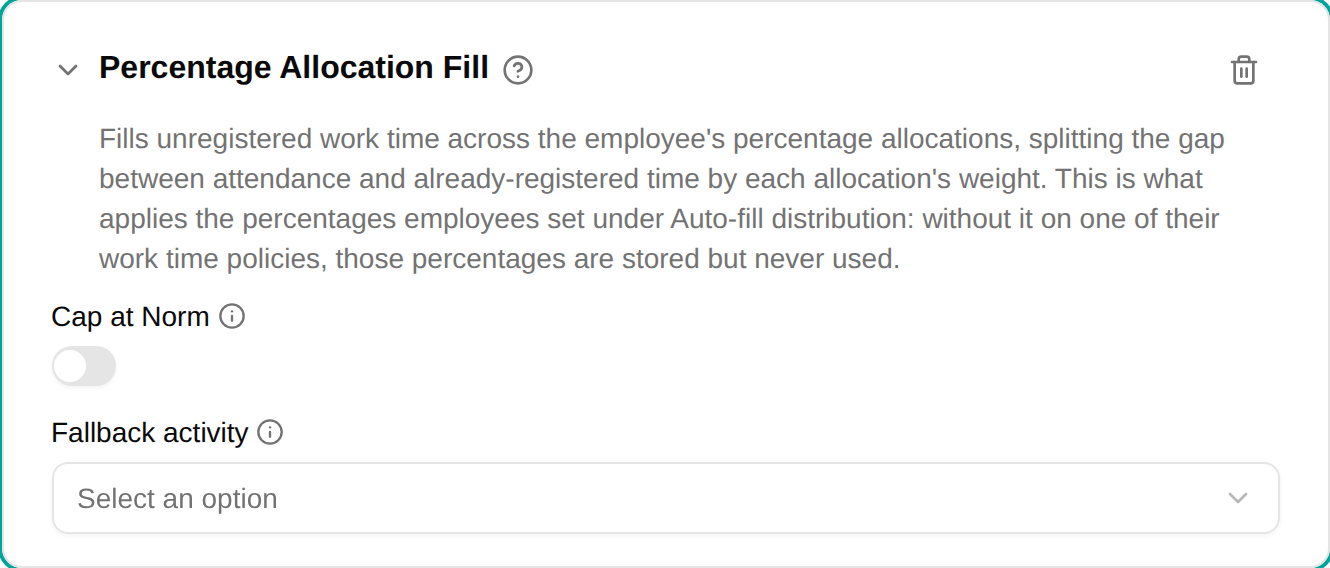
The Auto-register attendance plugin fills unregistered attendance time across several activities, split by weight. It generalises the Default Activity Fill plugin: a single activity at 100 % behaves identically to a default-activity fill.
When to use
Use this plugin when an employee’s checked-in time should be distributed across more than one activity by a fixed ratio — for example, 60 % to one cost centre and 40 % to another — without them registering each entry manually.
The allocation activities and their weights come from the employee’s activity list.
This happens by default for every employee whose work time policy has no attendance plugin: checked-in time is booked onto their default activity, or split by their weights. Add this plugin to a work time policy only to set a Fallback activity or turn on Cap at Norm . To switch it off for a policy’s employees — hourly paid staff, students — add the Do not auto-register attendance plugin to their policy; it wins over this plugin on another policy.
Parameters
| Parameter | Description | Required |
|---|---|---|
| Cap at Norm | When turned on, no fill is produced if time already registered meets or exceeds the day’s norm, and the filled amount is capped at the remaining norm. When off, the full unregistered attendance is split. | No |
| Fallback activity | The activity to fill at 100 % when the employee has no default activity or percentage allocation of their own. Leave it empty to fill nothing for those employees. | No |
How it works
- The plugin runs after deduction-style plugins (e.g. Lunch Deduction), so it splits what remains after the lunch has been subtracted.
- It computes the unregistered gap (
attendance − already-registered time) and splits it across the employee’s weighted allocations. Only registrations on Work and Non-Work activities count here — Time Off and Allowance registrations (time off or an allowance in hours) are added on top of the attendance, not subtracted from it. - Weights are taken against a denominator of 100, not against the sum of weights:
60 + 40fills the whole gap, while a lone60fills 60 % of the gap and leaves the rest unregistered. - With Cap at Norm on, the total fill never pushes the day above its norm.
Examples
Split time 60/40 across two activities
- On the employee’s activity list, give the two activities weights of
60and40 - No plugin is needed — unless the employee’s work time policy has Do not auto-register attendance
- Their checked-in time is then booked 60/40 across those activities
Fill only part of the attendance
Give the allocations weights that sum to less than 100 (e.g. a single 60) to leave the remainder unregistered for the employee to book manually.
Troubleshooting
| Issue | Solution |
|---|---|
| Only part of the day is filled | The allocation weights sum to less than 100 — that is by design; raise them to 100 to fill the whole gap |
| Nothing is filled | Check the employee has weighted allocations or a default activity on their activity list (or that a Fallback activity is set), and closed attendance for the day |
| Behaves like a single-activity fill | A lone allocation at 100 % is equivalent to Default Activity Fill |
| Checked-in time isn’t booked for an employee | Their work time policy has Do not auto-register attendance , which switches the fill off — remove it, or check the employee has weighted allocations or a default activity on their activity list |
| Checked-in time is booked for employees who should register every hour themselves | Add Do not auto-register attendance to their work time policy |