Projects
Projects are work-tracking categories employees can register time on. They are tagged onto timesheet entries and can require their own manager’s sign-off when employees book on them.
Overview
Projects appear in the timesheet as rows of their own, with the tasks booked on them beneath. A project decides which activities can be booked on it (see Activities below); an activity that requires a project is a project task, and time on it must always name a project.
Each project carries:
- Name and description
- Start and end date — the window during which the project can be booked on
- Status — Planned, Active, On hold, or Closed
- Project manager (optional) — the employee responsible for the project
- Require manager approval (optional) — when on, timesheets that book minutes on this project must be approved by the project manager
Manage projects
Configure a project
The project editor groups settings into sections.
Basic information
- Name — what employees see in the timesheet picker
- Description — optional details
- Start date / End date — optional bounds. Outside this window the project does not show in the picker.
Approval
Two settings drive whether a project triggers an extra approval step on the employees’ timesheets:
- Project manager — search and pick an employee. This is the person who will be asked to approve timesheets booking time on this project.
- Require manager approval — when turned on, every timesheet statement that includes minutes on this project must be approved by the project manager, in addition to the employee’s line manager.

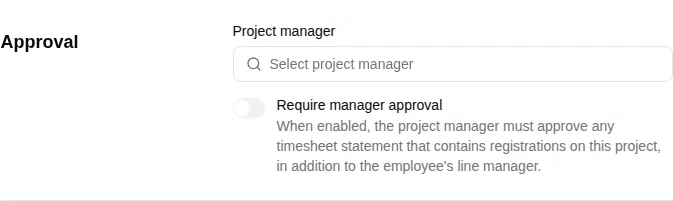
The switch is only available once a project manager is set. Clearing the project manager automatically turns the switch off.
See Timesheet statements for the full multi-approver workflow.
Activities
This section decides what can be booked on the project.
- Leave the list empty and the project is open: it takes the workspace’s default project tasks, which is every project task unless an administrator has narrowed it. Set that default with Default project tasks above the project list — useful when the workspace keeps several reusable sets of project tasks and a project should take one of them rather than all.
- List activities and the project takes those alone. You can list a single activity, a whole group (every activity beneath it, including ones added later), or several of either. Listing a group is how you configure a project with a hundred tasks once.
Use the search field to find an activity by name or by where it lives; nothing is listed until you type. If the activity does not exist yet, Create activity at the end of the results opens the activity form and lists the new activity on the project when you save.
What a project lists also decides where it shows up on a timesheet: it stands with the work it books — under a task’s own row when it books one, inside the group when it books several of that group’s tasks, and beside a group that holds nothing but project work.
Listing an activity makes it a project task (see Activities). Removing it from the project does not remove that mark: the task becomes bookable on every open project instead. To make it a regular activity again, turn off Project task on the activity itself.
Custom attributes
If your workspace defines custom project attributes, they appear in their own section at the bottom of the editor. See Custom attributes.