Org units
Org units represent your company’s official structure — departments, teams, divisions, and other groupings that make up your org chart.

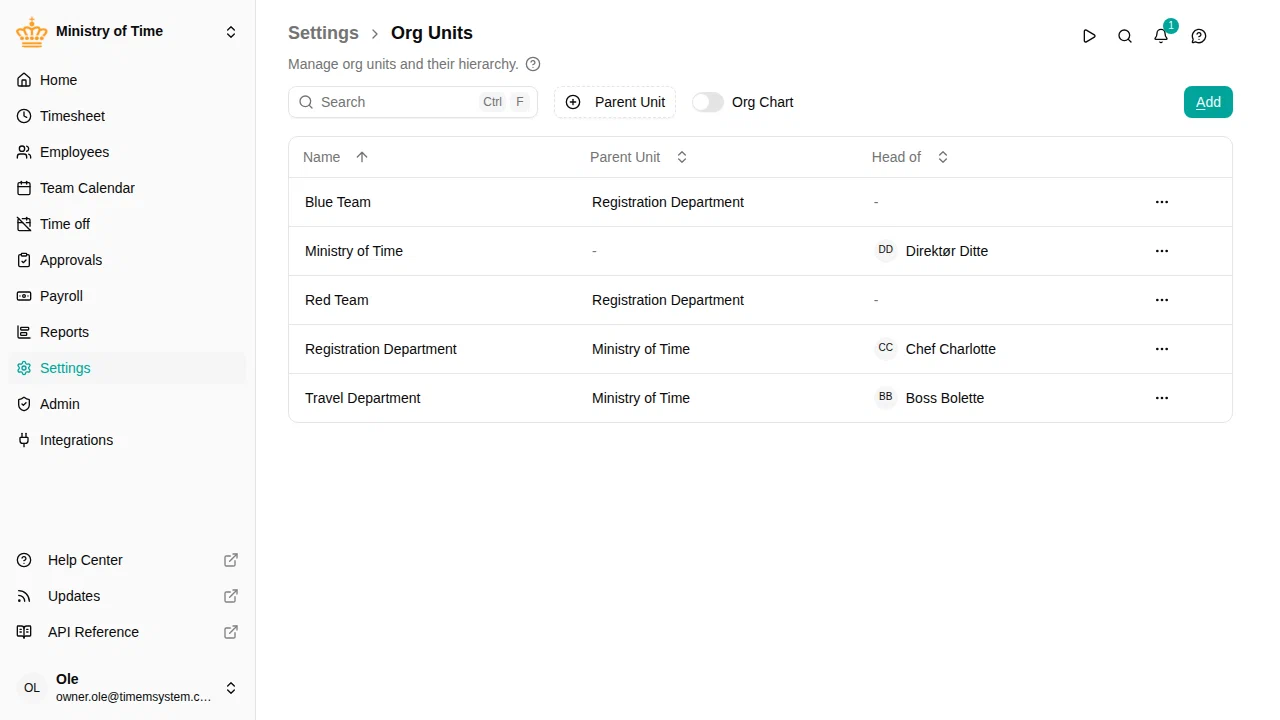
Overview
Org units help you:
- Mirror your org chart — Create a hierarchy that reflects your company structure
- Assign leadership — Designate a head for each unit who can see their team’s data
- Filter and report — Use units to filter the team calendar and other views
- Group employees — Assign employees to units via their employment records
Org Chart view
Toggle Org Chart to switch from the list view to a visual hierarchy that displays your organization structure as a tree.

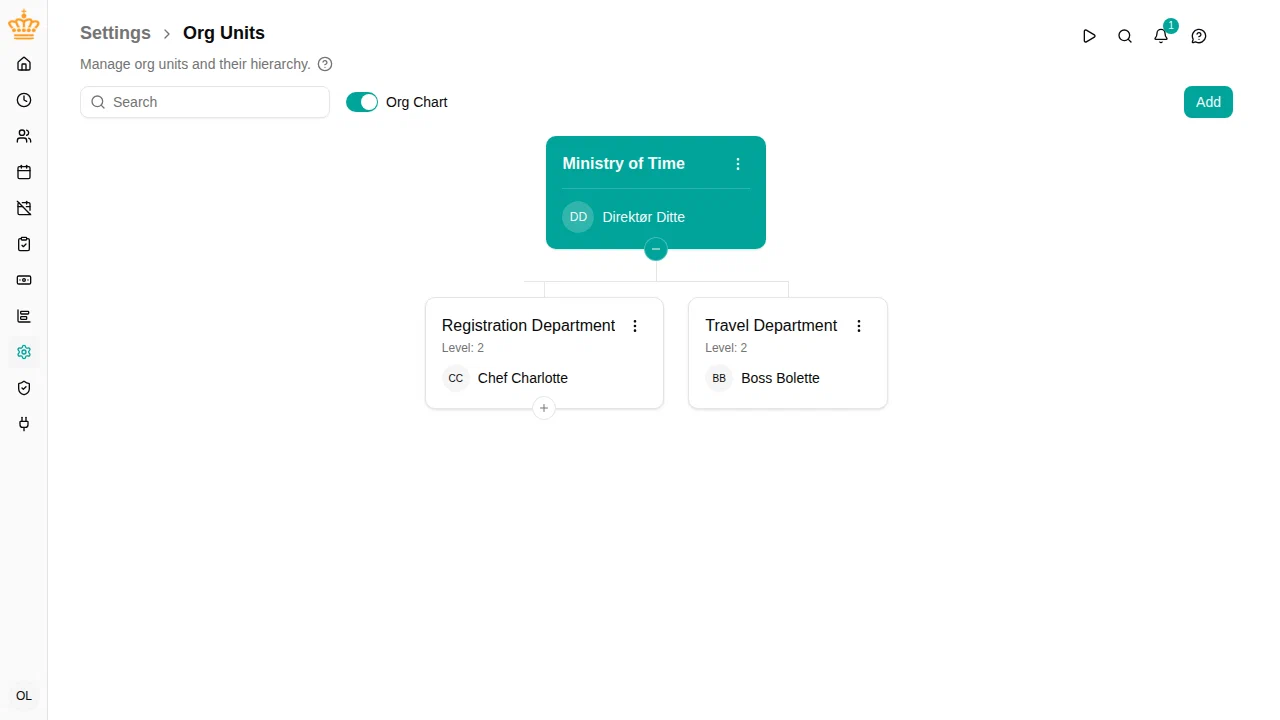
The org chart shows:
- Unit cards arranged in a tree structure with connecting lines
- Head of unit displayed with their avatar on each card
- Expand/collapse buttons to show or hide child units
Searching in the org chart
Use the search field to find units by name or by their head’s name. When searching:
- Matching units are highlighted
- Parent units are automatically expanded to reveal matches
- Child units of matches remain collapsed until you expand them
Click the + button on a filtered unit to reveal any hidden children while keeping your search active.
Key concepts
| Concept | Description |
|---|---|
| Name | The display name of the unit (e.g., “Engineering”, “Sales”) |
| Parent unit | The unit this one reports to, creating a hierarchy |
| Head of unit | The employee who leads this unit |
| Country | The work country of the unit’s employees, inherited by sub-units. It sets each employment’s work country unless the employment overrides it |
Creating an org unit
- Go to
- Click Add org unit
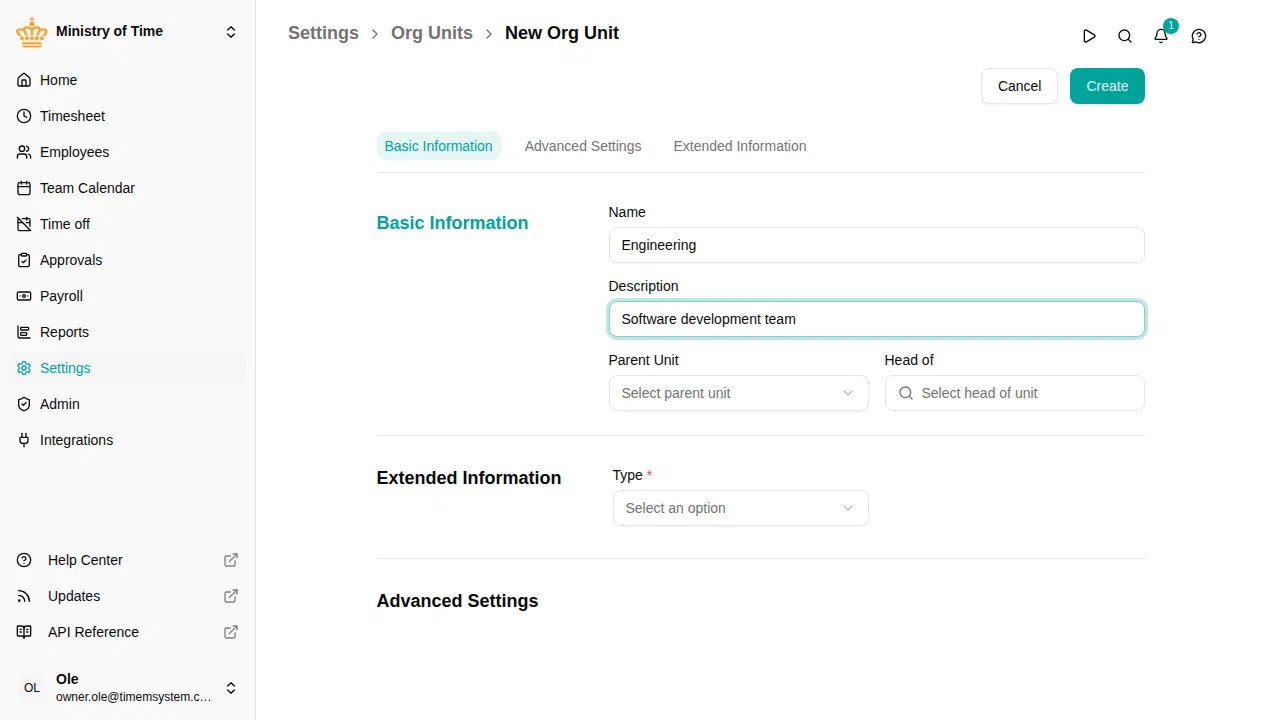
- Fill in the unit details:
- Name: Give the unit a clear name
- Description: Optional explanation of what this unit does
- Parent unit: Select the parent unit, or “No parent (top level)” for top-level units
- Head of: Choose the employee who leads this unit
- Optionally expand Advanced Settings to set the Country
- Click Save

Editing an org unit
- Go to
- Click the unit you want to edit, or use the action menu and select Edit
- Make your changes
- Click Save
Changing the head of unit
When you change the head of a unit, mTime will check if any employees in that unit (or its sub-units) have the old head as their manager. If so, you’ll be asked whether to update their manager to the new head.

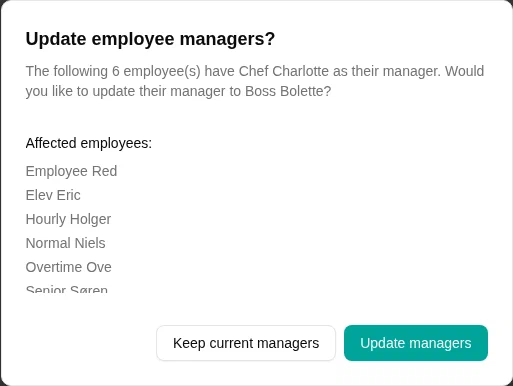
This helps keep your reporting structure in sync when leadership changes.
Building a hierarchy
Create a hierarchy by setting parent units:
- Create top-level units first (like “Company” or main divisions)
- When creating child units, select the appropriate parent
- Continue building out your structure
Example hierarchy:
- Acme Corp (no parent)
- Engineering (parent: Acme Corp)
- Frontend Team (parent: Engineering)
- Backend Team (parent: Engineering)
- Sales (parent: Acme Corp)
- EMEA (parent: Sales)
- Americas (parent: Sales)
- Engineering (parent: Acme Corp)
Assigning employees to units
Employees are assigned to org units through their employment records, not directly on the unit itself:
- Go to and open an employee
- Edit their employment
- In the Org unit field, select the appropriate unit
- Click Save
Custom attributes
If your organization has configured custom attributes for org units, they appear in the Extended information section when editing a unit.
Common uses for org unit attributes:
- General ledger codes (the standard Account reference attribute)
- Cost center codes
- Location information
- Business unit identifiers
See Custom attributes to learn how to set these up.
How units affect visibility
Org units influence what data users can see:
- Unit heads can see employees in their unit and all sub-units
- The Team calendar can be filtered by org unit
- Reports and exports can be grouped by unit
Deleting an org unit
Troubleshooting
| Problem | Solution |
|---|---|
| Can’t see org units | You may not have permission; contact your administrator |
| Can’t create units | You need the org-unit:create permission |
| Unit head can’t see team | Check that employees are assigned to the unit in their employment records |
| Can’t delete a unit | Make sure it has no child units and no employees assigned to it |