Expense types
Expense types let employees register expenses with their timesheet. The first kind is mileage (kørsel): trips driven in the employee’s own vehicle, counted in kilometres and paid through payroll.

Overview
An employee registers each trip on the day it was driven: the date, the route, the kilometres, the purpose and a confirmation that they drove their own vehicle. That is what the Danish tax authority asks a mileage allowance to be documented with.
The trips follow the timesheet:
- They are approved with the timesheet. A trip belongs to the timesheet period that covers its date. The manager approves the period’s trips together with its hours, so there is no separate approval.
- They are locked with the timesheet. Once a period is submitted, its trips can’t be changed. Reopening the period unlocks them.
- They are paid through payroll. When a period is approved, its kilometres are sent to payroll. mTime sends kilometres, never an amount: the rate per km is set on the pay codes in the payroll system.
A workspace without expense types sees nothing new.
Before you start
Three things decide who can register mileage:
- The employee has a vehicle registration number. Mileage is offered only to employees whose profile has a Vehicle Registration Number . An administrator or HR sets it on the employee, under Extended Information . Employees can’t set it themselves. Without one, they don’t see the type at all.
- The employee can see the type. The type’s Availability decides which employees can use it, as on activities.
- Someone else approves the employee’s timesheets. Nobody approves their own mileage. A period with trips goes to the employee’s manager — or, when they have none, to whoever is next in line (Who approves) — even when the employee’s employment terms otherwise let them approve their own timesheets. An employee who is their own manager, or for whom nobody else can be found to approve, can’t register mileage.
Creating an expense type
- Go to
- Click Add expense type
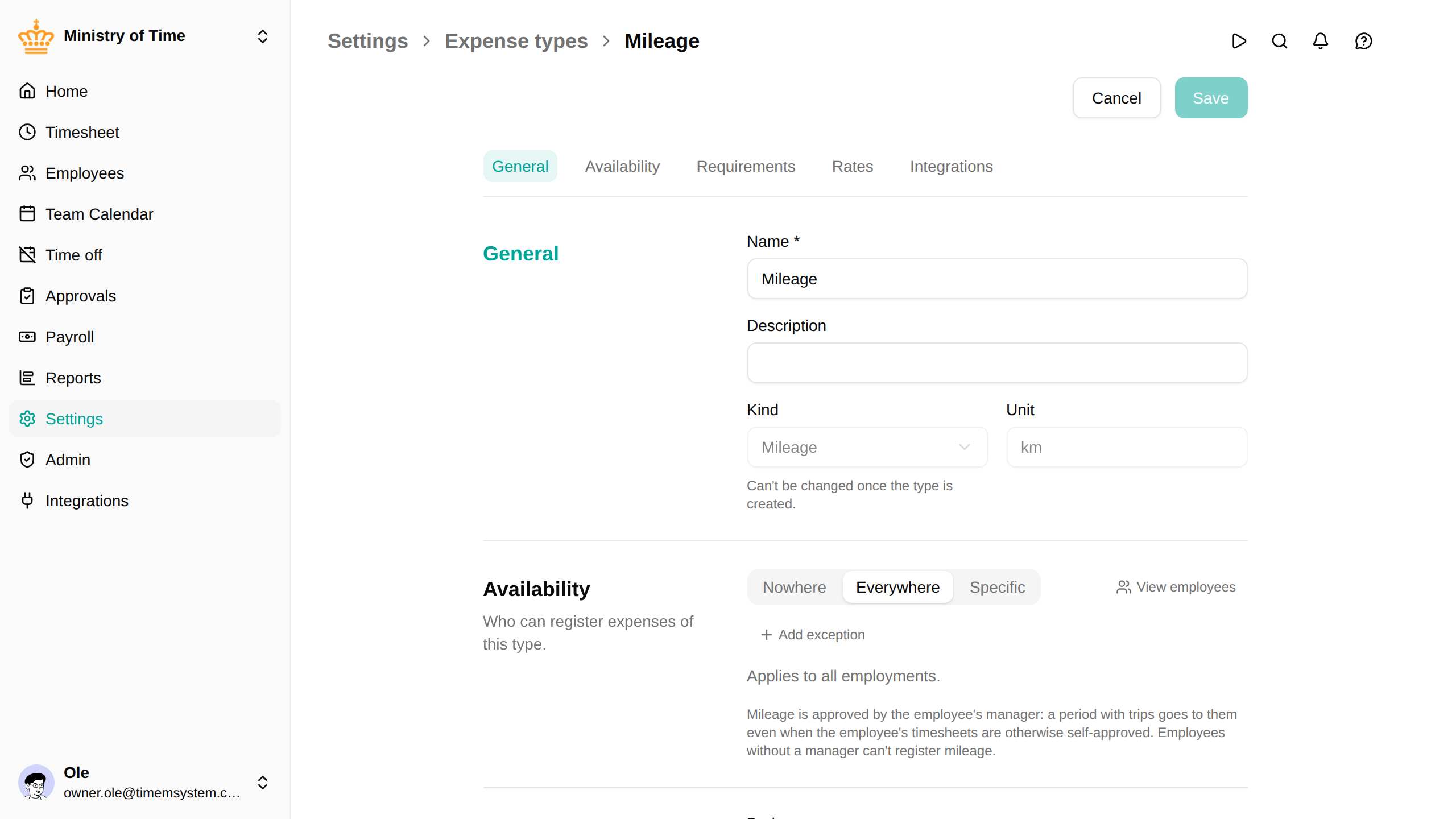
- Under General , give it a Name (for example Kørsel) and choose the Kind Mileage . The kind can’t be changed once the type is created.
- Under Availability , choose who can register it. A new type applies to no one until you do.
- Under Requirements , choose whether a trip is booked to a Project (Never , Optional or Required ) and which dimensions it asks for.
- Under Rates , set the Yearly high-rate threshold (see below).
- Under Integrations , enter the payroll codes the kilometres are sent under.
- Click Save
Saving a mileage type also adds the two standard attributes it needs, if they aren’t there yet: Vehicle Registration Number on employees and Workplace Address on org units.
An expense type employees have registered trips on can’t be deleted. Set its Availability to Nowhere instead: the type then takes no new trips, and the registered ones are kept and can still be corrected.
High and low rate
The Danish mileage allowance has a high rate up to 20,000 km per year and a low rate above it. mTime counts each employee’s kilometres per calendar year and splits them across two payroll codes:
- Kilometres up to the Yearly high-rate threshold go on the High-rate payroll code .
- The rest go on the Low-rate payroll code .
The split is kept exact for the year, whatever order the periods are approved in. If a period is reopened and its trips are corrected, the next approval sends the difference as a signed correction, moved between the two codes if the threshold now falls elsewhere. Trips count toward the year they were driven in.
Set the threshold to 0, or leave the low-rate code empty, to send everything on the high-rate code.
Payroll systems
| Payroll system | What it receives |
|---|---|
| Intega Løn | The kilometres as units under each code, dated at the start of the pay period |
| Payroll CSV Export | A line per code with the unit km |
| Dataløn | Nothing: mileage isn’t sent to Dataløn |
Intega Løn holds the rate: each of the two pay codes must multiply the units it receives by its kr./km.
Addresses on a trip
Each stop on a trip is an address, checked when it is entered. In Denmark a postcode must exist, and its city is filled in: “Banegårdspladsen 1, 8000” becomes “Banegårdspladsen 1, 8000 Aarhus C”. In most other European countries the postcode’s format is checked.
To save employees typing, each stop offers addresses in one click:
- Home: the employee’s own address, from their profile. It is offered only to the employee, not to someone registering on their behalf.
- Workplace: the Workplace Address of the employee’s org unit, or of the nearest unit above it that has one.
- Recent stops: the addresses on the employee’s earlier trips. A recent stop at a unit’s workplace address is shown as that unit.
- Other units: the workplace address of every other org unit the employee can see, nearest in the org chart first.
So fill in the Workplace Address on your sites and offices: under , open a unit and fill it in under its attributes. Units below inherit it.
Troubleshooting
| Issue | Solution |
|---|---|
| An employee doesn’t see the expense type | Check that their profile has a Vehicle Registration Number and that the type’s Availability includes them. |
| An employee sees “Mileage needs a manager” | Nobody else approves their timesheets. Give them a manager in the org chart. |
| An address is refused | The postcode doesn’t exist in the address’s country. Check the postcode, or open the full address form with the icon in the field to choose another country. |
| Nothing reaches payroll | Check the payroll codes under Integrations , and that the period has been approved. |