Dimensions
Dimensions are custom categories you can attach to time registrations, letting you break worked time down by your own organizational attributes — cost center, client segment, work type, and so on.
Overview
A dimension is a named list of allowed values. Once you create a dimension, you add it to the activities where it should apply. When an employee registers time on such an activity, they pick one of the dimension’s values alongside the activity.
Each dimension carries:
- Name — what employees see when picking a value
- Key — a stable code (lowercase with underscores, e.g.
client_segment) used by the API and in exports - Description (optional) — a short explanation of what the dimension captures
- Values — the choices employees can pick from
Manage dimensions
Configure a dimension

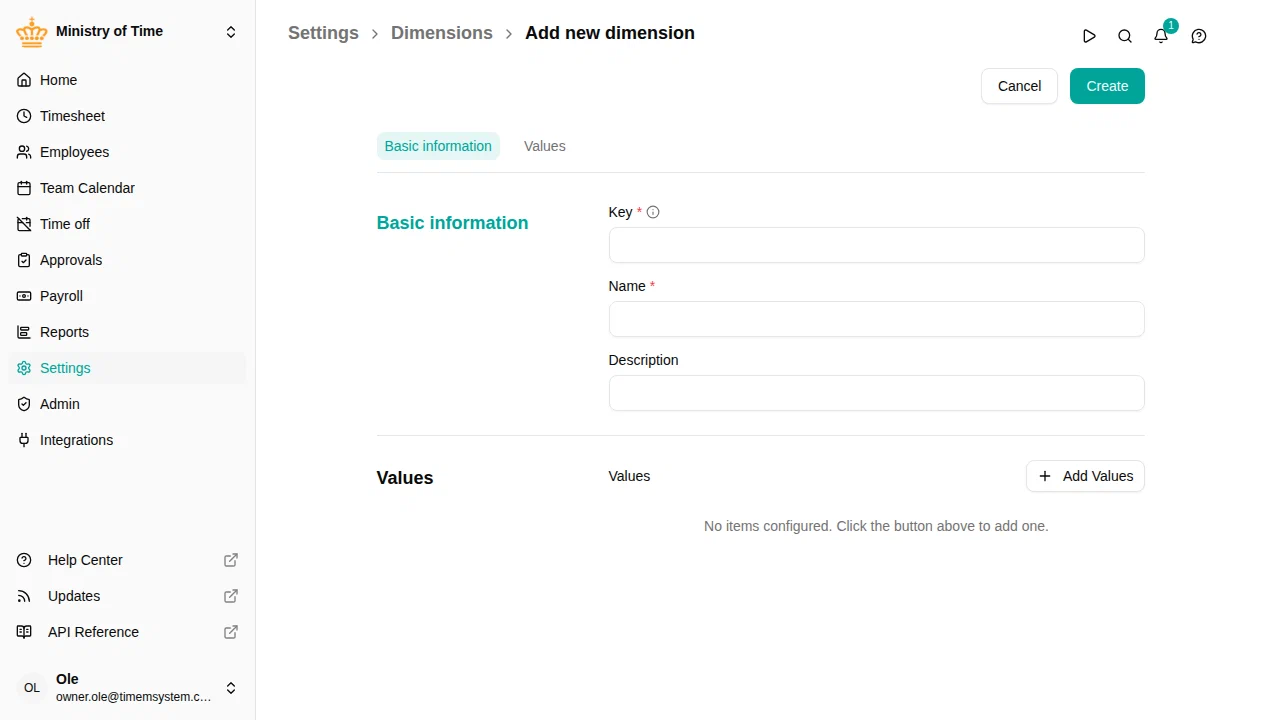
Basic information
- Name — the label shown in pickers and reports
- Key — the stable code used by integrations and exports
- Description — optional help text
Values
Add one row per choice. Each value has:
- Name — what employees see in the picker
- Code — a short identifier used in exports
- Active — when turned off, the value is kept for historical registrations but can no longer be selected on new ones
Use Add value to add more rows, and the trash icon to remove one.
Using dimensions on activities
Dimensions do nothing on their own — they take effect once you add them to a work activity. On each activity you can choose whether a dimension is required and optionally restrict which of its values are allowed. See Activities.