Allowance policies
Allowance policies calculate cash supplements, premiums and other compensation derived from an employee’s worked time — such as evening shifts, weekend hours, work on a public holiday, or extra hours and overtime against the contractual norm. Each policy takes the hours an employee actually worked and turns them into a number of minutes (or a scaled amount) that can be paid out as an allowance.

Two calculation types
When you create an allowance policy you first choose how it measures worked time — the Calculation type . The two types are mutually exclusive:
| Calculation type | Works on | Use it for |
|---|---|---|
| Check in/out | Each day’s check-in/out intervals | Compensation that depends on when work happened — evening, night, weekend, holiday supplements. Built from filters and a calculator. |
| Weekly Registrations | Worked time across the whole week, against the contractual norm | Compensation that depends on how much was worked — additional hours, overtime, a norm deficit carried as time owed. Built from a single counter. |
The rest of this page describes the Check in/out type. For Weekly Registrations, see Counter plugins.
Overview (Check in/out)
A Check-in/out policy answers three questions for every checked-in interval:
- Does this interval qualify? — defined by one or more filters (e.g. “between 17:00 and 06:00”, “Saturdays only”, “a Danish public holiday”).
- At what rate? — defined by a calculator that turns the matching minutes into a payable amount (e.g. minutes as-is, rounded up to the started half hour, a flat amount per callout).
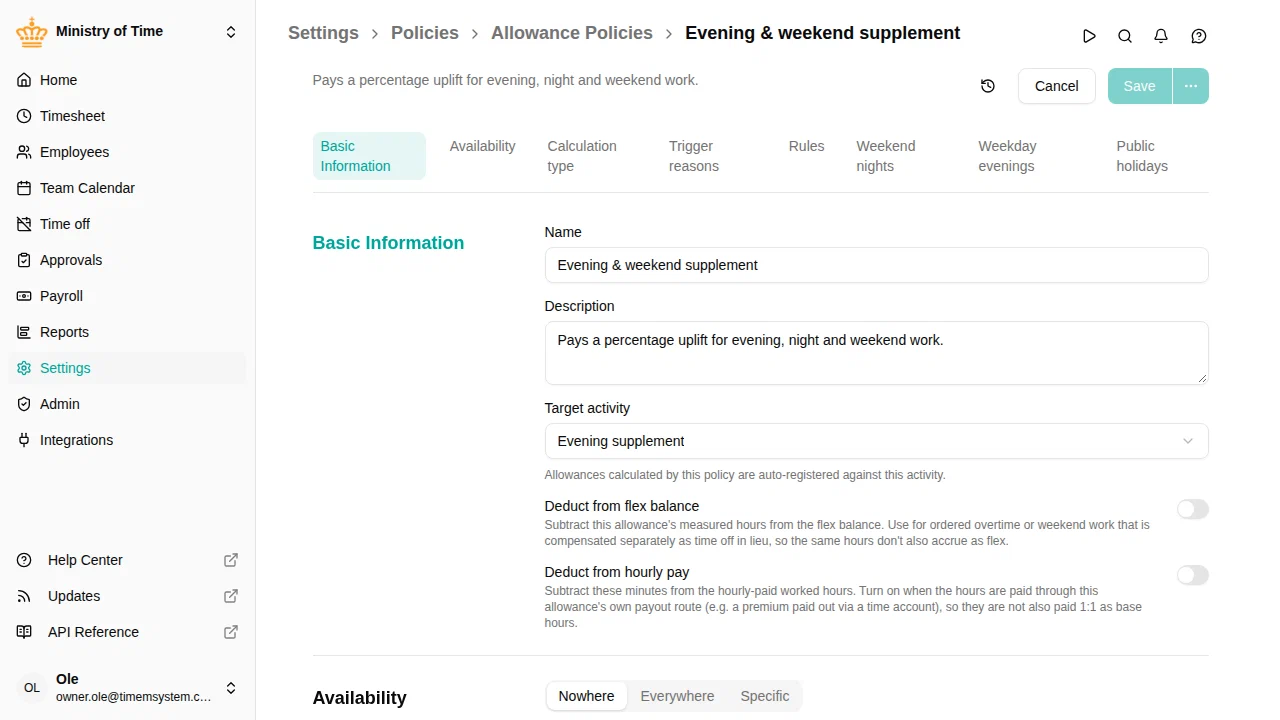
- For which payroll category? — defined by an optional target activity that the resulting allowance is auto-registered against.
Each policy decides in its Availability section which employees it applies to, and every matching policy applies, so the same employee can earn several allowances at once — for example a 17–06 inconvenience supplement, a weekend supplement, and an on-call bonus.
Getting started
- Go to
- Click Add Policy and choose Allowance Policy
- Give it a name (e.g. Weekend supplement)
- Choose the Calculation type — Check in/out or Weekly Registrations
- Optionally pick a Target activity — the activity used when the allowance is auto-registered on the employee’s timesheet
- For Check in/out, add one or more rules (filters + a calculator); for Weekly Registrations, add a single counter
- Click Save
- Under Availability , choose the work countries, org units or employment terms the policy applies to. A new policy applies to no one until you do
How a policy is evaluated
When a clock entry is closed, every allowance policy that applies to the employee is evaluated against the full set of worked intervals. Within a single policy, rules are processed in order and each interval is consumed by the first matching rule — once a minute has been used by an earlier rule, later rules will not see it again. Across policies the picture is different: each policy receives the entire input independently, so the same minute can be paid as both a night premium and a weekend supplement if you configure two separate policies.
Rules
A rule is a list of filters followed by an optional calculator.

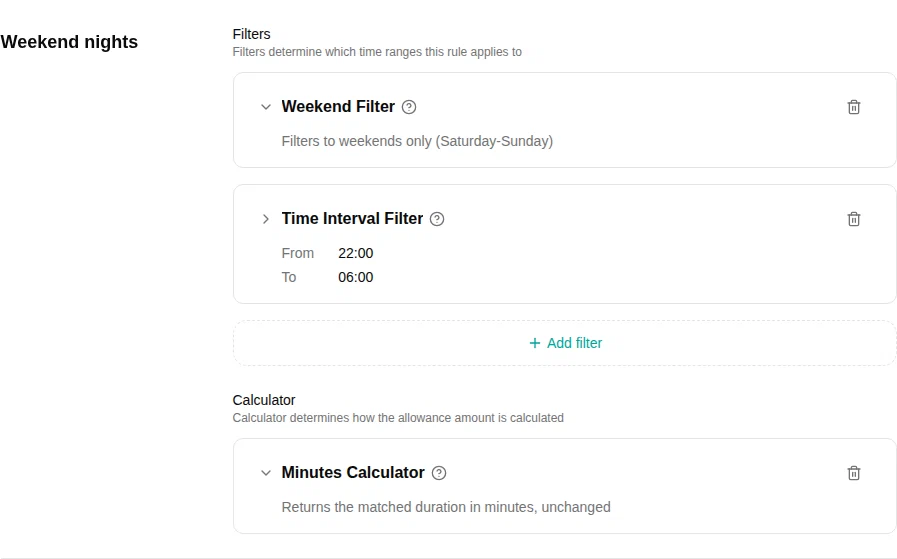
- Filters narrow the input — they keep only the parts of each interval that match. Filters within a rule are applied in sequence (AND), so listing Day of week → Saturday and Time interval → 14:00–24:00 keeps only Saturday afternoons. Each filter is documented in Filter plugins.
- The calculator turns minutes into an amount — if you don’t pick one, the rule simply returns the matched minutes as-is. See Calculators below.
- Order matters — a stricter, higher-rate rule should come before a broader, lower-rate one. For example, in a policy that pays both a weekend supplement and a weekday-night supplement, put the rule with the most specific filters at the top.
One policy, many policies
You combine rules and policies depending on whether the supplements should stack:
- Mutually exclusive (one or the other) — put both rules in the same policy. The first matching rule consumes the minute and the second one cannot reuse it.
- Stacking (both apply) — create separate policies. Each policy receives the full input, so the same minute can be paid by more than one of them.
A common Danish setup uses three separate policies — one for natpenge (night pay), one for weekendtillæg (weekend supplement), and one for ulempetillæg (inconvenience hours) — so that hours worked on, say, a Saturday night are paid under all three agreements at once.
Calculators
The calculator decides how matched minutes become a payable amount. Configure it inside a rule, under Calculator .
| Calculator | What it does |
|---|---|
| Minutes | Returns the matched duration unchanged. This is the default if you don’t pick a calculator. |
| Started half hour | Rounds the matched duration up to the nearest started half hour, merging chunks that are less than 30 minutes apart so that brief gaps are not double-counted. Common for break-related allowances. |
| Started hour | Rounds each callout session up to the next full hour and adds an optional flat amount per session. Models “+1 hour minimum + 1 hour per started hour” callout rules. |
| Flat per session | Emits a fixed amount per callout session, regardless of duration. A configurable cooldown merges back-to-back registrations into a single session. |
A calculator never applies a rate. To credit time at time-and-a-half, double time or any other factor, have a time account take in the allowance activity through a settlement policy and apply the factor there — for example with the Credit (expression) step weekend * 1.5.
Target activity
The optional Target activity is a leaf activity of type Allowance. When an allowance is auto-registered on the timesheet, the resulting entry is booked against this activity — making the supplement visible on payroll exports and reports under its own line. Leaving the target activity empty still calculates the allowance but does not auto-register a timesheet entry.
Deduct from flex balance
When a target activity is set, an extra option appears: Deduct from flex balance . Turn it on when the allowance represents worked hours that are compensated separately — for example ordered overtime or weekend work that is compensated separately as time off in lieu — so those hours are not also counted toward the flex balance.
With the toggle on, the hours still register as worked time (so attendance and registrations match, with no warning), but the allowance’s measured minutes are subtracted from the period’s flex delta. Without it, ordered overtime would be both paid as overtime and accrue as flex — counting the same hours twice. The option is only available for an allowance-type target activity.