Advisories
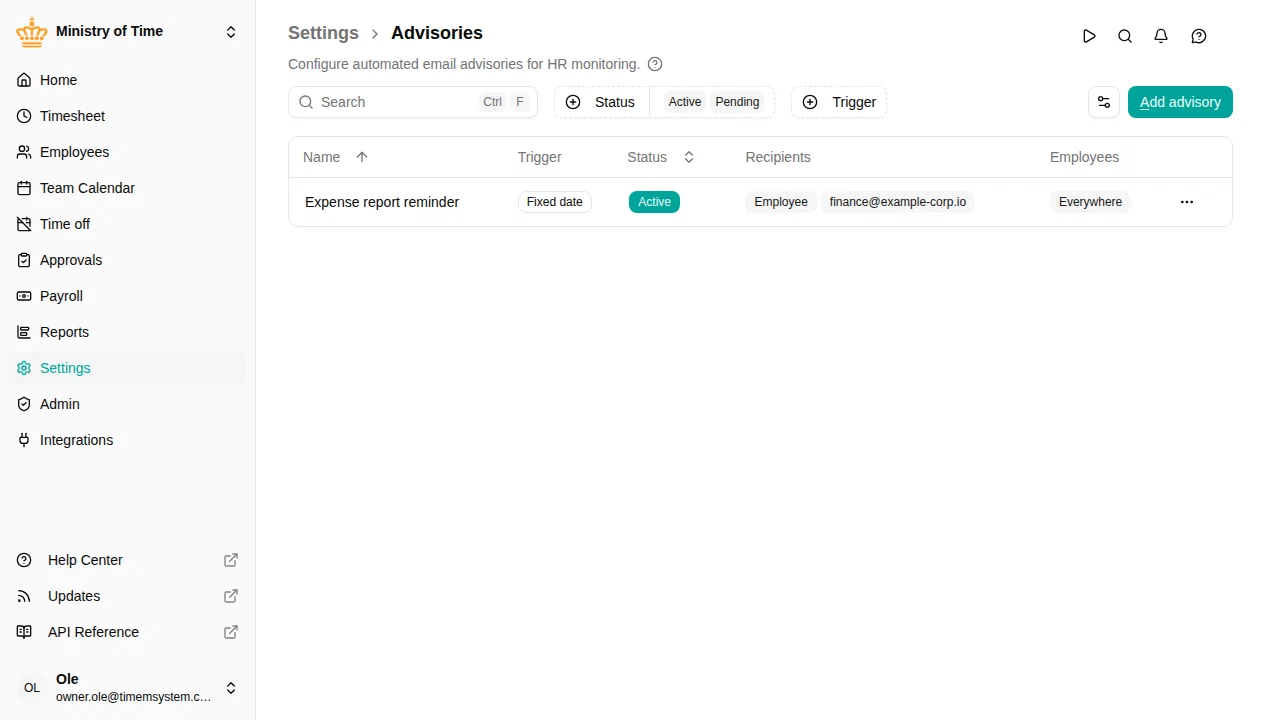
Advisories send automated emails when a condition applies to employees — ad-hoc HR monitoring that is not tied to a specific mTime workflow.

Overview
An advisory combines four things:
- A trigger — the condition that fires the advisory, checked once a day
- Employees — which employees the advisory applies to, by country, org unit, or employment terms
- Recipients — who receives the email: the employee, their manager, and/or external addresses (for example a shared HR inbox)
- A message — the email subject and text, with placeholders filled in per employee
Advisories are sent by email only; they do not appear as notifications inside mTime. When a trigger fires for several employees, each employee produces their own email — a manager with five affected team members receives five separate messages.
Creating an advisory
- Go to
- Click Add advisory
- Enter a Name and an optional Description
- Under Trigger, select the condition and fill in its settings
- Under Employees, choose who the advisory applies to — Everywhere covers all employees, or narrow it down by country, org unit, or employment terms, with optional exceptions
- Under Recipients, turn on Employee and/or Manager , and add any external email addresses
- Under Message, write the subject and text — click a variable such as
{employee_name}to insert it - Click Save

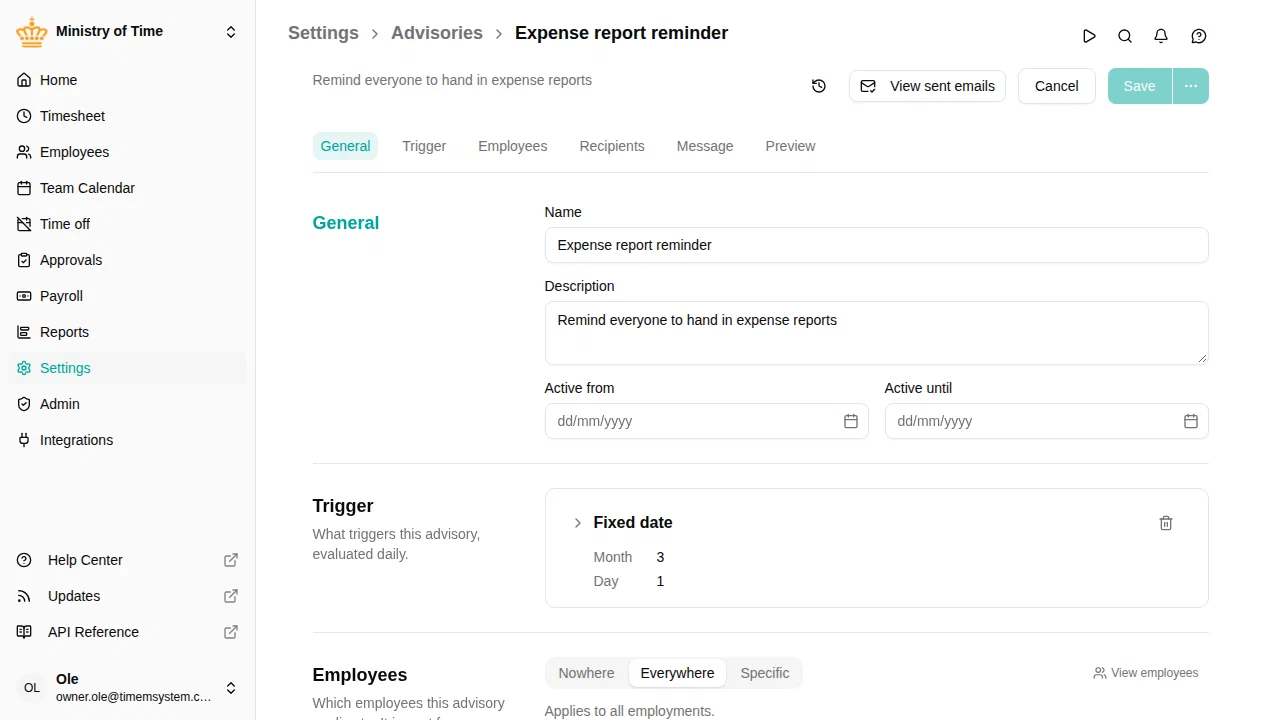
A new advisory applies to nobody until you configure its Employees section, so it cannot accidentally email your whole workspace.
Triggers
Each advisory has exactly one trigger. The trigger also decides how often the advisory can be re-sent: every firing has a natural identity (for a fixed date, the date itself; for a sickness monitor, the absence), and each employee is emailed at most once per firing — re-checks on later days do not repeat the email.
| Trigger | Fires |
|---|---|
| Fixed date | For every employee in the audience, on a chosen day of the year (for example every 1 March) |
| Consecutive sick days | While an employee is still off sick and the absence has lasted a set number of calendar days |
| Sick days in period | When an employee’s sick days inside a rolling window or the calendar year add up to a set number |
| Scheduled balance check | On a chosen date, for the employees whose balance on an account is above or below a threshold |
| Expiring balance | A set number of days before part of a balance lapses, if anything will actually be lost |
| Missing time registration | When an employee has working days with no time registered in the timesheet period that is still open |
| Time off activity used | When time off on one of the selected time off activities begins |
Recipients and message
The subject and text are plain text with placeholders in curly braces. {employee_name}, {workspace_name}, and {date} are always available; the selected trigger can add more. Unknown placeholders are rejected when you save, so a typo cannot reach anyone’s inbox.

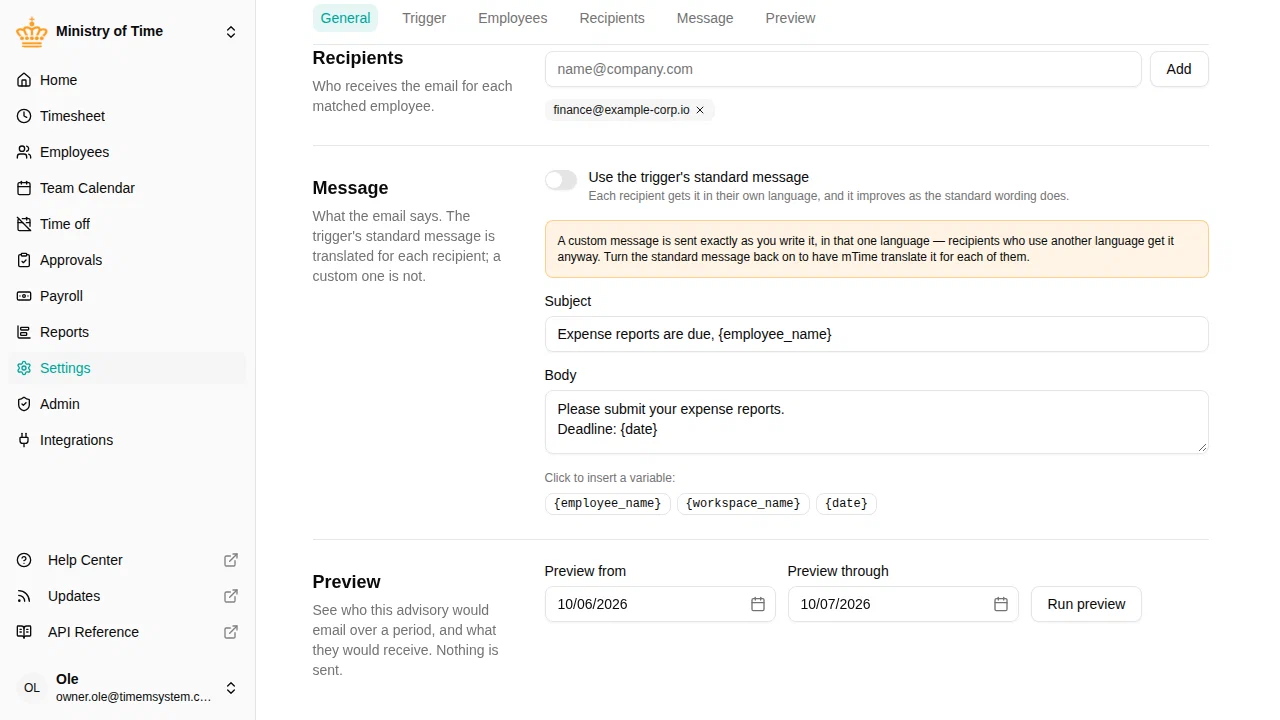
The Use the trigger's standard message switch decides what is sent. Left on, mTime sends the trigger’s own message and translates it for each recipient; each trigger’s page shows what that message says. Turn it off to write your own — the fields start from the standard wording, so you edit rather than begin from nothing.
External addresses receive the email in the workspace’s default language. An employee without a manager simply skips the manager email.
Activation
The Active from / Active until dates in the General section control when the advisory runs — there is no separate on/off switch:
- No dates: the advisory is always active
- A start date in the future: the advisory is Pending and starts running on that date
- An end date in the past: the advisory is Ended and no longer runs
To pause or retire an advisory, set its end date. The status column in the list always shows the current state, and the list filters on Active and Pending advisories by default.
Preview
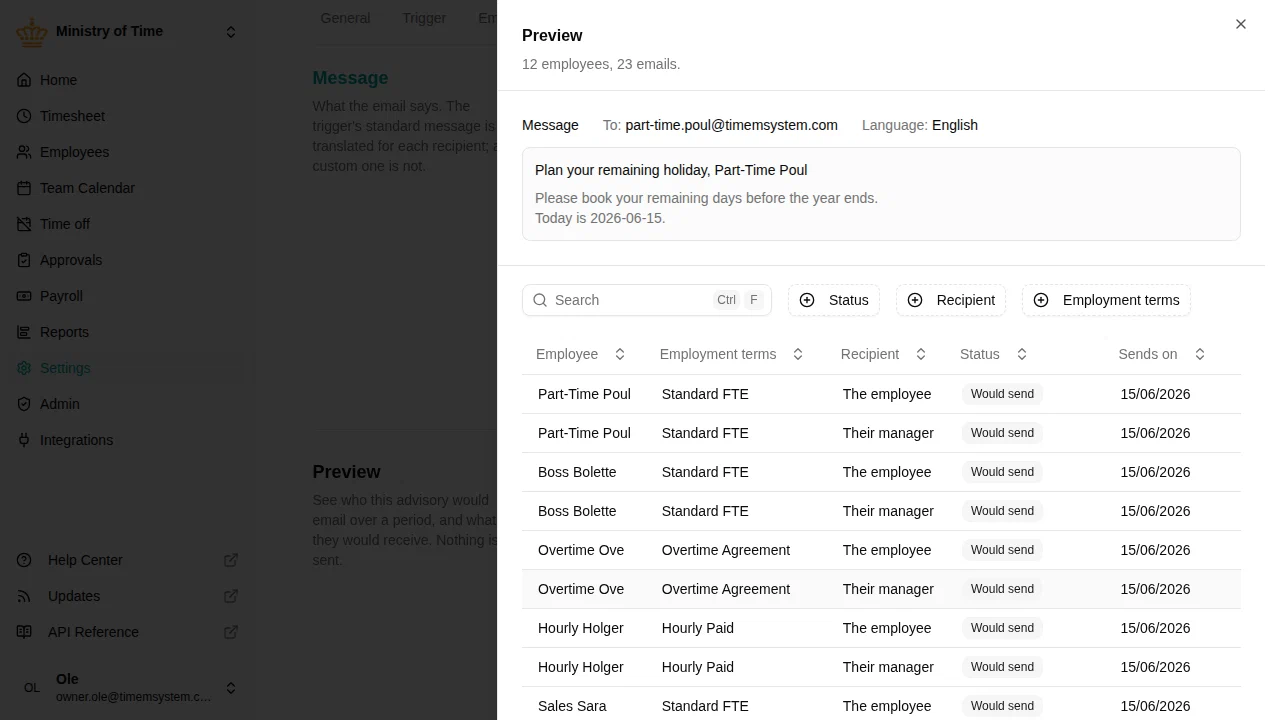
The Preview section answers the question you would otherwise only get an answer to the next morning: who would this advisory email, and what exactly would they receive. Pick a period and run it — nothing is sent, and nothing is recorded.

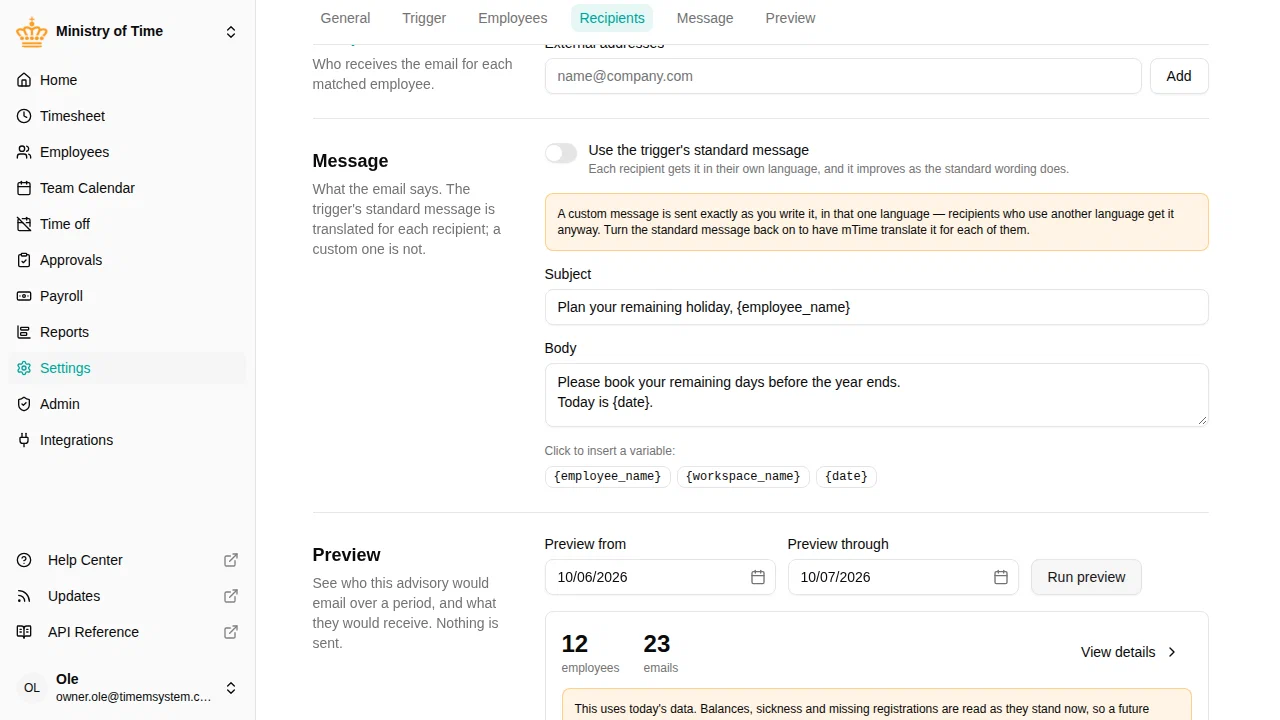
The headline is the count: how many employees would be emailed, and how many emails that is. View details opens the breakdown — grouped by the date each email would go out, with every recipient the advisory resolves to and the message they would get, placeholders already filled in with that employee’s own values.
Each recipient is labelled with what would happen to them:
| Label | Meaning |
|---|---|
| Would send | The email would go out |
| Already sent | This firing was already emailed to this address, so nothing more will go out for it |
| No address | The employee has no email address |
| No manager | The employee has no manager, or the manager has no email address |
| Undeliverable | The address was flagged after a bounce or a spam complaint |
The recipients that resolve to nobody are listed on purpose: a manager email you thought you had configured silently going nowhere is exactly what the preview exists to reveal.
The preview runs against what is on screen, saved or not, so you can try a different trigger, audience or message and re-run before committing to it. A period can span at most three months, and only the part inside the activation window is evaluated — if the result is shorter than the period you picked, the preview says so.
If the preview finds nobody it tells you which step is responsible: the trigger never firing in that period, the audience excluding everyone it fires for, or nobody having a reachable address.

Troubleshooting
Start with the Advisory emails report: it lists every advisory email that was sent, and for the ones that were not, the reason why.
| Issue | Solution |
|---|---|
| No emails are sent | Run the Preview over a period that includes the firing — it reports which of the trigger, the audience or the recipients is responsible |
| An employee received no email | Verify the employee has an email address, and that a previous email for the same firing was not already sent |
| The manager was not emailed | The employee may have no manager assigned, or the manager has no email address |
| Emails do not arrive in a test workspace | Test workspaces never send real emails by design |