Activity lists
Activity lists control how activities appear and behave for employees when they register time: which ones are already on their timesheet, which are favourites, and which values come pre-filled. Use lists to give different groups of people a tailored, relevant set of activities instead of the full catalogue.
Overview
A list applies a set of activities to a scope — everyone in the workspace, an org unit, or a single employee. For each activity in the list you can fine-tune how it appears.
A list never decides who may register on an activity. That is the activity’s availability, set on the activity itself. An entry for an activity the employee isn’t available for has no effect. To let one person use an activity that otherwise belongs to another team, add them under Specific people in the activity’s availability — not to a list.
Scopes
| Scope | Applies to |
|---|---|
| Workspace | Everyone in the workspace |
| Unit | Members of an org unit — optionally including its sub-units |
| Employee | A single employee — for settings that apply to that one person only |
Employees also have their own personal activity selections (favourites, what shows on their timesheet, hiding activities they don’t use). Those are not managed here — they live in the employee’s My activities sheet (see Editing someone’s personal activities below). The Activity Lists page never shows personal lists.
Manage activity lists
Configure a list

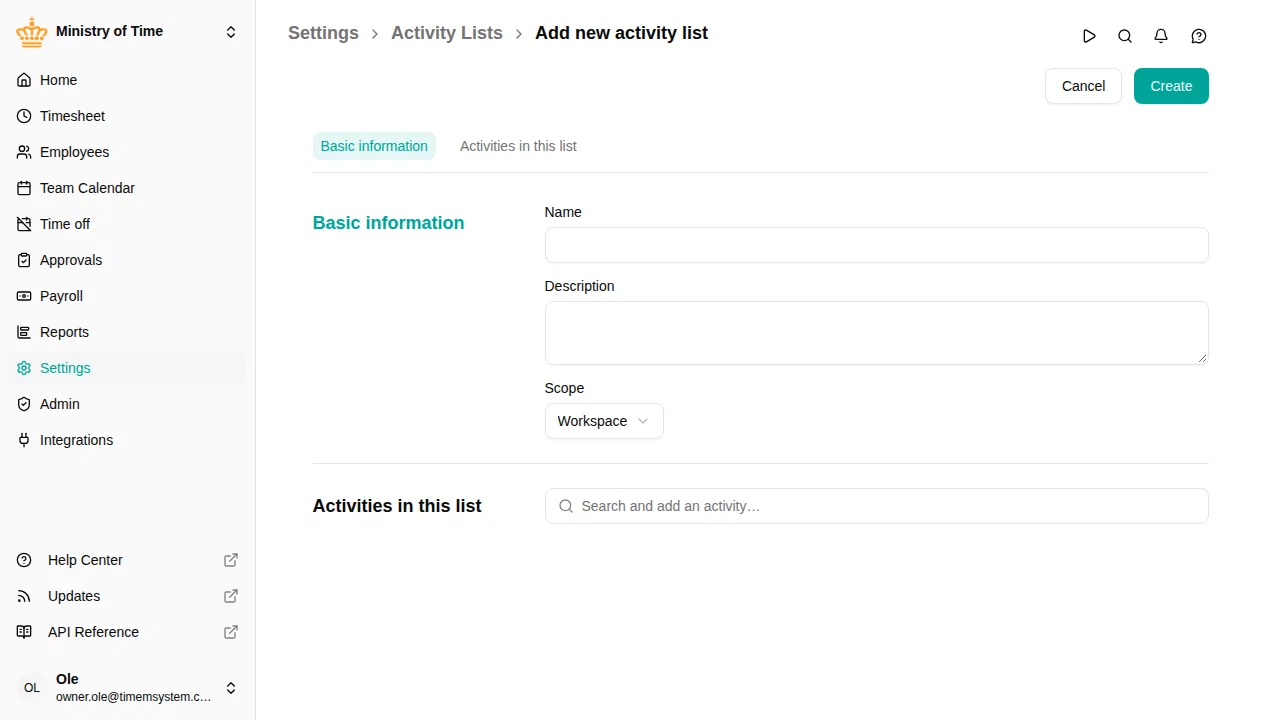
Basic information
- Name and Description
- Scope — choosing a scope reveals the matching field: pick the unit (with an Include sub-units option) or the employee the list applies to
Activities
Search for an activity and add it to the list. Allowance activities can’t be added: allowance policies register them automatically. Each entry can be expanded to set its flags:
| Flag | Effect |
|---|---|
| Selected | The activity is on the employee’s timesheet without them adding it |
| Mandatory | The activity is always on the timesheet and the employee can’t remove it |
| Favorite | Shown as a quick-entry tile on the employee’s dashboard (implies Selected) |
| Default | The employee’s default activity for automatically registered time |
| Excluded | Employee lists only. Hides an activity that a workspace or unit list selects for this person |
If an activity requires a project or dimensions, you can pin specific values for this list directly on the entry, so employees don’t have to choose them each time. The pinned values show under the activity name on the employee’s timesheet row and, when the entry is also a Favorite, on its dashboard tile.
Editing someone’s personal activities
An employee’s personal selections — which activities show on their timesheet, favourites, and hiding ones they don’t use — are not configured on this page. To adjust them for someone else:
- Open that employee’s timesheet (, then pick the employee).
- Open Choose Activities in the activity column header.
This opens the same My activities sheet the employee uses, but for them — the header shows whose activities you’re editing. You can do this for anyone whose timesheet you’re allowed to edit. Personal edits only choose among the activities the employee is available for; they never make an activity available. To do that, change the activity’s availability.
Activities that an admin list marks Mandatory show a lock in the employee’s My activities ; the employee can’t remove them.