Activities
Activities are the categories employees register time against. Every timesheet entry is booked on an activity, which determines how that time is counted, whether it needs a project or dimensions, and who may register on it.

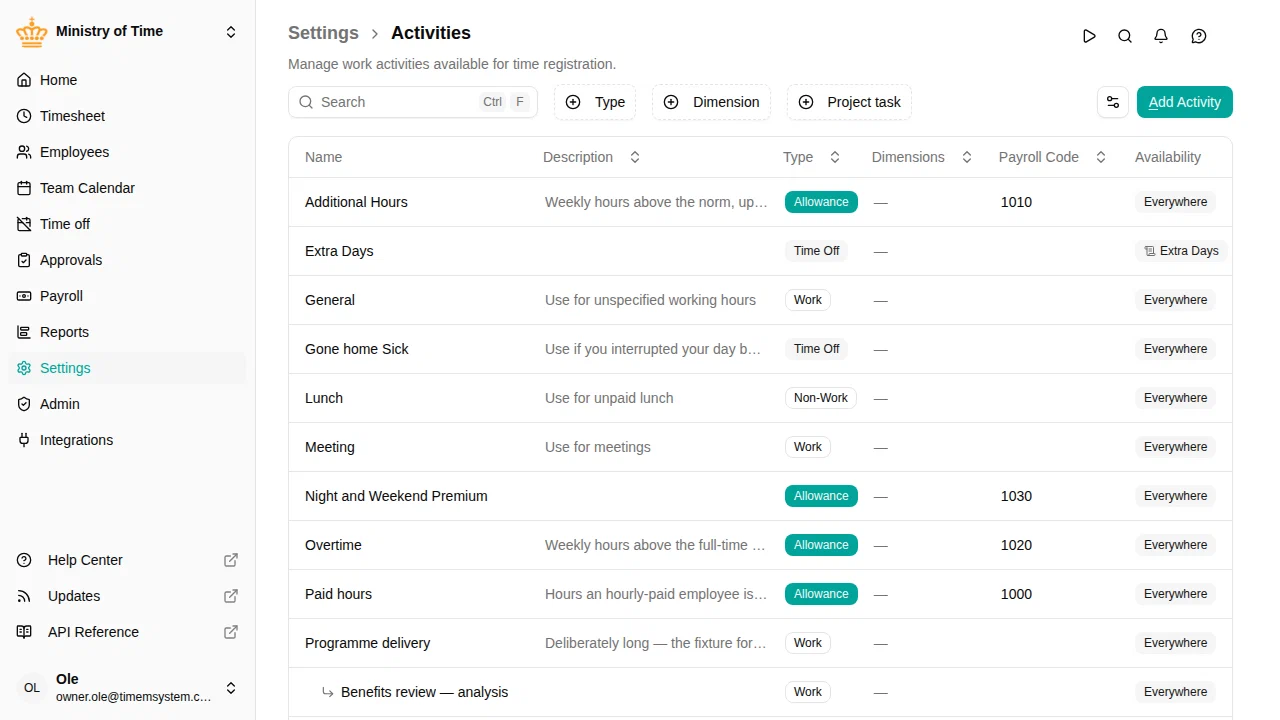
Overview
Each activity has a type that decides how the time is treated:
| Type | Use for |
|---|---|
| Work | Productive worked time. Can require projects and dimensions. |
| Time off | Time off such as vacation or sick leave, tied to time off policies. |
| Non-work | Time that isn’t productive work but should still be recorded (e.g. breaks). |
| Allowance | Time that feeds allowance calculations, such as supplements. |
Activities can be nested: a parent activity groups related child activities, and children inherit whether the parent requires a project and its dimension settings.
Manage activities
An activity that is still in use — it has time registrations or child activities, is listed on a project, or is used by a time off or allowance policy — cannot be deleted. mTIME tells you what still uses it.
The list can be filtered by type, dimension, and whether the activity is a project task, so you can quickly find the activities you want to review.
Configure an activity
Activity information
- Name — what employees see in the timesheet picker
- Type — Work, Time off, Non-work, or Allowance. It cannot be changed after the activity is created, because it decides how all time already registered on it was counted. If you picked the wrong type, delete the activity while it is still unused and create it again.
- Description — optional details
- Group — optional parent activity. Pick a parent of the same type to nest this activity under it.
Availability
Decides which employments may register on the activity. A new activity is available to everyone until you narrow it.
- Everywhere — anyone can use it.
- Specific — narrow it by work country, org unit (each unit includes its sub-units), employment terms, or specific people by name. Use Add exception to carve a group back out — “everyone in Denmark except the apprentices”.
- Nowhere — nobody can use it.
The editor shows how many employees the current setting reaches, so you can check it before saving.
When an activity is nested, this setting is inherited from the parent. Use Override to set it independently, or Revert to inherited to go back to the parent’s value.
Where a time off policy points at the activity, that policy already decides who can request it. The activity then shows Availability comes from its time off policies instead of the editor — narrow it on the policy.
A time off activity without a policy is registered as hours on the timesheet, so it can’t be booked as a period, by the employee or on their behalf. It shows To register this as a period on someone's behalf, give it a policy. with Create policy , which creates a policy for it with no balance, requiring approval, and reaching the same people as the activity. If the activity names specific people, the policy editor opens instead, since a policy can’t name people.
Changing this affects what can be registered from now on. Time that is already registered or approved is untouched: it stays visible, read-only, for anyone who can no longer use the activity.
Requires a project
Available for Work activities.
Turn on Project task to make the activity a project task: time registered on it must always name a project, and in the timesheet the task appears as a row under each project it is booked on.
Which projects a task can be booked on is decided on the project, not here — see Projects. A project that lists nothing takes every project task; a project that lists activities takes those alone. Listing an activity on a project turns this setting on for you.
A group marked this way makes every activity beneath it a project task, including ones added later. The group itself is a container and is never booked on.
Dimensions
Available for Work activities.
Add one or more dimensions to capture extra detail on registrations:
- Use Add dimension and select a dimension
- Turn on Required if a value must be chosen
- Optionally restrict Allowed values — leave empty to allow any active value, or click values to toggle which are permitted
Both Project task and Dimensions are inherited by child activities unless a child overrides them.
Extended information
If your workspace defines custom activity attributes, they appear in their own section. See Custom attributes.