Set up Microsoft sign-in
Let your staff sign in to mTime with their Microsoft work account. This page is for the administrator of your organisation’s Microsoft Entra ID tenant (formerly Azure AD). For how sign-in works, and how to make Microsoft the only way into a workspace, see Single sign-on.
You don’t create an app registration. mTime uses one multi-tenant application, and an administrator in your tenant gives it consent for your organisation.
Before you start
You need an account in your Entra ID with one of these roles: Global Administrator, Cloud Application Administrator or Application Administrator.
These are mTime’s application details:
| Application name | mtime-x-prod |
| Application (client) ID | 1e8ef59c-7550-4c1f-982b-b13906fced3d |
| Publisher | TIMEmSYSTEM |
1. Give consent for your organisation
The first time someone in your organisation chooses Sign in with Microsoft , Microsoft shows Need admin approval. That’s expected: nobody can use the application until an administrator approves it.
- On the Need admin approval page, choose Have an admin account? Sign in with that account.
- Sign in with your administrator account.
- Microsoft lists the permissions mtime-x-prod asks for. Tick Consent on behalf of your organization.
- Choose Accept.
You can also open this address directly. Replace <your-tenant> with your Directory (tenant) ID or one of your domains, such as example.com:
https://login.microsoftonline.com/<your-tenant>/adminconsent?client_id=1e8ef59c-7550-4c1f-982b-b13906fced3d2. Check the enterprise application
Consent creates an enterprise application in your own tenant. You own it, and you can target it with Conditional Access or remove it at any time.
- Go to the Microsoft Entra admin center.
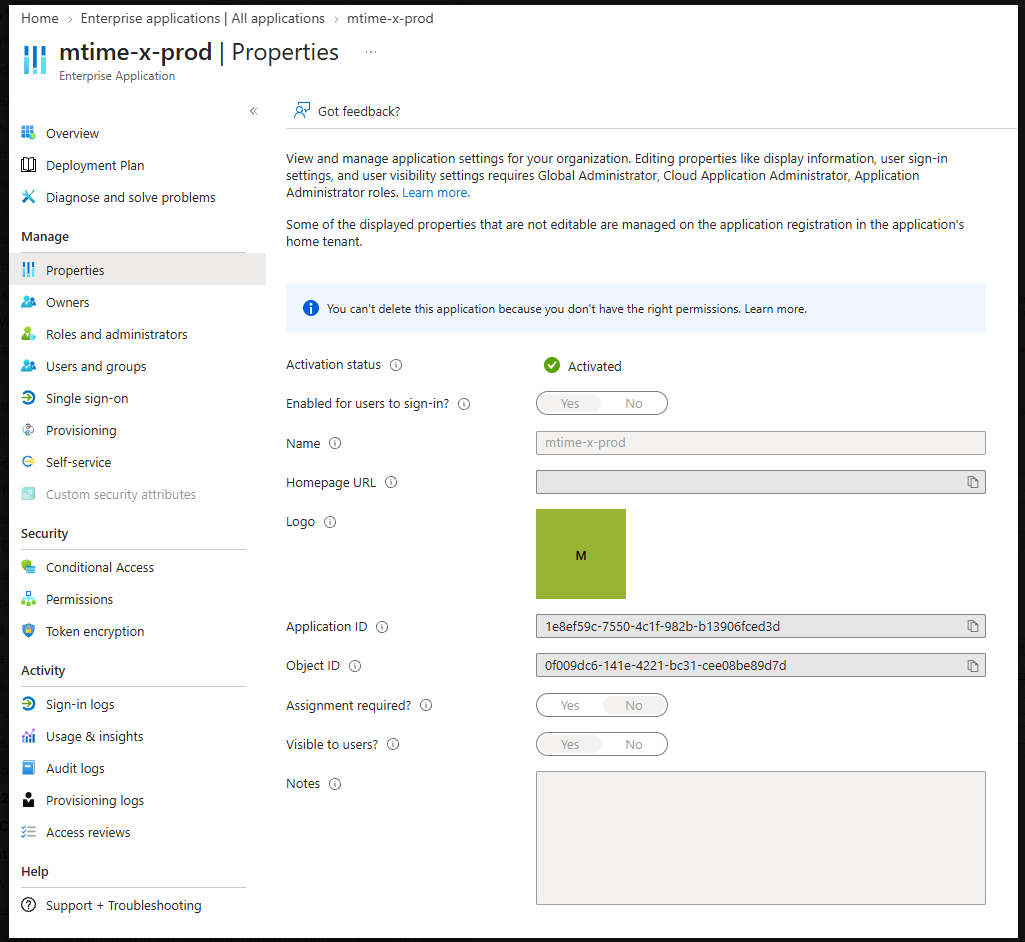
- Open Enterprise applications > All applications, and search for mtime-x-prod.
- Open it, and choose Properties.
Check that Enabled for users to sign-in? is set to Yes.

Limit who can sign in (optional)
By default, anyone in your tenant can use Microsoft to sign in to mTime. They only get in if they are also a user in mTime. To control it in Entra ID as well:
- Set Assignment required? to Yes under Properties, and choose Save.
- Under Users and groups, add the users or groups who should be able to sign in.
3. Make sure Entra ID confirms email addresses
mTime finds a person’s account by email address. It only links a Microsoft sign-in to an existing mTime account when Entra ID confirms that the address belongs to a domain your tenant has verified. Entra ID confirms it when:
- The domain is verified in your tenant. In the Microsoft Entra admin center, open Settings > Domain names. The domain in your staff’s email addresses, such as
example.com, must show Verified. - Each user has the Email field filled in. Open the user under Users > All users, and choose Properties. Email under Contact information must be filled in. It’s a different field from the username (User principal name).
- The address is the same as in mTime. The address in Email must match the person’s email address in mTime.
4. Sign in
People who already have an mTime account choose Sign in with Microsoft on mtime.app. The first time, mTime links the Microsoft account to their mTime account. People who are new to mTime start from the invitation they get by email.
To make Microsoft the only way into your workspace, set Single sign-on provider and Allowed email domains . Single sign-on explains what changes when you do.
Troubleshooting
| Issue | Solution |
|---|---|
| People still see Need admin approval | Consent was not given for the whole organisation. Give it again and tick Consent on behalf of your organization, or it only applies to the administrator. |
| Microsoft says the user is not assigned to the application | Assignment required? is set to Yes, and the user is not added under Users and groups. |
| mTime says an account already exists with this email address | Entra ID did not confirm the address. Go through step 3. Until then, the person signs in with the emailed link or a passkey and adds Microsoft under . |
| mTime says the workspace needs a different sign-in method | The workspace is restricted to one provider, or the person’s mTime address is not at one of the allowed domains. See Single sign-on. |