Intega Løn
The Intega Løn integration connects mTime with Intega Løn. It imports employees, employments, and org units from Intega Løn, and sends approved time off and hourly-paid worked hours back — so payroll is calculated from registered time instead of manual entry.

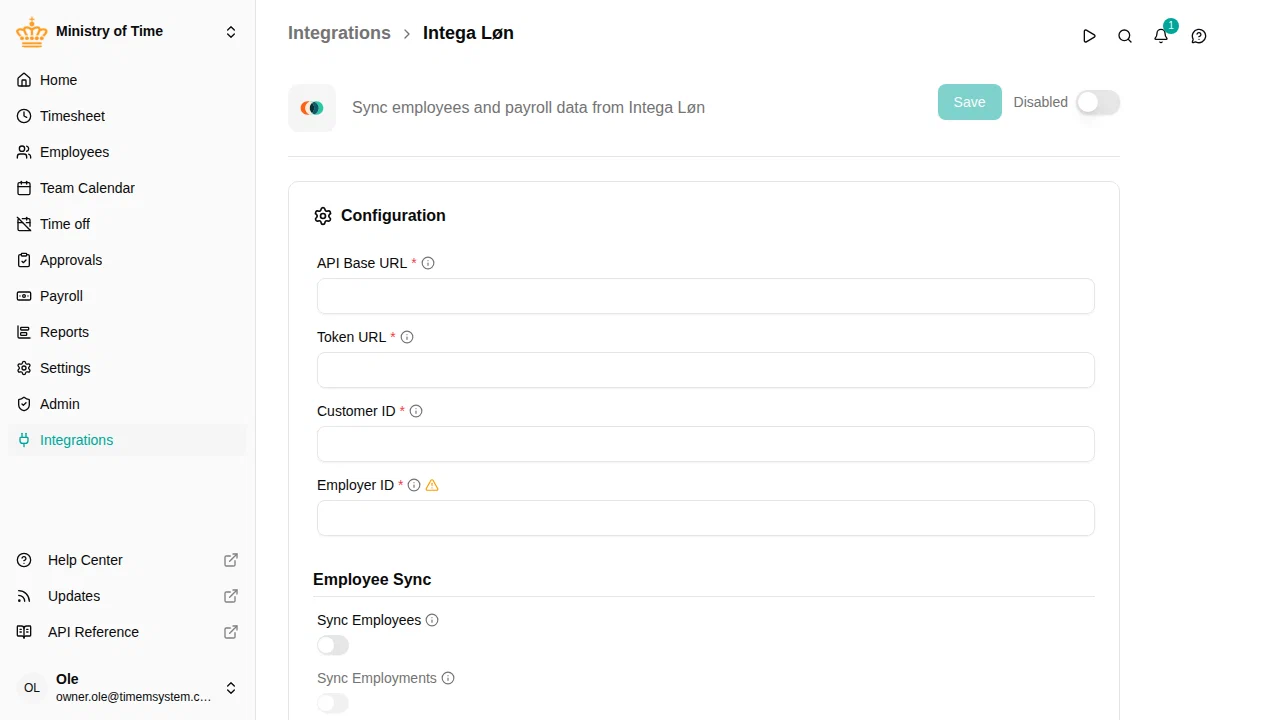
What it does
- Imports employees — employees, employments, and org units are kept in sync from Intega Løn.
- Sends time off — used time off is sent per day, using the registration code you choose per activity.
- Sends salary — approved worked hours of hourly-paid employees are sent per pay period, including overtime and supplements.
Everything the integration sends can be inspected afterwards in the Integration Log.
Connecting to Intega Løn
Open and select Intega Løn, and fill in the connection details you received from Intega:
| Setting | Description |
|---|---|
| Subscription Key and Refresh Token | The credentials that authenticate mTime against Intega Løn. |
| API Base URL and Token URL | The Intega Løn endpoints for your installation. |
| Customer ID and Employer ID | Identify your company and employer in Intega Løn. |
Importing employees
Turn on Sync Employees — and optionally Sync Employments and Sync Org Units . mTime then imports from Intega Løn nightly, or immediately with Sync Now . Drop Email on Duplicates controls what happens when two Intega Løn employees share an email address.
Synced records get read-only attributes managed by the integration, such as Employment ID on employments and Department ID on org units. Like all integrations, the sync is additive — nothing is deleted in mTime.
Sending time off
- On each time off activity that should reach payroll, set the Activity Code attribute to the Intega Løn registration code. Activities without a code are not sent. The Time Conversion attribute chooses whether the quantity is sent in hours or days.
- Turn on Send Time-Off and set its Cut-Off Date . Only days on or after the cut-off are sent — set it to your go-live date so historic time off is not delivered to payroll.
Each day of used time off becomes one registration in Intega Løn, and is kept up to date when the time off changes or is cancelled in mTime.
Sending salary
Salary sending covers hourly-paid employees: the worked hours approved on their timesheet statements — base hours, overtime, and supplements.
- Make sure hourly pay is set up: the employment terms of hourly-paid employees have an Hourly pay activity, and any overtime or supplement is its own allowance activity.
- On each allowance activity — and on each time account paid out to payroll — set the Salary Code attribute to the Intega Løn registration code. Sources without a code are not sent.
- Turn on Send Salary and set its Cut-Off Date . Only pay periods starting on or after the cut-off are sent.
When a timesheet statement is approved, the period’s hours are sent per activity, dated at the start of the pay period. If a statement is reopened and approved again, the difference is sent as a signed correction, so the totals in Intega Løn always add up to the approved hours.
The Integration Log
Every registration the integration sends — or fails to send — is recorded in . Each entry shows the employee, the registration code, the status, and for failures the reason, together with the exact request sent to Intega Løn and its answer.
These details contain salary and absence data, so only roles that can send payroll — such as HR Administrator — see them. A Workspace Administrator sees the Intega HR rows with their status and time, but not the codes, amounts, error text or requests.
Troubleshooting
| Problem | Solution |
|---|---|
| Nothing is sent | Check the toggle is on, the activity or account has a code, the date is on or after the cut-off date, and the employee is synced. |
| A registration failed | Open the entry in the Integration Log — the reason and Intega Løn’s exact answer are shown on the entry. |
| Salary totals look doubled | An account payout and a coded activity may both be sending the same hours — see the warning on the account’s settings page and remove one of the codes. |
| Changes in Intega Løn not appearing in mTime | Click Sync Now , or wait for the nightly sync. |