Microsoft Entra ID
The Microsoft Entra ID integration connects mTime with your Azure Active Directory tenant. It syncs employee data from Microsoft Graph API so your mTime employee list stays up to date with your directory.

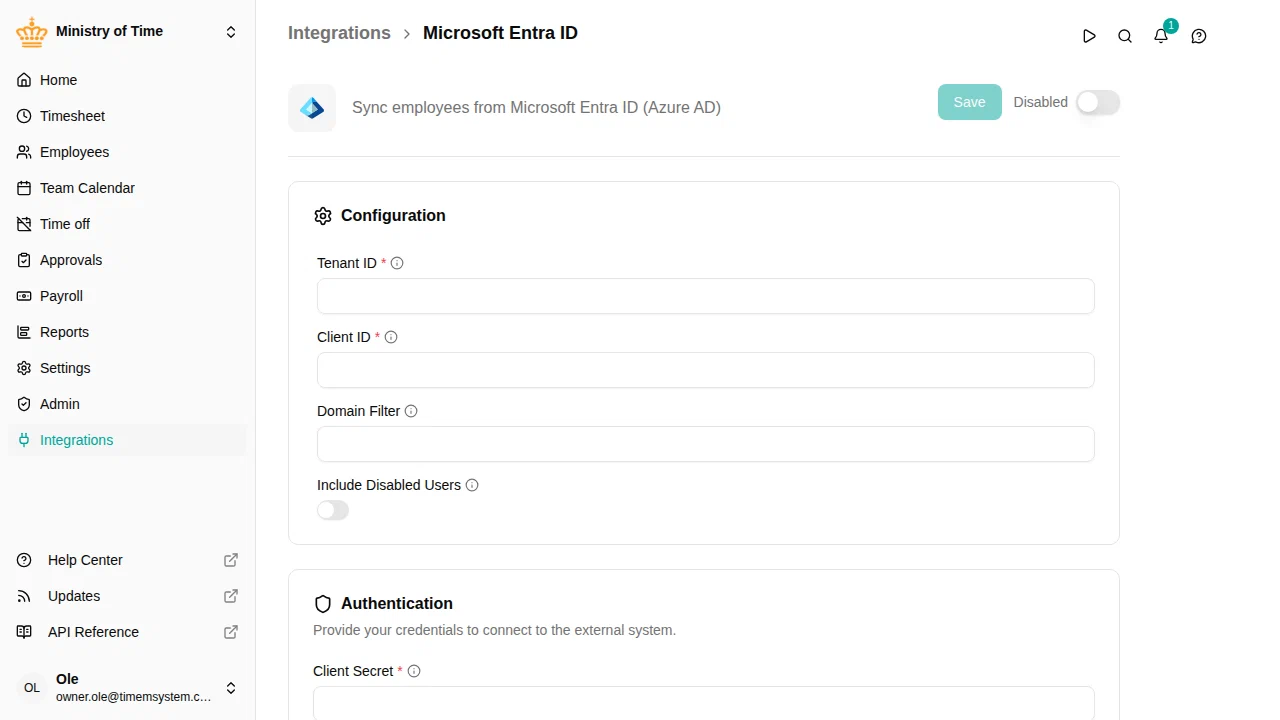
What it syncs
The integration imports the following data from Entra ID into mTime:
- Employees — Full name and email address
- Active status — Whether the user account is enabled or disabled in Azure AD (an account disabled there is inactive in mTime)
How it works
Entra ID exposes user data through the Microsoft Graph API. mTime connects using an Azure AD app registration with the User.Read.All permission and fetches all users from your tenant. After the initial sync, only changes are applied — employees won’t be duplicated.
The sync runs automatically on a schedule. You can also start it by hand with Sync Now on the integration detail page.
Attributes added by Entra ID
When the integration is active, it adds a read-only attribute to synced employees:
| Attribute | Description |
|---|---|
| Entra ID User ID | The user’s unique identifier in Microsoft Entra ID |
This appears in its own section on each employee, named after the integration. See Custom attributes for more about how integration attributes work.
Getting started
Prerequisites
You need an Azure AD app registration with the following:
- Application (client) ID — found on the app registration overview page
- Client secret — created under “Certificates & secrets”
- Tenant ID — found in Azure Portal under Entra ID > Overview
- API permission —
User.Read.All(application type, with admin consent granted)
Setting up the integration
- Go to
- Find Microsoft Entra ID in the list and click it
- Enter your Tenant ID and Client ID in the configuration section
- Enter your Client Secret in the credentials section
- Click Save — mTime will test the connection before saving
Once the credentials are validated, turn on the integration to start syncing.
Configuration options
| Option | Description |
|---|---|
| Tenant ID | Your Azure AD tenant ID (found in Azure Portal > Entra ID > Overview) |
| Client ID | Application (client) ID from your app registration |
| Domain Filter | Only sync users whose email ends with this domain (e.g. example.com). Leave empty to sync all users |
| Include Disabled Users | When turned on, also syncs users with disabled accounts (they are marked as inactive in mTime) |
What to expect after the first sync
Once the integration has run for the first time:
- Employees from your Azure AD are created in mTime — you can find them in
- Each synced employee gets the Entra ID User ID attribute
- Disabled users are skipped by default (unless Include Disabled Users is turned on)
- If a domain filter is configured, only users with matching email addresses are imported
Troubleshooting
| Issue | Solution |
|---|---|
| “connection test failed: …” when saving | Verify your tenant ID, client ID, and client secret are correct. Make sure admin consent is granted for User.Read.All |
| No employees synced | Check if a domain filter is set that doesn’t match your users’ email addresses |
| Missing employees | Users with disabled accounts are skipped by default — turn on Include Disabled Users to import them. A user with no mail address is synced with their user principal name as the email, so a domain filter is checked against that name |
| “entra ID credentials not configured” when syncing | Enter and save the client secret in the credentials section |
Next steps
Once the integration is running, see Integrations for how to check sync status, trigger manual syncs, and troubleshoot issues.