Attribute mapping
Decide where each value of your employees, employments and org units comes from: which HR integration fills it, from which of its fields, or whether you manage it in mTime yourself.
Open and click Attribute mapping .

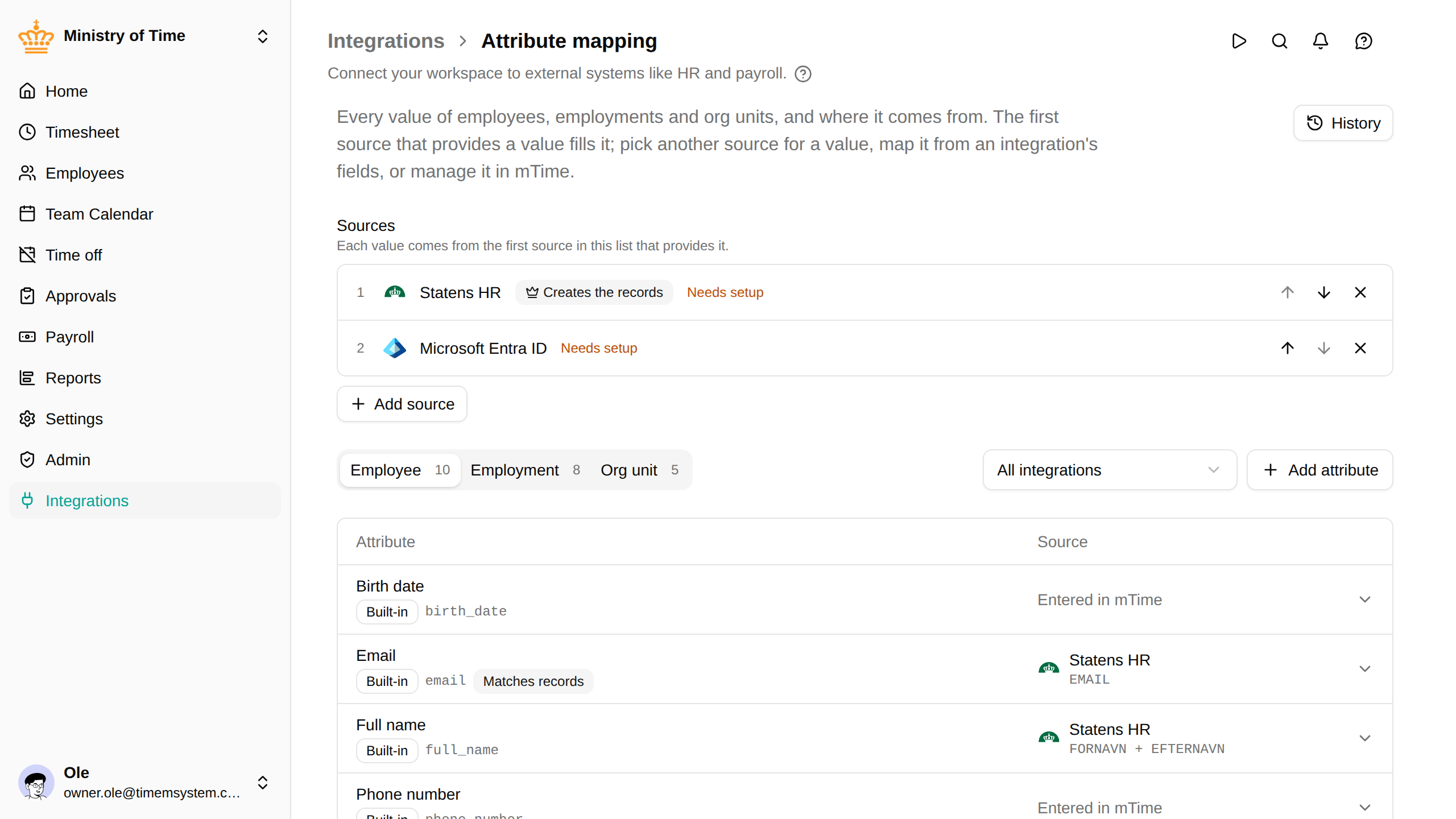
Sources
Sources lists the HR integrations that send data to mTime, in order. Each value comes from the first source in the list that provides it.
- The first source that syncs a kind of record (employees, employments or org units) creates those records. It is marked Creates the records . Later sources only fill values on records that already exist.
- Use the arrows to move a source earlier or later.
- Click Add source to add an integration. Its values show on the page straight away, even before it is set up. Until then it is marked Needs setup . Click the label to enter its settings.
- To remove a source, click its cross. You are asked whether to keep its attributes. Keep attribute definitions is ticked by default, which turns them into custom attributes with their values. An enabled integration has to be disabled before it can be removed.
Turning on an HR integration from its own page also adds it to the end of the list.
Where each value comes from
Below the sources, the Employee , Employment and Org unit tabs list every value with its Source . Use All integrations to show only the values one integration fills.
A value shows one of these:
| Source | Meaning |
|---|---|
| An integration and its field | The integration fills the value from that field. |
| Entered in mTime | No integration fills it. You keep it up to date in mTime, and no sync overwrites it. |
| A lock icon | The integration recognises its own records by this value, so it always stays with that integration. |
A value marked Matches records , such as the email, is what mTime matches an integration’s records to existing ones by.
Choosing another source for a value
Click a value’s row to choose where it comes from:
- Another source. Pick an integration from the list. Each choice says what it would do for the value, for example whether the integration sends its own value or has to be filled from one of its fields.
- An integration’s fields. Search the integration’s fields, or type a field’s path. You can add several fields: they are tried from the top, and the first one with a value is used. If all of them are empty, the value in mTime is cleared.
- mTime. Keep the value as entered in mTime, so no sync overwrites it.
For a value that only accepts set values, such as a work country or a select attribute, add a row under Values for each value the integration sends, with the mTime value it stands for. A value without a row keeps the current mTime value and shows as a warning on the sync.
Click Save to keep the choice. A value you set like this is marked Set by hand . To go back to what the source order gives, open the row and choose Restore default .
History
Every save is kept as a version. Click History to see who changed what and when, and to bring back an earlier version.
HiBob payroll number
HiBob has no dedicated payroll-ID field, so mTime reads the payroll number from Work › Employee ID (work.employeeIdInCompany). If your company keeps it in another field, choose that field on the Payroll Number
row.