Tips & shortcuts
Work more efficiently with these keyboard shortcuts and tips.
Command menu
Press ⌘K (Mac) or Ctrl+K (Windows/Linux) to open the command menu. This powerful feature lets you:

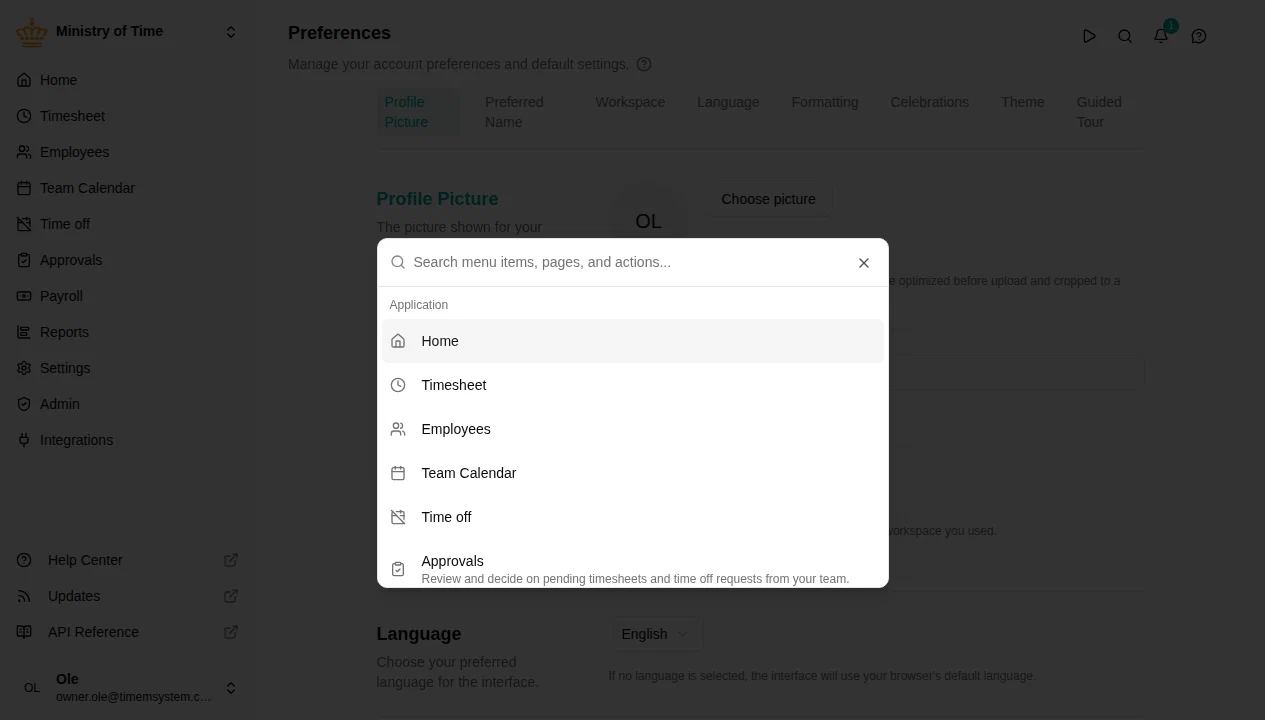
- Navigate to any page — Type to search through all menu items and pages
- Switch workspaces — Your available workspaces are listed, so you can switch with a few keystrokes
- Search employees — Type at least 3 characters to search for employees by name, email, or searchable custom attributes
- Open AI Assistant — Quick access with ⌘H
Start typing to filter results instantly, then use arrow keys to navigate and Enter to select.
Table navigation
Navigate data tables efficiently using your keyboard:
| Key | Action |
|---|---|
| ↓ (Arrow Down) | Move to the next row |
| ↑ (Arrow Up) | Move to the previous row |
| Enter | Execute the default action on the selected row (typically view or edit) |
| ⌘F (Mac) / Ctrl+F (Windows/Linux) | Search in the table instead of the browser’s default page search |
| / | Search in the table (quick alternative to ⌘F) |
| Escape | Clear the search and leave the search field |
The currently selected row is highlighted. This works on all data tables throughout the application.
Creating items from the keyboard
On list pages, the button that creates a new item shows its keyboard shortcut. Press that key to add an item without reaching for the mouse — for example, C on Data export or I on Data import. Like the other shortcuts, this only works when you’re not typing in a field.
Typing dates
Every date field accepts typing — you never have to click through the calendar to reach a date. Click the field, key the date in, and press Enter or simply move on. The calendar is still there behind the icon at the end of the field whenever you would rather pick.
An empty field shows the format it expects, which follows your own date format preference. With dd/mm/yyyy set, all of these enter 10 August 1977:
| You type | Why it works |
|---|---|
10/08/1977 | the format as shown |
10.8.1977, 10-8-1977, 10 8 1977 | any of /, ., - or a space separates, and a leading zero is optional |
10081977 | separators are optional altogether |
100877 | a two-digit year becomes the nearest century — 77 is 1977, 10 is 2010 |
If what you typed is not a complete, possible date, or falls outside what that particular field allows, the field turns red and keeps its previous value rather than storing a guess. Start typing again and the warning clears.
The one place you still pick rather than type is where you are choosing a whole period on a calendar — requesting time off, for example — because there the calendar is showing you your balances and any clashes as you select.
Closing panels
Press Escape to close the current edit or view panel and return to the list view. This works when:
- Viewing an entity’s details
- Editing an entity
Note: Escape won’t close the panel if you’re focused in an input field, or if a dialog is open.
Leaving a field or filter
Press Escape to step out of the field, filter or picker you are on. The page’s own shortcuts then work again — for example, the arrow keys move the Team Calendar and the timesheet a week at a time. If a list is open, the first Escape closes it and the next one leaves the field.
Sidebar navigation
Use keyboard shortcuts to move between sidebar items:
| Key | Action |
|---|---|
| ⌘↑ (Mac) | Move focus to the previous sidebar item |
| ⌘↓ (Mac) | Move focus to the next sidebar item |
| Enter | Navigate to the focused sidebar item |
This lets you browse the sidebar without using the mouse.
Card pages
Pages that show their contents as cards — , and — can be browsed from the keyboard. Press Tab until a card is selected, then:
| Key | Action |
|---|---|
| ↑ ↓ ← → (Arrow keys) | Move between the cards |
| Enter | Open the focused card |
Filters
Press F to jump to the filter row above a list or report. The row counts as one stop for Tab:
| Key | Action |
|---|---|
| ← / → | Move between filters |
| Enter / Space | Open the focused filter |
| Backspace | Clear the focused filter |
| Tab | Leave the filter row |
Inside an open filter, the arrow keys also reach Select all and the period presets. A filter you add from Add filter opens straight away.
Info hints
The ⓘ icons that explain a field or a figure are skipped by Tab, so a form full of hints doesn’t slow you down. Press H to highlight every hint on screen; the first one shows its explanation. Move between hints with Tab or the arrow keys, and press H or Escape to go back to where you were.
Requesting time off from the keyboard
In the time-off request panel:
- Calendar: move between days with the arrow keys and press Enter on the first and then the last day. Moving past the edge of the calendar slides it to the next or previous month.
- Accounts: press Tab to reach the account cards, then move between them with the arrow keys. Space or Enter switches an account on or off, and Shift+← / Shift+→ moves it earlier or later in the order the days are taken from.
Going back
The trail at the top of the page — for example Employees above an employee — is a link back to the list you came from. Your browser’s own back and forward shortcuts work everywhere in mTime too: Alt+← and Alt+→ (⌘+[ and ⌘+] on Mac).
Switching workspaces
When multiple workspaces are available, switch between them from the workspace picker in the sidebar or from the command menu (⌘K / Ctrl+K).
Each workspace remembers the page you were last on. When you switch back to a workspace, you return to where you left off instead of the dashboard — so moving between workspaces feels like switching browser tabs.
On your phone
On a phone or a narrow window, lists such as employees, approvals, and reports adapt to the smaller screen so you never have to scroll sideways:
- Rows become cards. Each row is shown as a card with the details that matter most. The number next to the page title tells you how many items are in the list.
- Tap a card for the full details. If a row doesn’t already open something when tapped, tapping its card opens a panel with every field. Use the arrows at the top of the panel to step through the list without going back.
- Filter and sort from the toolbar. Tap the filter button to pick filters, and the sort button to change the order or choose which fields the cards show. Active filters appear as chips above the list — tap a chip to remove it, or Clear all to start over.
- Swipe for quick actions. Where quick actions are available — for example approving or sending back in Approvals — swipe a card to the left to reveal them.
- Load more as you go. Long lists show the first items with a Show more button at the bottom instead of page numbers.