Timesheet statements
How a completed period is locked, sent for approval, and unlocked again — including multi-approver projects and admin overrides.
Overview
A statement is one period of an employee’s timesheet (a week, two weeks, or a month, depending on the employment terms). When the period ends, the statement moves through a small lifecycle:
| Status | Meaning |
|---|---|
| Pending | The period is still in progress. The employee keeps entering time as usual; nothing to submit yet. |
| Ready | The period is over and waiting to be submitted. The employee can still edit entries. |
| Overdue | Ready, and past the deadline. Same actions as Ready, but flagged in amber. |
| Awaiting approval | The employee has submitted. The period is locked from edits until an approver decides. |
| Approved | Every required approver has signed off. The period is closed and any balances settle. |
| Reopened | An approver sent the period back to the employee for correction. The employee can edit and resubmit. |
The status drives what the employee sees on the timesheet (the period chip in the toolbar), what shows up in the Approvals inbox, and which actions are available.
Statements and the workspace start date
If your workspace has a Workspace Start Date set (under ), no statement is ever required for time before it, and a period straddling the start date begins on it. If statements exist from before the start date was set — for example while the workspace was still being configured — contact support to have them removed, along with their reminders. Statements that were already submitted or approved are never removed.
Submitting your timesheet
Every period you still owe has a chip in the timesheet toolbar, oldest first — so the one to submit next is the leftmost:


The chip shows the period, its status, the balance that matters for it, and a Submit button when the period is ready. Hover the chip (or reach it with the keyboard) to see the full card: every balance account, any warnings on the period’s days, and the submit action.
The period itself is marked on the calendar header, so you can always see which columns belong to it: a whole month is tinted across the month row, a weekly period across its week number, ending in a dot that carries the status. Periods you have already submitted no longer have a chip — click their band on the header to open them.
To submit:
- Open .
- Click the period’s chip in the toolbar. The statement details sheet opens.
- (Optional) add a note for your approver in the Note field.
- Click Submit to confirm.
Once submitted, the period is locked: cells become read-only until the approver decides.
Requesting a payout
If your agreement lets you cash out part of a time bank, a Request payout card appears in the statement sheet, above the note field. It lists each account you can draw on and the most you may request from it.
Enter an amount as hours and minutes — 7:30, 7.5 and 730 all mean seven and a half hours. Ask for more than the account allows and the field tells you the maximum and keeps your last value; nothing is trimmed behind your back.
Under each account the card says what the period settles whether or not you ask, because that decides what requesting actually gains you:
- "… will be paid out at period end regardless" — your agreement caps the account at your weekly norm and pays out the surplus anyway. Requesting less than that surplus moves the same hours and only changes what they are called; request more to withdraw beyond it.
- "… will expire at period end" — the surplus is forfeited rather than paid. Requesting it is how you receive it as pay instead.
Total leaving this account always shows the real figure for the amount you have typed.
The request is settled when the statement is approved, and your approver sees the amount alongside the period.
Resubmitting after a reopen
If an approver reopened your period, its chip carries a warning icon and the Submit button now reads Resubmit — hover the chip to read the reopen reason.
When you resubmit, a Note (required) field appears in the statement sheet — you must briefly explain what changed since the reopen before resubmitting. The approver sees this note alongside the original reopen reason.
The statement sheet
Clicking the period chip — or the period’s band on the calendar header — opens Statement Details, the same sheet your approver sees in the inbox. It centralises everything about the period:

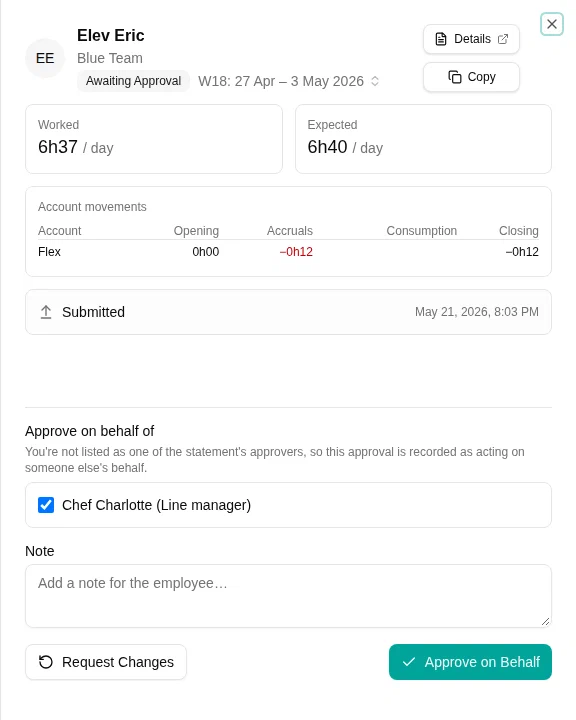
The sheet shows:
- Period summary — two per-working-day rates. Worked is your average across the working days that have elapsed so far; Expected is the rate the whole period asks of you, and stays put as the period progresses. Read side by side they tell you whether you are running ahead or behind. Below them sits the flex block (generated this period, settlement, balance before / after).
- Allowances (when applicable) — totals for any allowance accounts that settle on this period.
- Account movements — opening, accruals, consumption, and closing for each balance the statement touches.
- Project approvals — one row per project that requires manager approval (see Multi-approver statements below). Only visible when the statement carries projects with Require manager approval turned on.
- History — submit, approve, and reopen events with the actor’s name and reason. The most recent event is promoted to the top so the latest note is read first.
- Submit / Approve / Reopen buttons at the bottom, depending on the status and your role.
Manager approval
Whether a manager has to approve at all depends on the Approval Mode of the employment terms:
- None — submitted statements auto-approve immediately. The period is closed and balances settle without any manager step.
- Employee Only — same as above; the employee’s submission is the final step.
- Manager Required — submitted statements wait for the employee’s line manager. They appear in the manager’s Approvals inbox.
The line manager approves from the inbox — see Approvals for the inbox workflow. They can also open the statement sheet directly to see the same full detail the employee sees.
Multi-approver statements
When an employee books time on a project whose settings have Require manager approval turned on, that project’s manager must also approve the statement.
The result is a multi-approver statement: the line manager and every distinct project manager whose project carries minutes in the period must each approve before the statement closes.
Project approvals panel
The statement sheet shows a Project approvals panel listing, per project:
- The project name (with a check mark once that project’s approver has signed off).
- The approver’s name.
- The total minutes booked on that project for the period.
The list is frozen at submit time — adding or removing a project manager later does not change who needs to approve the open statement.
Intermediate approvals
Each project manager only approves their own projects. The statement stays in Awaiting approval until every required approver has signed off; only the final approval transitions it to Approved. The employee is only notified once, at the final approval.
If a project manager is inactive at submit time, the system automatically escalates to their own manager. If no active approver can be found at all, the project is dropped from the approval set so the statement isn’t blocked indefinitely.
Approving on behalf of a project manager
Workspace admins and line managers can finalise a statement even when they are not themselves a named approver. The approve button in the statement sheet then reads Approve on Behalf .
When the statement has multiple pending approvers, an Approve on behalf of section appears above the button:
- Every still-pending approver is listed with their role (line manager or project manager). All are checked by default — one click on Approve on Behalf finalises the statement.
- Untick names to approve on behalf of only a subset. The remaining approvers stay pending and must act themselves.
When only one approver is pending, the section is omitted — clicking Approve on Behalf approves on behalf of that single approver.
The action is recorded in the history as Approved by
Reopening a statement
If something is wrong with a submitted period, an approver can reopen it instead of approving. Reopening unlocks the period for the employee so they can correct entries and resubmit.
Reopen a submitted statement
Any pending approver can reopen. From the statement sheet, click Reopen . A dialog appears asking for a reason:

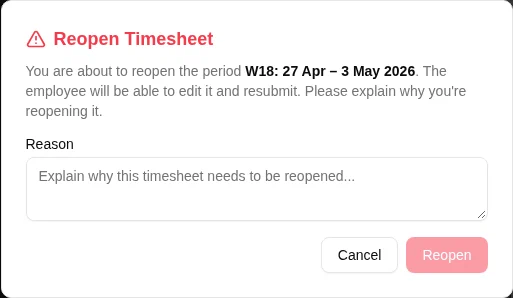
- A Reason is mandatory. It is delivered to the employee with the reopen notification and shown at the top of the statement’s history.
- The statement reverts to Ready (or Overdue if the deadline has passed). The pending approver set is cleared — when the employee resubmits, the approver set is freshly resolved.
Reopen an approved statement
A workspace admin can also reopen a statement that has already been approved — for example, to correct a bookkeeping error after the fact. The flow is identical (mandatory reason), and any balance movements that settled at approval are rolled back.
Admin: submit on behalf of an employee
Workspace administrators with the appropriate scope can submit a period on behalf of an employee — useful when the employee is on long-term time off, has left the company, or simply forgot.
How it works:
- From , switch to the employee’s timesheet using the employee picker at the top of the page.
- Open the period’s chip in the toolbar. The statement sheet opens in on-behalf mode.
- The submit note now reads Reason (required) — you must explain why you’re submitting on the employee’s behalf.
- Click Submit on behalf .
The employee receives a notification —
Admins can also submit a still-pending period (one where the period isn’t over yet) under the same flow. The reason is still mandatory.
Periods closed for you
A period where every working day was approved time off — a long vacation, long-term sickness, parental leave — is closed for you overnight. There is nothing to enter and nothing to review, so mTIME submits it on your behalf.
If a manager approved that time off, the period is approved at the same time: they have already signed off on what it contains. If the time off was approved automatically by policy, the period is only submitted, and your manager approves it as usual.
The statement history records this as done by the system, with a note that the whole period was approved time off. Nothing is sent to you when it happens — being told your month was approved while you are on parental leave is not useful.
Periods close one at a time and in order, so a long stretch of time off is closed over consecutive nights rather than all at once.
Notifications
The notifications timesheet approvals generate:
| Event | Recipient | When |
|---|---|---|
| Submitted | Each pending approver | When the employee submits (one notification per approver). |
| Submitted on behalf | Employee | When an admin submits a period on the employee’s behalf. |
| Approved | Employee | Only on the final approval — intermediate project-manager approvals are silent. |
| Reopened | Employee | When an approver sends the period back. The reason is included. |
| Ready | Employee | When the period enters Ready (last working day). Approved time off at the end of the period moves this earlier, so the employee is told before they leave. |
| Overdue | Employee | The day after the period ends, if it still has not been submitted — and then again every working day until it is. Days off (weekend, public holiday, approved time off) are skipped, so an employee who is away is reminded on their first day back. |
| Missing submission | Manager | From the day after the period ends, in the daily manager digest, until the employee submits — whether or not the employee is away. |
Notifications are deduplicated per (event, statement, recipient): repeated activity on the same statement does not flood the inbox.
The exact timing of the deadline, overdue and reminder notifications is described in Timesheet statement reminder.
Configuration
Approval behaviour is configured in two places:
- Employment terms — controls whether manager approval is required at all, and the period shape — the payroll period (monthly from a chosen start day, or fortnightly) and the approval frequency within it. See Employment terms.
- Projects — controls per-project sign-off via the Require manager approval switch. See Projects.