Time off — your year
How many days off you can actually book, month by month, and when they run out.
Overview
Your balance answers “how much have I got”. It does not answer “can I take a week in October” — that depends on what you have already booked, on days that have not been earned yet, and on days that expire before October arrives.
The Time off page answers the second question. Open in the sidebar, or click Time Off on the time off card on the Home page.

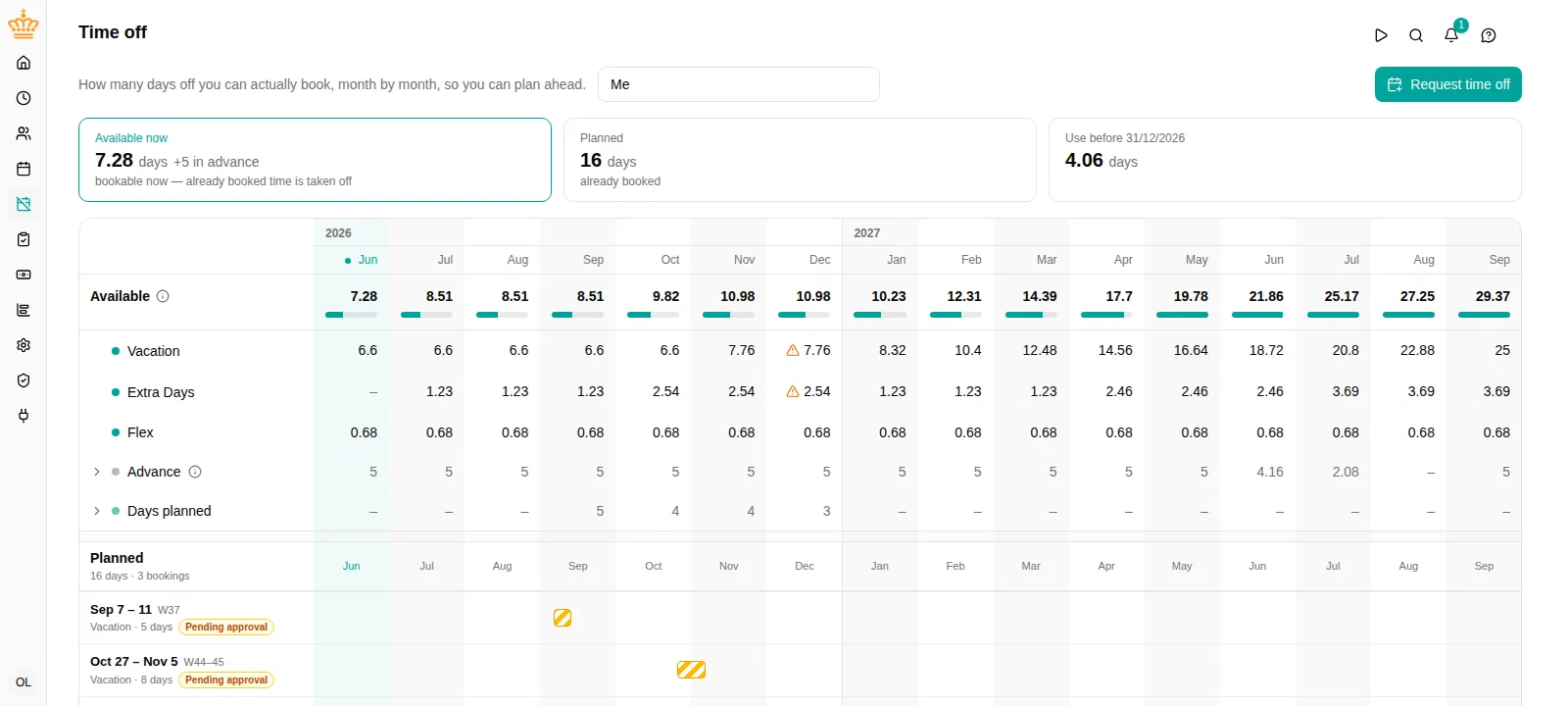
What “available” means here
Available is not your balance. It is the most you can take starting in that month without the balance going below zero at any later point in the year. It counts only the days you own: where your policy lets you borrow against future accrual, that shows beside the figure as +5 in advance and keeps its own row — borrowed time is not time you have.
That is usually a smaller number than the balance, and deliberately so:
- Time you have already booked is taken off, even when the time off is months away.
- Days that have not been earned yet do not count until they are.
- Days that expire before you could use them do not count either.
Where a day would be lost anyway because its use-before date passes, taking it costs you nothing later — so it stays available right up to the month it lapses in.
A balance ceiling works the same way. Where a flex account is capped, the time above the ceiling is forfeited at the cut-off whether you use it or not — so it counts as available right up to the month of the cut, and every month after it shows what the cap leaves.
The rows
The days you can book are split by what a use-before date is actually coming for:
- Plan now — the days a deadline will take if you do not book them. Only those: days a booking will already spend before that date can never lapse, so they are not counted here. The row is amber when the deadline is less than four months away, and reads Plan first without the colour between four and six months out.
- Plan later — everything else: later deadlines, days that never expire, and near-deadline days a booking has already claimed.
- Advance — days you may take before earning them, where your policy allows it. Shown separately because they are borrowed, not owned: later accrual has to repay them. Where your policy sets a date the balance must be back at zero, you can only borrow what still lets it be back at zero on that day — borrowing that only starts after that date is not held back.
- Days planned — how much of each month is already booked.
When the nearest deadline is more than six months away there is nothing to plan around yet, so the split disappears and your accounts are the rows instead.
Open a row to see which account holds the days, and click an account’s name to open its balance — accruals, expiries and adjustments, day by day. The information icon on a row names the deadline behind it; the one next to Available explains the bar and the colours.
The bar under each month is the share of that month’s working days, so a full bar means a whole month off.
Your bookings
Each booking has its own lane across the same months, so you can see at a glance where the year is already spoken for, and where the gaps are.
- Solid means approved; hatched means still waiting for approval.
- A booking that runs across a month boundary is one lane, not two — and so is one that draws on several accounts at once.
- The week number sits next to the dates — time off is usually agreed in weeks.
- A note icon means the booking has a note; point at it to read it. On a phone, the note shows under the booking.
Click any booking to change it. The usual request form opens with the dates and the note filled in, so you can move it, shorten it, or cancel it from here. A booking whose change is already waiting for a decision says so and cannot be changed again until the manager decides.
Request time off at the top books something new.
Before you choose dates
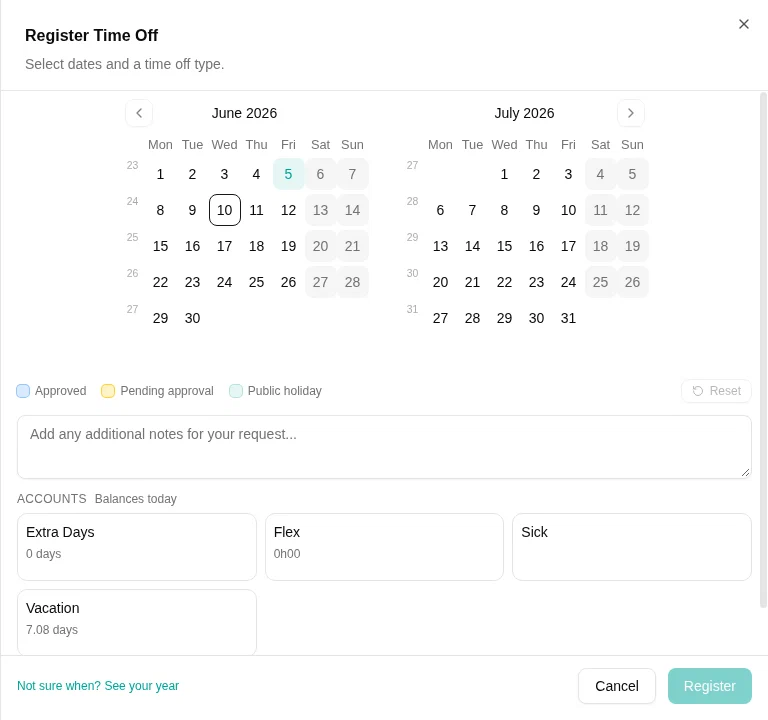
The form opens with nothing selected, and already lists your accounts and what each one holds — so you can decide whether you can afford a week before deciding which week. Nothing can be submitted until you pick days.
The figures are read on one date, and the form says which: Balances today while you are looking at a month already under way, or the first of the month once you page forward to one that has not started. Page through the calendar and they follow, so you can compare October with December before committing to either. Balances as they stood in the past are not shown — only what you have now and what you are projected to have.
The calendar marks your days the way the team calendar does: time off you already have is shown in its type’s color — filled once approved, outlined with a dashed border while it waits for approval — and public holidays and weekends are grey-striped. A key under the calendar lists what is on screen.

More than one account
Once you pick days, the form proposes which accounts pay for them, listed under Accounts and spent left to right. Click an account to use it or leave it out, and drag to change the order; Suggested accounts brings the proposal back. Each day comes whole from one account: a day an account cannot cover in full is taken from the next one. The proposed order is set by your administrator — see When one account is not enough.
On a phone
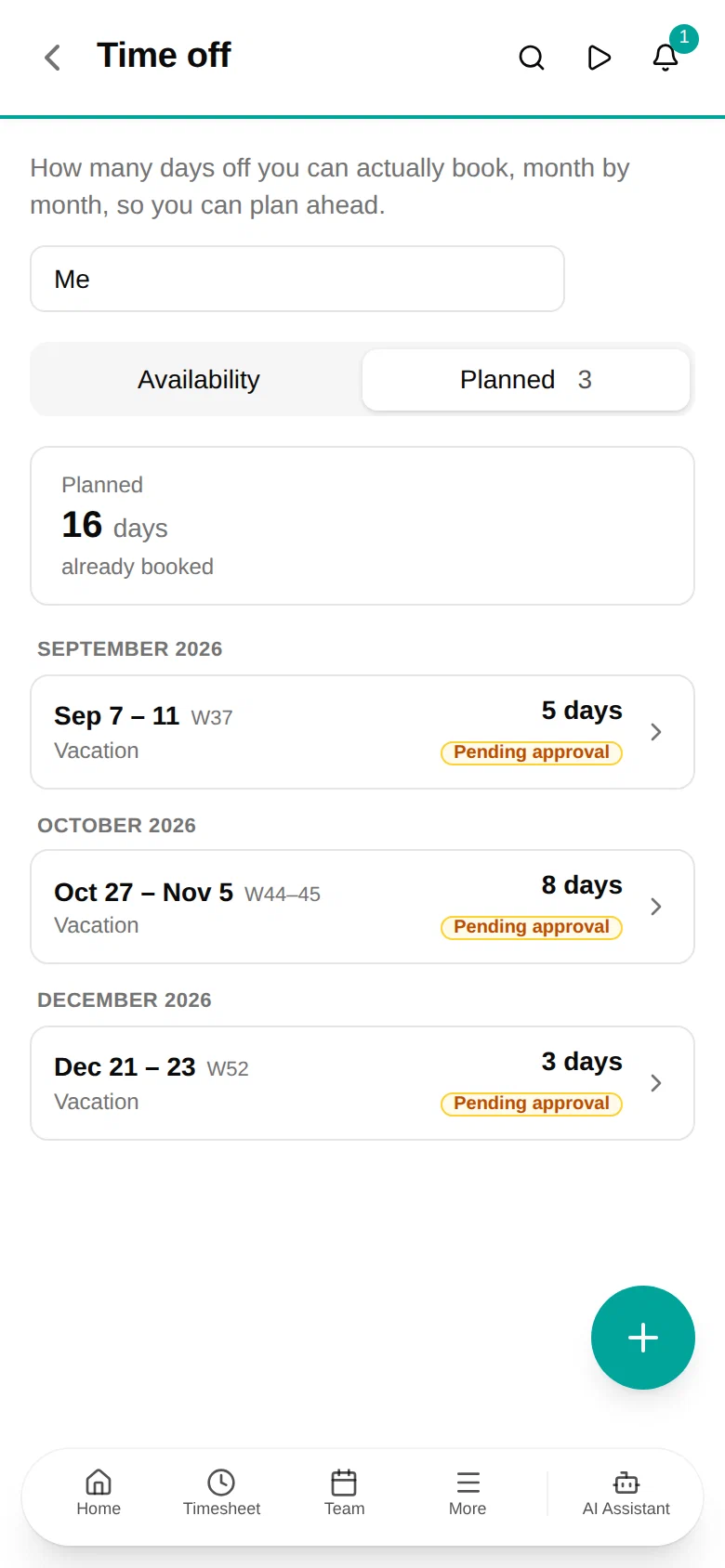
The page splits into two tabs. Availability is the month list, and Planned is your bookings, newest first; tap one to change it. The round button books something new.

Someone else’s year
If you may see other people’s balances, the search beside the subtitle opens their year: the same rows, the same bookings. It is read-only — booking and changing time off run through approval rules that are about the person doing them, so those stay on the employee’s own page. The choice is in the address, so the view can be linked to.
Which accounts appear
Every account you can plan time off against: vacation, time off in lieu, care days and so on. Sick leave is left out — it is not something you plan.
If nothing appears, you have no time off account that can be planned against. Your balances are still on the Home page.
Related
- Home — your balances and upcoming time off
- Team calendar — who else is away when
- Time off policies — how accruals, expiry and advance are configured