Timesheet timeliness
See whether timesheets are submitted and approved in due time — who is late, by how much, and how often they were reminded.
Overview
Payroll runs on approved timesheets, so a period that is submitted late, or sits waiting for approval, holds everything up. This report measures both steps for every timesheet period in the selected range, and gives you the figures as a headline and as raw rows you can process further in your own tools.
Navigate to in the sidebar.

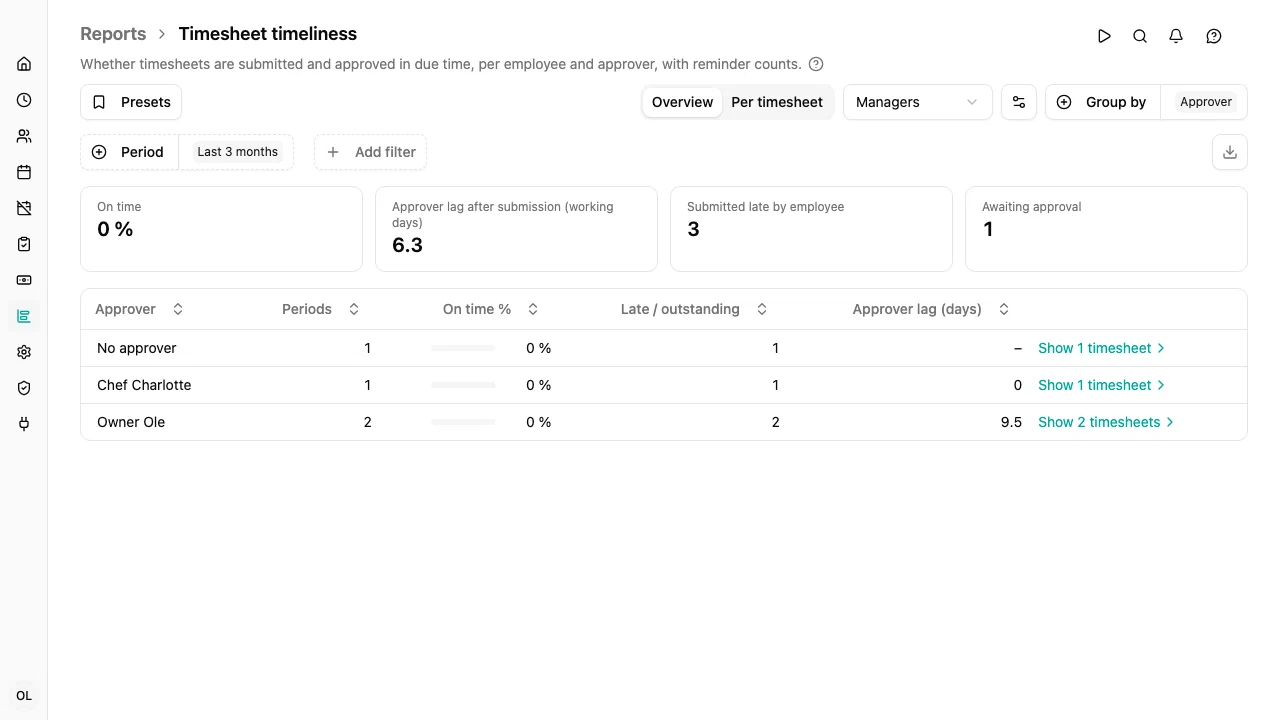
Focus: managers or employees
The Focus dropdown chooses whose punctuality the report measures:
- Managers (the default) — each approver’s approval, against the target
- Employees — each employee’s submission, against the same target
When a timesheet has several approvers, it appears once under each of them, and each approver is measured on their own approval. That is what shows which approver is holding a period up. The period counts as fully approved when the last approver has approved it.
When something is on time
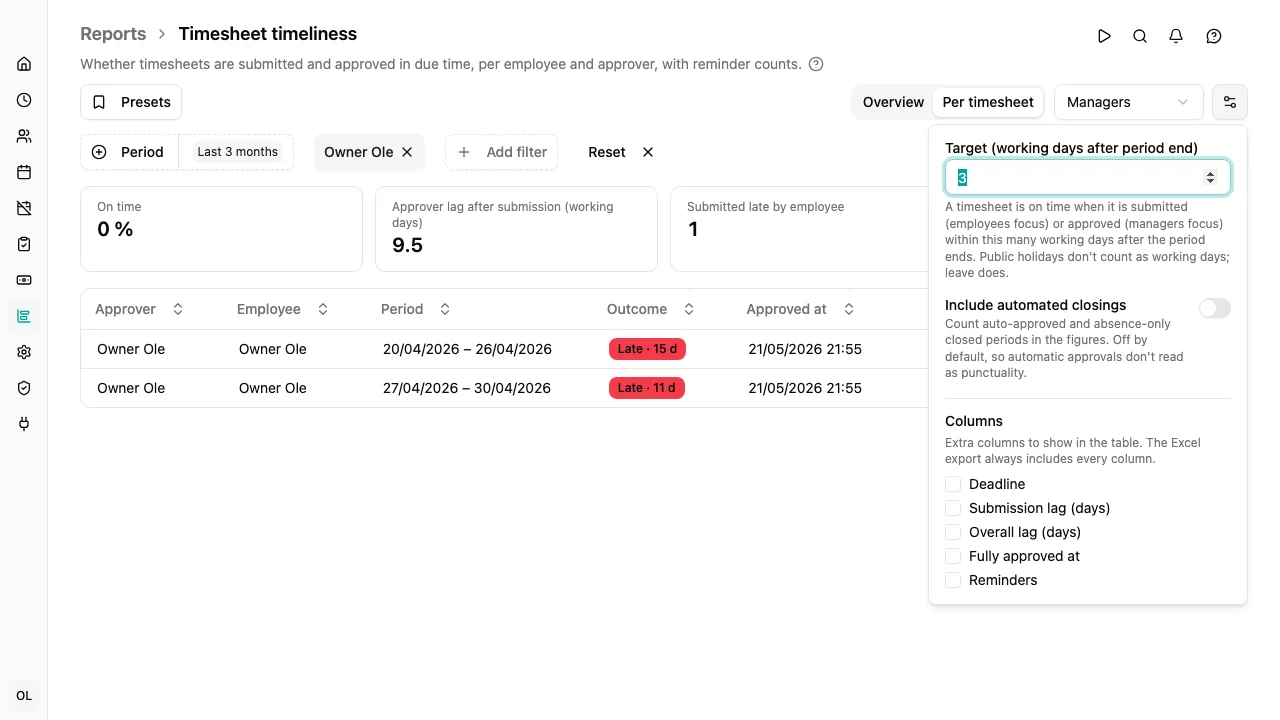
- Submission is on time when the employee first submits the timesheet within the target — by default 3 working days after the period ends.
- Approval is on time when the approver approves within the same target after the period ends.
Change the target with the gear button next to the filters. The overdue reminders are sent earlier, from the first day after the period, so an employee can be reminded and still count as on time.
When the employee submitted late
An approver can only approve what has been submitted. When an employee submits late, the approval is often late too — without the approver having kept anyone waiting. In the managers focus the report therefore splits the delay in two:
- Overall lag (days) — from the end of the period to the approval: how long payroll waited. It counts Monday to Friday, whoever’s working days they are, so it compares the same way for everyone
- Submission lag (days) — how late the employee submitted, on the employee’s working days
- Approver lag (days) — from the submission to the approval: the approver’s own share
The approval is still judged against the target from the end of the period, so the outcome shows how late the approval really was. The Submitted late count next to it shows how many of those periods the employee had already submitted late.
Working days are the person’s own scheduled working days — the employee’s for a submission, the approver’s for an approval. Public holidays don’t count as working days. Leave does: an employee’s holiday doesn’t give their manager more time. For someone with no published work schedule, Monday to Friday is used.
Each timesheet lands in one of four outcomes:
| Outcome | Meaning |
|---|---|
| On time | Done by the deadline |
| Late | Done after the deadline |
| Outstanding | Not done, and the deadline has passed. Counts as late in the percentages |
| Not yet due | Not done, and the deadline has not passed yet. Left out of the percentages |
If a timesheet is reopened and submitted again, the report still uses the first submission and the first approval — that is when the employee and approver first acted. The number of reopenings and the last resubmission are shown alongside.
Periods that have not reached their last working day yet are not part of the report: nothing has been asked of anyone yet.
Automated closings and flags
Not every closed timesheet is someone acting on time. The report flags:
- On behalf — someone else submitted or approved the timesheet for the person
- Auto-approved — the timesheet needed no approval, so it was approved the moment it was submitted
- Auto-closed — the period contained only approved absence, so mTime closed it without the employee
- Backdated — the period was created after the fact, so its history says nothing about punctuality
Auto-approved and auto-closed periods are left out of the figures by default, so that a workspace which approves everything automatically doesn’t look 100% punctual. Turn on Include automated closings behind the gear button to count them. Backdated periods are always left out of the figures. On-behalf periods are counted, because someone did act.
Overview and per timesheet
The switch at the top of the report chooses how you look at the timesheets:
- Overview (the default) — one row per approver, or per employee in the employees focus, with their totals. Group by changes what a row is: add period to see each approver month by month — the overview of monthly approval per manager — or group by org unit or country instead.
- Per timesheet — one row per timesheet, with its outcome, when it was approved or submitted, the lag and its flags.
To see the timesheets behind an overview row, click it, or click Show N timesheets at the end of the row. The report switches to Per timesheet , showing only that row’s timesheets. The group appears as a chip next to the filters; click it to see every timesheet again.

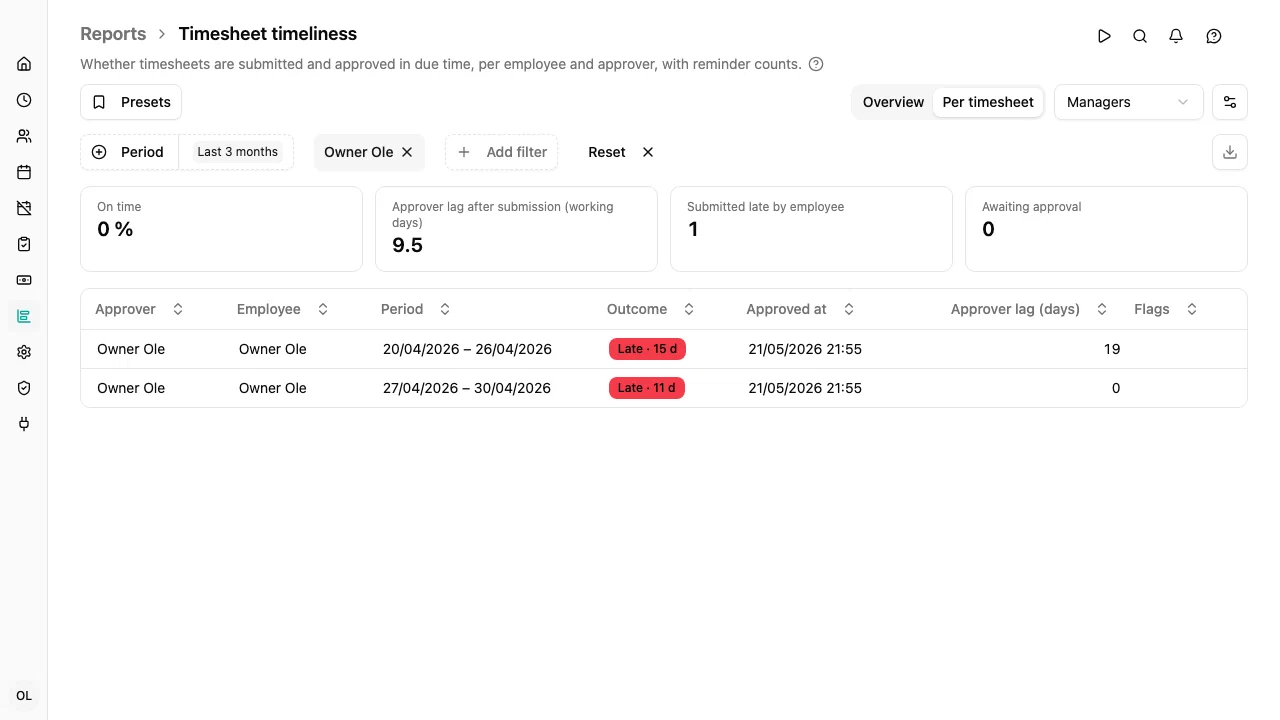
In Per timesheet , click a timesheet to open it and see what was registered.
The outcome shows how many working days late a timesheet was, for example Late · 15 d. Hover over it to see the deadline.
The figures and the filter
The figures above the table always cover what you are looking at — the whole selection, or the one group you opened: the on-time percentage, the lag of the person the focus measures, and the timesheets awaiting approval. In the managers focus they also show how many periods the employee had already submitted late; in the employees focus, the periods never submitted.
The Timeliness filter narrows the rows only — pick Late and Outstanding to see just the problems. The report opens without it, so the on-time percentage in each row covers every period.
Settings and columns
The gear button next to the filters holds the settings that change what the figures mean: the target and Include automated closings .
It also lists the columns you can add to the table. Only the essentials are shown by default; tick a column to show it, for example the deadline, the overall lag, the reminder count or, in the managers focus, the employee’s submission lag. Your choice is remembered and saved with presets.

Reminders
The report counts the reminder emails that were actually delivered:
- In the employees focus, the overdue reminders the employee received for that period
- In the managers focus, the daily approval summaries the approver received that listed the period
Turn on the reminders column in the settings to see the counts. Reminders are counted from the day this report was introduced. Emails sent before then were not recorded, so older periods show no reminders.
Filtering
The report uses the common filters: period, org unit, manager, employment terms and country. Managers see the timesheets of their own employees; administrators see everyone.
Exporting
Click the download button at the right of the filter bar (Export to Excel
) to download the current view as an .xlsx file. In Per timesheet
, the file carries the raw record of each timesheet, with timestamps as real dates and times, ready to process further. The export always includes every column, whichever ones the table shows.