Time off usage
See, for each employee, how much vacation is left, how much is booked, and how much will expire unused.
Overview
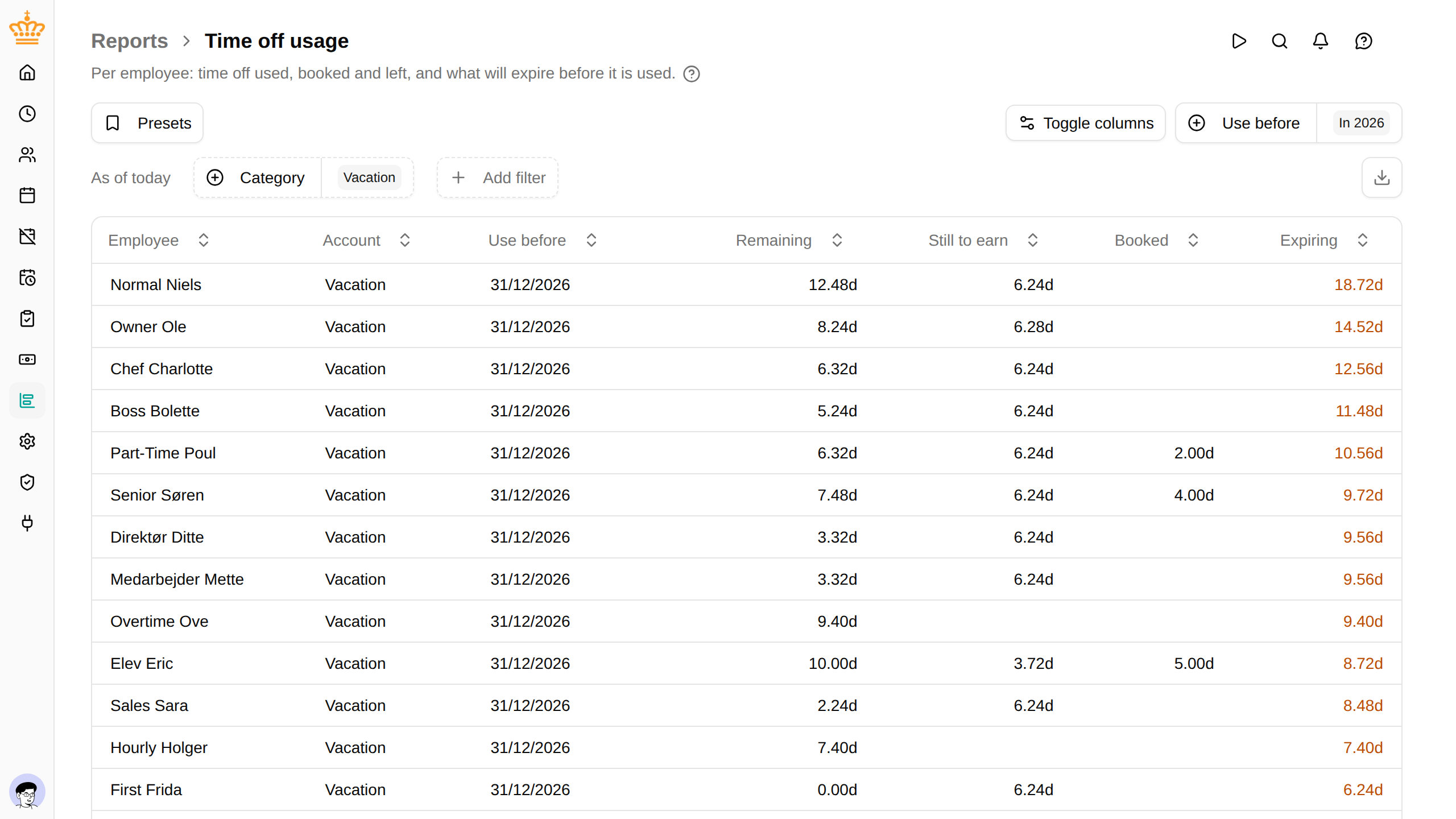
The Time off usage report answers the question a manager asks before the end of a vacation year: who still has days left, and who is going to lose some? It is a snapshot as of today. Each row is one part of an employee’s time off account — the days that must be used before a given date. For each part it shows what is held today, what will still be earned before that date, what is already booked, and what will expire if nothing more is booked.
Navigate to in the sidebar.

Managers see the employees they manage; HR administrators see everyone.
Reading the columns
| Column | Meaning |
|---|---|
| Employee | Who holds the days |
| Account | The time off account, for example vacation or extra holidays |
| Use before | The last day these days can be used, or Never expires |
| Remaining | What is held today |
| Still to earn | What will still be earned into these days before they expire — for example the vacation days of the months left in the earning year |
| Booked | Time off after today taken from these days: approved, and requested but awaiting approval |
| Expiring | What will be lost on the use-before date if nothing more is booked |
For days with a use-before date, each row adds up: Remaining + Still to earn − Booked = Expiring. A highlighted figure in Expiring is the one to act on — talk to the employee about booking those days.
Requests awaiting approval already count as booked, just as they do on the employee’s own balance: an employee cannot request the same days twice, so a request you have not approved yet does not put days at risk.
The figures are the same as on the employee’s view. Click a row to open the account’s details — its balance over time, upcoming changes and expiry dates.
More columns
Click Toggle columns to show more:
- Org unit — the employee’s org unit
- Used — time off already taken from these days, up to and including today
- Awaiting approval — the part of Booked that is not approved yet
Filtering
- Use before picks which days to show by when they expire: this year (the default), next year, the next 4 or 12 months, or all. Days that have already expired are never shown. Days that expire so far ahead that what they will lose is not known yet are left out too.
- Category picks the accounts by the kind of time off taken from them — vacation by default. An account is in a category when a time off type of that category is taken from it.
- Account narrows to specific accounts. An account that no time off type is taken from can be picked here to include it.
The common filters (employees, org unit, manager, employment terms, country) apply as of today.
Save the filters you use often as a preset — for example “expiring in the next 4 months”. The Use before choice is saved by name, so a “this year” preset keeps meaning the current year after New Year.
Exporting
Click the download button at the right of the filter bar (Export to Excel
) to download the report as an .xlsx file. The export has every column, including the optional ones.
Access
The report has its own permission, report:timeoff-usage . Managers have it for the employees they manage and HR administrators for everyone. A custom role copied from the manager role before the report existed does not have it yet — add it in the role editor.