Employee data
See your employees’ master data as it was on a date you choose, and export it to Excel.

Overview
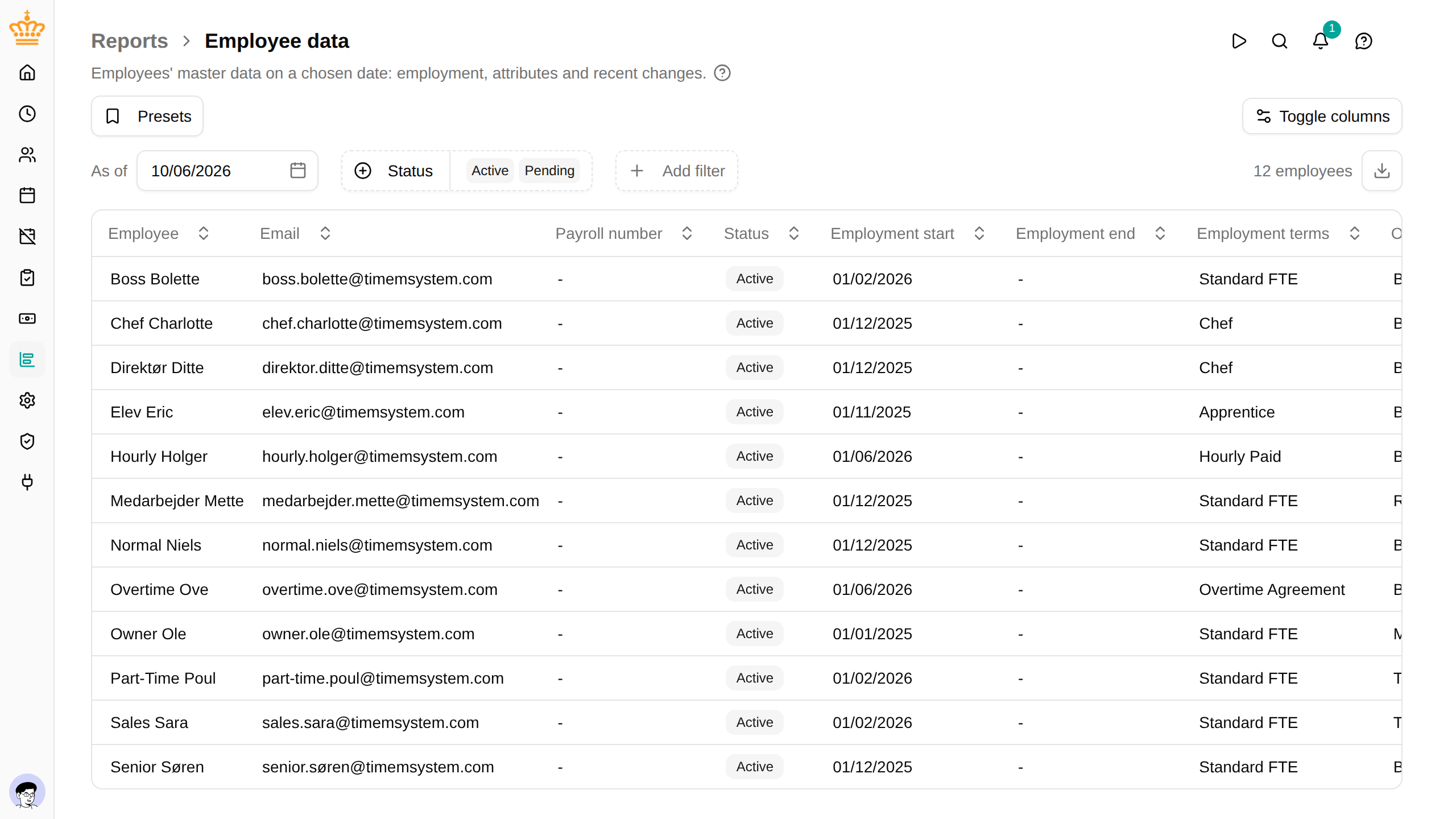
The Employee data report lists one row per employee with the data registered about them: who they are, their employment, and every standard and custom attribute your workspace uses. Use it to print or hand over employee records, check that master data is complete, or answer what was registered about someone on a given day.
Navigate to in the sidebar.
Each row shows:
- Employee , Email , Payroll number , Employment number and Title
- Status on the chosen date (see Status below)
- The employment: Employment start , Employment end , Employment terms , Org unit , Manager , Country (if your workspace uses work countries), Weekly norm (h) and FTE
- CPR / SSN , Birth date , Phone , Mobile and Address , if you may see personal data (see Who sees personal data)
- One column for each standard and custom attribute of the employee and the employment
- Last updated — when the data shown was last changed, and by whom
- Next change — the date of the next change to the employee’s record, if one is planned or was made after the chosen date
Choosing the columns
To keep the table readable, it starts with the essentials: Employee , Email , Payroll number , Status , Employment start , Employment end , Employment terms , Org unit , Manager , Weekly norm (h) and Last updated . Click Toggle columns above the filters to show any of the others, or Show all for everything. Your choice is kept while you work.
The columns you hide only affect the screen: the Excel export always contains every column.
How it works
Choosing the date
The report shows the data as it was on one date, not over a period. In place of the period filter, the filter bar has an As of date, which starts on today.
- Pick an earlier date to see what was registered for that day: the title, org unit, manager or attributes in force then. Changes recorded later but backdated to before that day are included.
- Pick a future date to see changes that are already scheduled, such as a new manager from the first of next month.
A saved preset that keeps today’s date always opens on the current day.
Status
The status is worked out for the chosen date:
- Active — the employee has an employment that covers the date
- Pending — the employee’s employment starts after the date
- Inactive — the employee’s last employment ended before the date, or they have no employment at all
For a pending or inactive employee, the employment columns describe the upcoming employment or the one that ended last.
Last updated and Next change
Last updated tells you how current a row is: the most recent change in force on the chosen date, with the name of the person (or integration) that made it. Next change shows the effective date of the next change to the employee’s record after the chosen date. Open the employee and look at their change history to see what that change was.
Only changes to the employee themselves count here. A change to their employment terms or a renamed org unit does not show up in these two columns.
Filtering
The report uses the common filters, with two differences: there is an As of date instead of a period, and the Org unit , Manager , Employment terms and Country filters match the values on the chosen date. Filter on an org unit as of 1 March, and you get the people who were in it on 1 March.
It also offers:
- Status — shows Active and Pending employees to start with; add Inactive to include former employees
- One filter for each custom attribute with a fixed list of values (a drop-down) or a yes/no value. Pick one or more values to keep the employees who have any of them. Click Add filter to find these.
Attributes with free text, numbers or dates can’t be filtered on, and neither can attributes marked as sensitive.
Who sees personal data
Like every report, the rows are limited to the employees you report on: your own team as a manager, everyone as an HR Administrator. See Who sees what.
The CPR number, birth date, phone numbers, address and any attribute marked as sensitive are personal data, and need more than report access: you only see them for employees whose sensitive data you may read (the employee / read-sensitive permission). For everyone else these cells are empty. The columns themselves are always there, so an export has the same layout whoever makes it.
Exporting
Click the download button at the right of the filter bar (Export to Excel
) to download the current view as an .xlsx file. The file holds every column, including all attributes, whichever columns you have chosen to show on screen.
Troubleshooting
| Issue | Solution |
|---|---|
| An employee who has left is missing | Add Inactive to the Status filter. |
| The CPR number column is empty | You don’t have permission to see the employees’ sensitive data. Ask an administrator. |
| An attribute has no filter | Only drop-down and yes/no attributes can be filtered on, and never sensitive ones. |
| The org unit shown differs from the employee’s page | The report shows the org unit on the chosen date. Set As of to today to compare. |