Attributes
Add your custom attributes to a report as extra columns, such as the employee’s payroll number or an activity’s payroll code.

Overview
Custom attributes hold the identifiers your organization uses elsewhere: payroll numbers, payroll codes, cost centers. The Attributes button above a report’s table adds them to the report as columns. A typical use is a payroll system mTime has no integration with: the export then carries the payroll system’s own numbers on every row, so nobody has to look them up by hand.
No attribute columns are shown until you pick them.
Which reports, which attributes
A report offers the attributes of the things its rows are about:
| Report | Attributes of |
|---|---|
| Payroll | the employee, their employment and org unit, and the activity or time account the amount comes from |
| Registered hours | the employee and their employment, the org unit, the activity, the project |
| Absence overview | the employee and their employment, the org unit, the activity |
| Account movements | the employee, their employment and org unit, the time account |
| Account balances | the time account; the employee and their employment; the org unit |
| SLS absence | the employee, their employment and org unit, the activity |
| Check in/out, Work time compliance | the employee, their employment and org unit |
| Sickness | the employee and their employment, the org unit |
On a payroll row only the attributes of its own source have a value: an allowance row shows the activity’s attributes, a payout row the time account’s.
Adding attribute columns
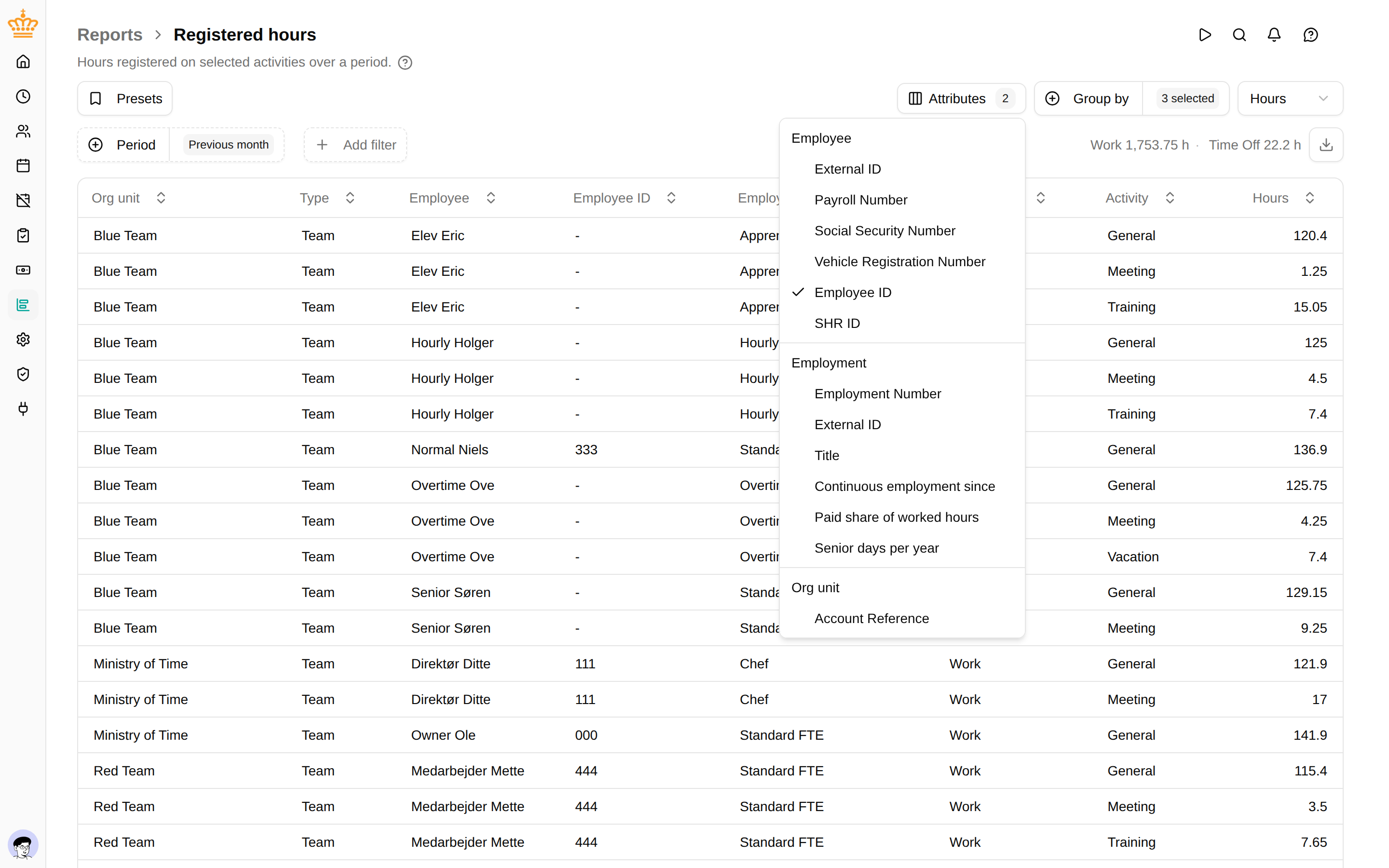
- Click Attributes above the table
- Tick the attributes you want. They are grouped by what they belong to: Employee , Employment , Org unit , Activity , Project , Time account
- Each ticked attribute appears as a column right after the column it belongs to: the employee’s payroll number after the employee, the activity’s code after the activity
The button shows how many attribute columns are on screen. The Export to Excel file carries the same columns in the same place.
The choice is kept with the report’s filters, so it is part of the page address and of any preset you save. Save a preset with your payroll attributes once and open it every period.
Grouped reports
On reports you group with Group by , an attribute only has a value while its row is about that one thing. A row that adds up a whole org unit has no single employee, so it has no employee payroll number either.
While a grouping leaves something out, its attributes are greyed out in the menu. A ticked attribute stays ticked and its column comes back as soon as you group by it again. Grouping by Employee brings back the employee and employment attributes, Org unit the org unit’s, Activity the activity’s, and Project the project’s.
Which value is shown
- Employees, employments and org units change over time. The report shows the value on the last day of its period, so a May report shows the number that applied at the end of May, even if it has changed since. Account balances reports on today, so it shows today’s value.
- Activities, projects and time accounts keep only their current value, and that is what the report shows.
- A pick-list attribute shows the option’s label, and an attribute that points to something else (an org unit, say) shows its name.
Attributes holding a list, a file or an address cannot be report columns.
Sensitive attributes
An attribute marked sensitive is offered only to people allowed to see sensitive data of that kind: for an employee’s attributes, sensitive employee data; for an org unit’s, sensitive org unit data; for activities and time accounts, sensitive settings data. A manager who may see sensitive data of their own team only sees it for their team, and the cell stays empty for everyone else. The CPR number is always treated as sensitive.
Troubleshooting
| Issue | Solution |
|---|---|
| An attribute is greyed out | The current grouping leaves out what it belongs to. Add that axis under Group by |
| An attribute is missing from the menu | It is sensitive and you may not see it, or it holds a list, a file or an address |
| A column is empty for some rows | Those employees, activities or accounts have no value for the attribute on the report’s last day |
| An employee shows an old number | The report shows the value on the last day of its period. Move the period to see the current one |