Account movements
Follow each employee’s time account balances over a period: what they started with, what changed, and where they ended up.

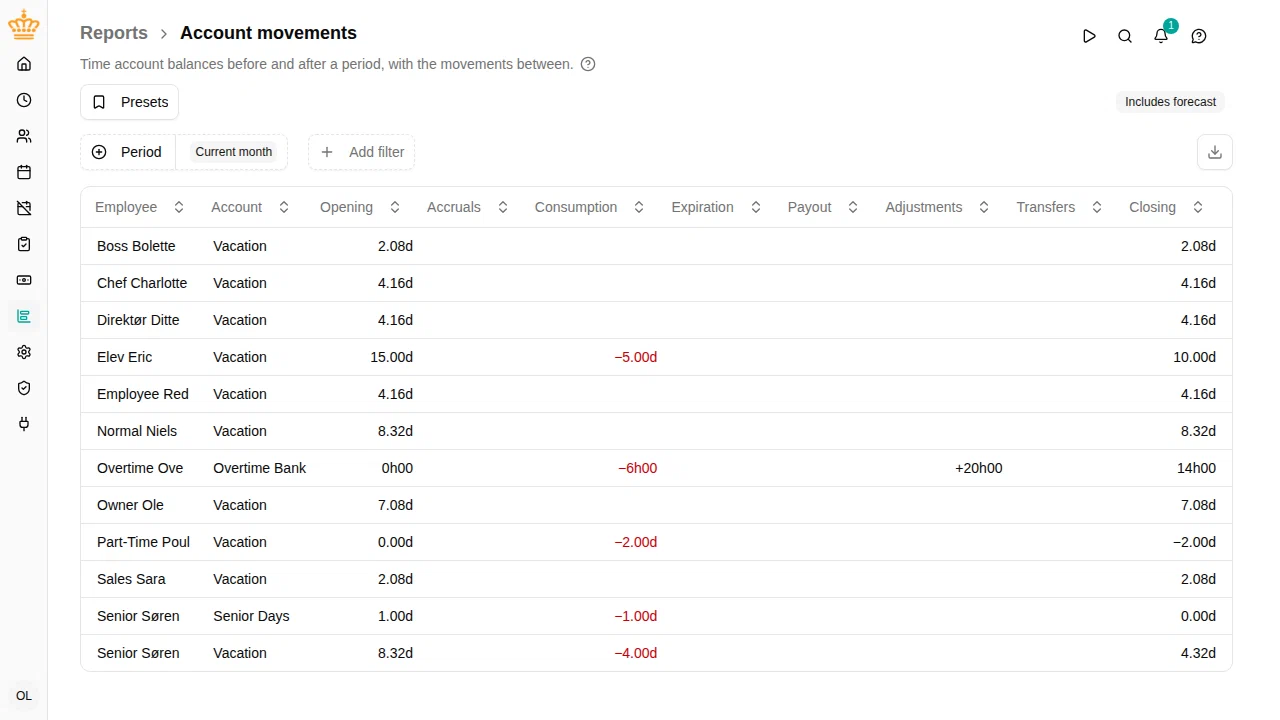
Overview
The Account movements report shows one row per employee and time account — for example flex time or vacation. For each row you see the balance at the start and end of the period, and the movements that explain the difference. Use it to:
- Prepare payroll: how much vacation did each employee use this month?
- Follow up on flex balances across a department
- Spot balances that are about to expire
Navigate to in the sidebar.
A row appears whenever an account holds a balance or had movements in the period, so untouched balances stay visible instead of disappearing from the report.
Reading the columns
| Column | Meaning |
|---|---|
| Opening | Balance at the start of the period |
| Accruals | Time earned during the period (for example monthly vacation accrual) |
| Consumption | Time used during the period (time off taken, flex spent) |
| Expiration | Time lost because it expired during the period |
| Payout | Balance paid out through payroll instead of taken as time off |
| Adjustments | Manual corrections made by an administrator |
| Transfers | Balance moved to or from another account (plus when it came in, minus when it went out) |
| Closing | Balance at the end of the period |
The closing balance is always the opening balance plus accruals, adjustments and transfers in, minus consumption, expirations, payouts and transfers out — so every row adds up on screen and in the export, and an account can be reconciled from the report alone.
When your workspace uses work countries, a Country column sits beside the employee, showing the country of the employment that covers the period.
Filtering
Besides the common filters (period, org unit, manager, employment terms), you can limit the report to one or more specific accounts with the Account filter.
Including the forecast
There is nothing to turn on: when the period reaches past today, the report fills the future part with projections by itself, and an Includes forecast badge appears beside the filters to say so. A period that ends today or earlier shows only what has actually happened. The projections cover:
- Accruals the employee is expected to earn
- Scheduled time off — both approved and still-pending requests
- Balances projected to expire
With the forecast included, Closing shows where the balance is expected to land at the end of the period. Pick the Next month period preset to see, for example, next month’s expected vacation usage before the month starts.
The forecast numbers match the employee’s own account forecast, so what you see here reconciles with what the employee sees.
Viewing account details
Click any row to open the account details panel for that employee and account — the same view shown on the employee’s page, with the balance history and day-by-day forecast.
Exporting
Click the download button at the right of the filter bar (Export to Excel
) to download the current view as an .xlsx file, including the forecast when the period reaches past today.