Report a problem
Tell the product team about a bug, a rough edge, or an idea — straight from the AI assistant, without leaving mTime.

What you can report
The assistant can file four kinds of feedback:
| Type | Use it for |
|---|---|
| Bug | Something is broken or behaves incorrectly |
| Issue | Something is confusing or gets in your way |
| Improvement | A change that would make something work better |
| Feature | A new capability you’d like to see |
You don’t need to pick the type yourself — the assistant chooses it from what you describe.
Reporting from the assistant
- Open the AI assistant with ⌘H (or Ctrl+H on Windows), or from the AI Assistant button.
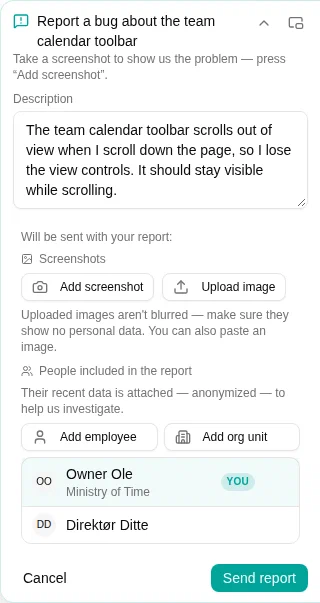
- Describe the problem or idea in your own words — for example, “the team calendar toolbar scrolls out of view when I scroll down”.
- For an idea — an improvement or a new feature — the assistant also asks why you need it and for a concrete example of when it would help: who, at which moment, doing what. Knowing the need behind an idea helps the team build what actually solves your problem, which isn’t always the solution you first had in mind. Share your own idea too; it’s passed on as a suggestion.
- When the assistant recognizes feedback, it prepares a report card in the chat with a short summary and a suggested description.
Reporting a technical error
If something goes wrong while you’re working, mTime may show an error message with a Report this problem button. Clicking it opens the assistant with the error already described, so you can send the report in a couple of clicks.
Review before you send
The report card lets you check and adjust everything that will be sent:
- Description — The assistant fills this in for you, and you can edit it freely. Add anything that helps the team understand the problem: what you were doing, what you expected, and what happened instead.
- Screenshots — Click Add screenshot to capture the screen and draw a box, arrow, or note on the part that’s relevant. You can add several, and remove any you don’t want. To attach an image from somewhere else — a photo from your phone, a screenshot of another system, or a PDF you took a picture of — click Upload image , or paste an image straight into the report card. Uploaded images are not blurred automatically, so make sure they don’t show other people’s personal details.
- Your name — Shown so you know it travels with the report, in case the team needs to follow up.
Need to capture a different screen while writing your report? Hide the chat and the report becomes a small floating bubble you can drag around, so you can move through mTime and take screenshots without losing what you’ve written.
When everything looks right, click Send report .
What happens next
Your report goes straight to the product team. For bugs and issues, a snapshot of the relevant data is attached automatically to help them investigate — with personal details removed.
You won’t be sent to an external tracker. Instead, the assistant confirms the report was filed, and when the team resolves it you hear back twice: a note appears in that same conversation, and you get an email with a link straight to it — so the answer reaches you even if you aren’t in mTime at the time.