Mileage
Register the trips you drive in your own vehicle for work, so they are approved with your timesheet and paid through payroll.

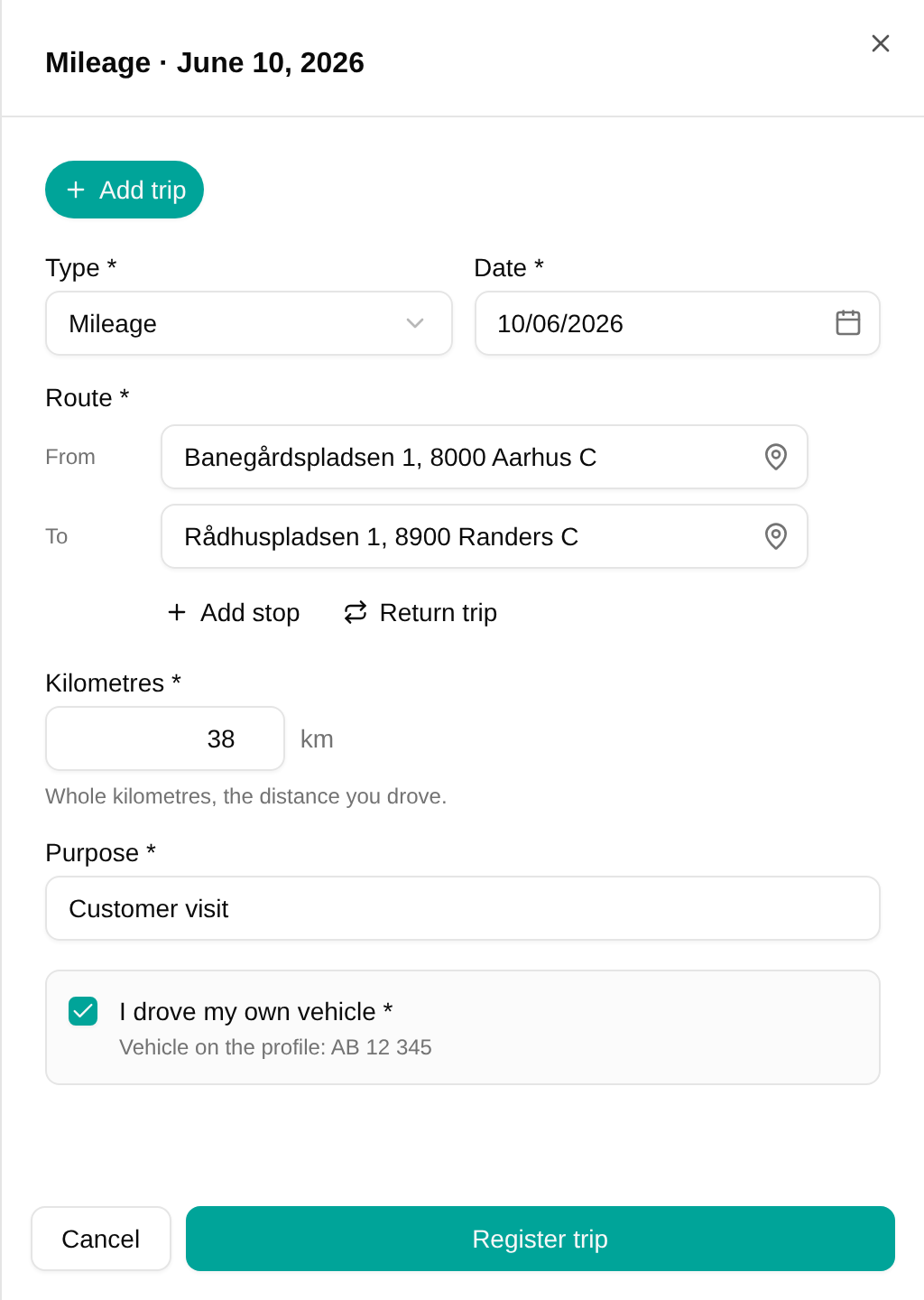
Overview
If your workspace pays mileage (kørsel), you register each trip on the day you drove it. You see mileage only when your profile has a vehicle registration number, which an administrator or HR sets for you. If you don’t see it and should, ask them.
Your trips are approved together with your timesheet: when you submit a period, its trips go to your manager with its hours. Once the period is approved, the kilometres are sent to payroll.
Registering a trip
You can start a trip from three places:
- The timesheet: a row with the expense type’s name (for example Kørsel) sits at the bottom of the grid. Each day’s cell shows that day’s kilometres, and hovering it lists the trips. Click a day’s cell to open its trips.
- Home: today’s trips are listed under Expenses , with their kilometres. Click Add trip .
- A phone: the timesheet’s day view lists the day’s trips under Expenses too. Tap Add trip .
Then fill in the trip:
- Route: enter where you started in From and where you went in To . Use Add stop for each stop in between.
- Kilometres : the distance you drove, in whole kilometres.
- Purpose : why you drove, for example Customer visit.
- If the expense type asks for it, choose a Project and the dimensions.
- Tick I drove my own vehicle . The vehicle on your profile is shown under it.
- Click Register trip
Entering addresses
Type each address on one line, as street and number then postcode: “Banegårdspladsen 1, 8000”. The city is filled in for you, and an address mTime can’t read is pointed out before you register the trip. For an address in another country, add the country at the end, or open the full form with the icon in the field, which asks for the country, then the postcode, then the street.
When you click into a stop, it suggests addresses you can pick with one click, or with the arrow keys and Enter:
- your home and your workplace,
- the stops on your recent trips,
- the workplaces of the other units in your organisation, nearest first. A unit you drove to lately is still shown with its name, among your recent stops.
Saving time
- A route you drove before brings its kilometres: enter the same stops in the same order and the kilometres are filled in from your last trip.
- Return trip adds your starting point at the end of the route and doubles the kilometres, for a trip there and back.
- Duplicate copies the selected trip, to register the same trip on another day.
Changing or withdrawing a trip
The day’s trips appear as chips at the top of the sheet. Pick one to change it and save, or click Withdraw to remove it from the timesheet. Its history is kept.
Once the period is submitted, its trips are locked. Reopen the period to change them.
Troubleshooting
| Issue | Solution |
|---|---|
| I can’t register mileage | Your profile needs a vehicle registration number. Ask your administrator or HR to add it. |
| “Mileage needs a manager” | Mileage is approved by your manager, and nobody manages you. Ask your administrator to set your manager. |
| An address is refused | The postcode doesn’t exist. Check it, or open the full form to choose another country. |
| A trip can’t be changed | Its day is in a submitted or approved period. Reopen the period first. |