How to manage your preferences
Customize mTime to fit your workflow by setting your workspace, language, display formatting, and more.

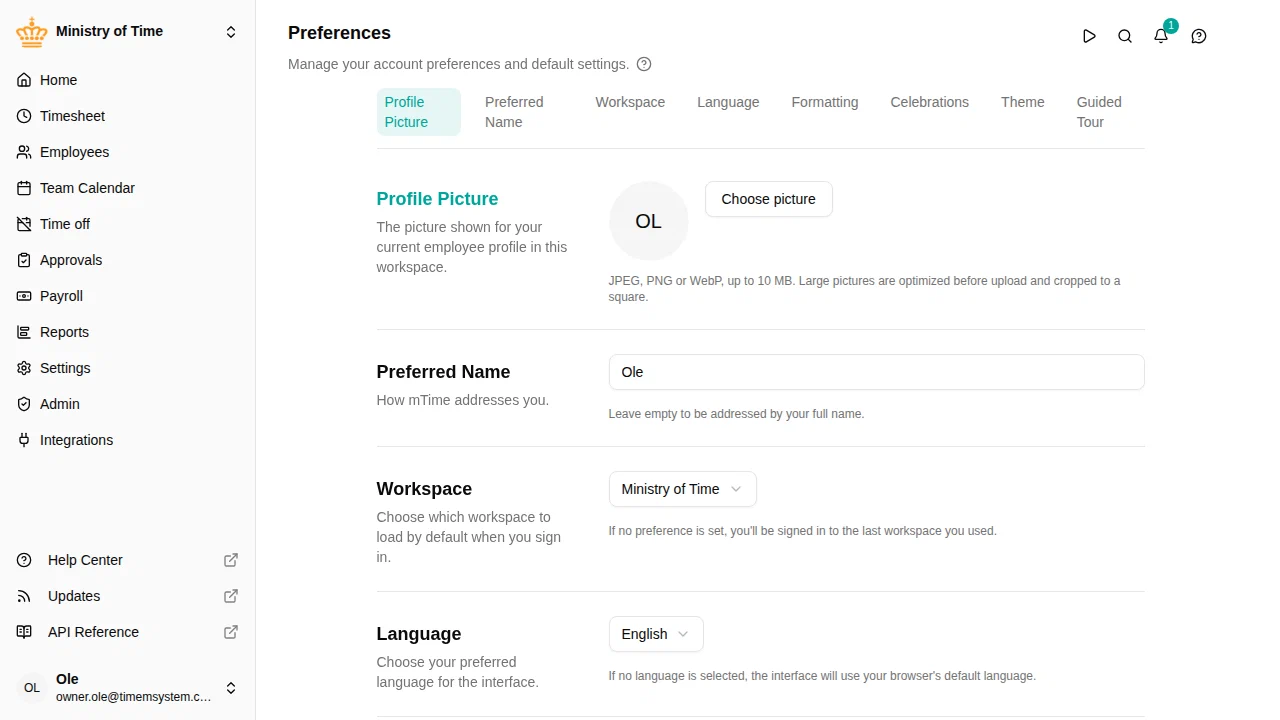
Accessing preferences
- Click on your profile picture or name in the bottom-left corner
- Select Preferences from the menu
Workspace
Choose which workspace to load by default when you sign in.
- Select No preference (use last selected) to start with the last workspace you used
- Select a specific workspace to always start there after logging in
Language
Choose your preferred language for the mTime interface. Available options are English, Danish, French, Italian, Dutch, Norwegian and Swedish, each listed under its own name (for example Dansk).
If you choose Use browser default , the interface uses your browser’s default language.
Notifications you receive follow this setting too, so they always appear in your language — even when someone else’s action triggered them.
Formatting
Customize how dates, times, and timesheet hours are displayed:
- Date Format — choose between DMY, ISO, or MDY formats
- Time Format — choose between 24-hour or 12-hour (AM/PM) display
- Timesheet Hour Format
— choose how hours appear in timesheet cells (e.g. 5h25, 5:25, 5.25, or 5,25). We recommend an hours and minutes format (
5h25or5:25) over decimal hours — see Hours & minutes vs decimal hours to learn why.
By default, all formatting follows your language preference.
Guided Tour
Restart the onboarding tour to revisit the main features of mTime. Click Restart Tour to begin.
Preferred name
The name mTime uses when it addresses you — in the greeting on your home page, in the sidebar, and in the emails and notifications it sends you.
This is yours to set: nobody else can change it, and your colleagues never see it. Wherever you appear to other people — the team calendar, the organization chart, notifications about your requests — mTime uses your full name instead.
Leave it empty to be addressed by your full name.
Saving
All changes are saved automatically — there is no save button.