Approvals
Review and decide on pending timesheets and time off requests from your team in one place.
Overview
The Approvals inbox is the single page where managers act on everything waiting for a decision — submitted timesheets and pending time off requests, side by side. Each row is one item to act on; you can review the detail, approve, send it back, or handle many at once.
The approval workflow has these states, shared between timesheets and time off:
| Status | Meaning |
|---|---|
| Pending | The employee has not yet submitted (timesheet) or the request is awaiting review (time off) |
| Submitted | The item is waiting for a manager — it appears in the inbox |
| Approved | A manager approved the item (or it was auto-approved) |
| Reopened / Declined | A manager reopened the timesheet or declined the time off request, with a reason — the employee can correct and resubmit |
For employees
Employees do not use the Approvals inbox. They interact with approvals from the pages where the work happens:
- Timesheets — submit a completed period from the Timesheet page. Once submitted, the period is locked until a manager decides.
- Time off — submit a request from the calendar. Some policies auto-approve; others go to a manager.
If you track time by checking in and out, mTime also asks you directly: check out on the last working day of the period and it offers to open the timesheet so you can review and send it there and then. It asks on every check-out until the timesheet is sent, and only when it is ready to send. If you would rather not be asked, choose Don't ask me again in the prompt — that setting is remembered in the browser you choose it in.
Employees are notified when their submission is approved, reopened (timesheet) or declined (time off). The notification includes the manager’s reason, and a reopened timesheet is unlocked for correction.
Opening the inbox
When items are waiting, the dashboard also shows a shortcut card with the total count broken down by kind (timesheets, time off). Clicking it opens the inbox with default filters.
On a phone, the bottom menu gives you the same shortcut: whenever items are waiting for your decision, an Approvals button with the number of waiting items appears in the bar. Once your inbox is empty, that spot shows the Team button for the team calendar instead.

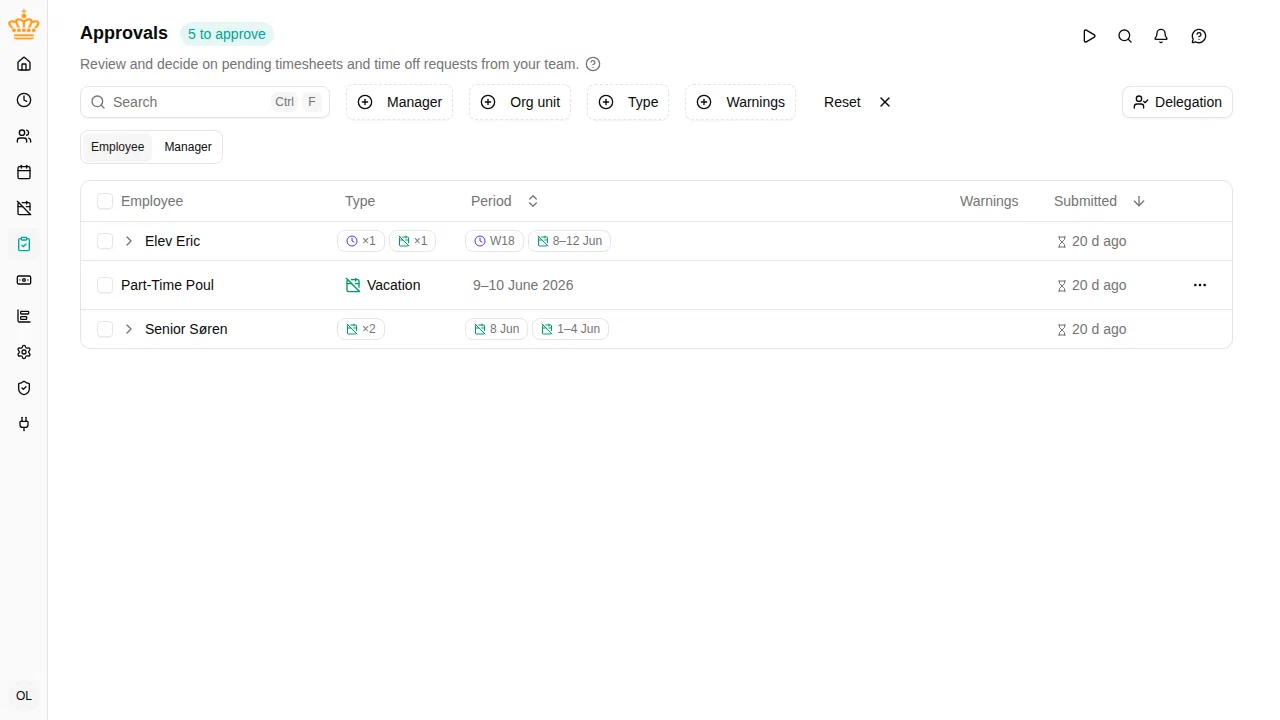
Reading the inbox
Each row shows one pending item with these columns:
| Column | What it shows |
|---|---|
| Employee | Who submitted the item |
| Type | Timesheet (indigo clock icon) or the time off activity name, e.g. Vacation, Sick Leave (emerald calendar icon) |
| Period | The dates the item covers (a single day, a week, or a custom range) |
| Warnings | Amber and sky pills surfacing concerns — see Warnings and info |
| Submitted | How long the item has been waiting |
At the top of the page, three counters summarise the current view: the total pending, the number of items with warnings, and the number with info notices.
If nothing is waiting, the inbox shows All caught up — nothing to approve right now.
Grouping
Use the Employee / Manager / Type toggle above the table to choose how rows are grouped:
- Employee (default) — one collapsed group per submitter. Best when scanning a team you know.
- Manager — grouped by the assigned approver. Expanded by default; useful for admins reviewing across the workspace.
- Type — timesheets together, time off together. Useful when you want to settle one kind first.
A group of a single item is shown inline, without a wrapper. Group headers show a small summary (kind counts, oldest submission, period) when collapsed, so you can decide whether to expand.
Filters and search
The toolbar above the table provides:
- Manager — filter by approver. Defaults to Me so you only see items routed to you. Clear it to see items routed to other managers (if you have permission).
- Org unit — limit the list to one or more organisation units.
- Type — show only timesheets or only time off.
- Warnings — keep only items with Warning, only Info, or only items with no notices at all.
- Search — find an item by employee name, period, or reason text.
- Employee — when you open the inbox from an employee’s page (see Moving between an employee’s pages), it shows only that employee’s items, across all managers you can see. An Employee: <name> chip in the toolbar says so; click it to remove the filter.
Filter selections are remembered. Next time you open the inbox — even after closing the tab — your last filters are restored. The dashboard shortcut intentionally clears filters so it always lands you on a fresh view.
Warnings and info
Items can carry notices that flag context the approver should know about before deciding.
- Warning (amber, triangle icon) — a blocking concern such as an overlapping absence, a negative balance, or a rule violation. Approving an item with a warning requires explicit confirmation.
- Info (sky, i icon) — a soft notice, for example a missing note or a request that touches a public holiday. Approving an item with only info notices does not require extra confirmation.
Hover a pill to see the full message text.
Reviewing a request
Click a row (or pick Details from the row menu) to open the detail panel on the right.

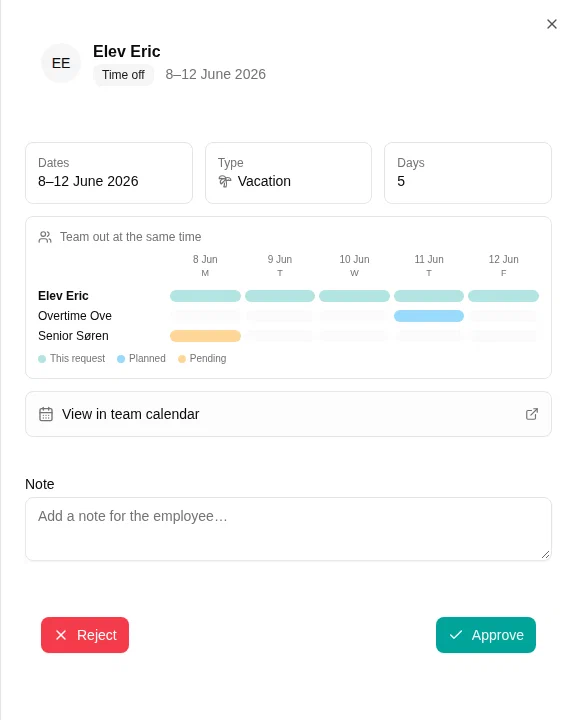
For a time off request the panel shows:
- The activity name, dates, and working-day count.
- A team overlap grid — your team across the requested days, with the requester highlighted, peers’ planned absences in sky blue and peers’ pending requests in amber. Short requests are padded with surrounding days for context; very long requests fall back to a list.
- A link to View in team calendar if you want to see the request in its full context.
- Any warnings or info notices, expanded with their full message.

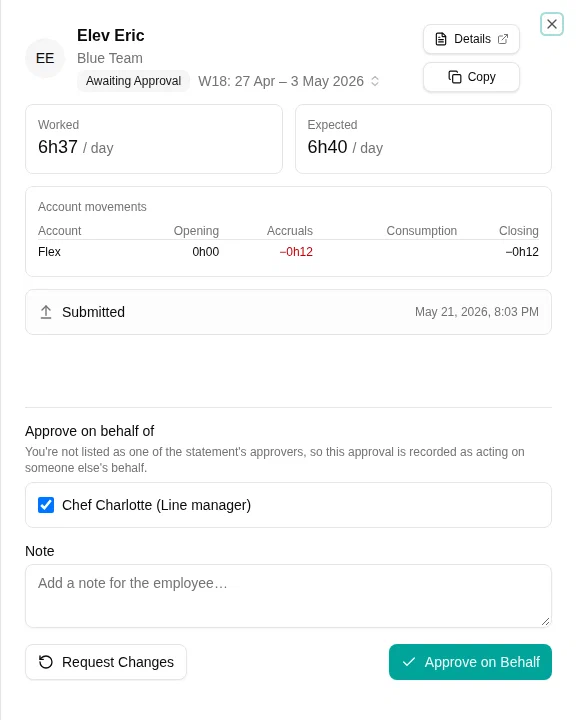
For a timesheet the panel shows:
- The ISO week, the period dates, and the number of working days.
- Worked vs expected hours for the period.
- The flex block: Generated this period, This period settlement, Balance before, Balance after.
- A Project approvals list — visible when the statement carries projects that need manager sign-off. Each row shows the project, the approver, the minutes booked, and whether that approver has signed off yet. See Multi-approver statements.
- A History log — submit, approve and reopen events with actor and reason.
- A link to Open in timesheet to inspect the entries directly.
The Approve and Reject buttons sit at the bottom of the panel — on a timesheet, Reject reopens it. When you are not yourself a named approver — for example, an admin closing a statement that needs a project manager’s sign-off — an Approve on behalf of picker appears so you can record whose approval you are providing. See Approving on behalf.
Approving
You can approve from three places:
- Row menu — pick Approve from the three-dot menu on a single row.
- Detail panel — use the Approve button after reviewing.
- Batch action — see below.
When the item carries a warning, the approve button turns amber and reads Approve with warnings, and a confirmation dialog summarises what you are about to confirm. Items with only info notices approve directly.
Batch approve
Select multiple items with the checkboxes — per row, per group header (selects all items in the group), or the header checkbox (selects everything visible). A blue Approve selected (N) button appears in the toolbar.

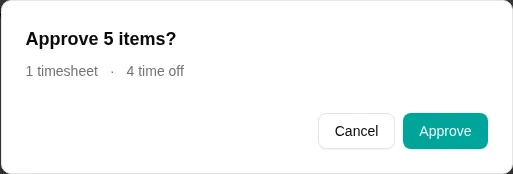
The confirmation dialog shows:
- A summary line — for example 3 timesheets · 2 time off.
- An amber Warnings card listing items with warnings, grouped by employee and period, with the full message text.
- A sky For info card listing items with info notices only.
- A footnote N other items will be approved without notices when some of the selected items are clean.
Confirming approves every selected item at once.
Reopening (timesheets) and declining (time off)
Sending an item back to the employee works the same way as approving — from the row menu, from the detail panel, or as a batch. The button reads Reject for both kinds. You enter a reason that the employee sees alongside the notification.
- A timesheet is Reopened: the period unlocks for the employee to correct entries and resubmit. The reason is mandatory. See Reopening a statement for the timesheet-specific details, including reopening a period that has already been approved.
- A time off request is declined: the request is closed and the employee can submit a corrected one if they want.
Delegating your approvals
Going on vacation? You can hand your approval rights to another manager (a substitute) for a defined period, so requests don’t pile up while you are away.
Setting up a delegation
Open the inbox and click Delegation in the toolbar. The panel shows your current delegations and lets you create a new one: pick the substitute (any other manager), choose the first and last day, and confirm. You can set up several delegations — to different substitutes, even for the same period — and remove any of them at any time.

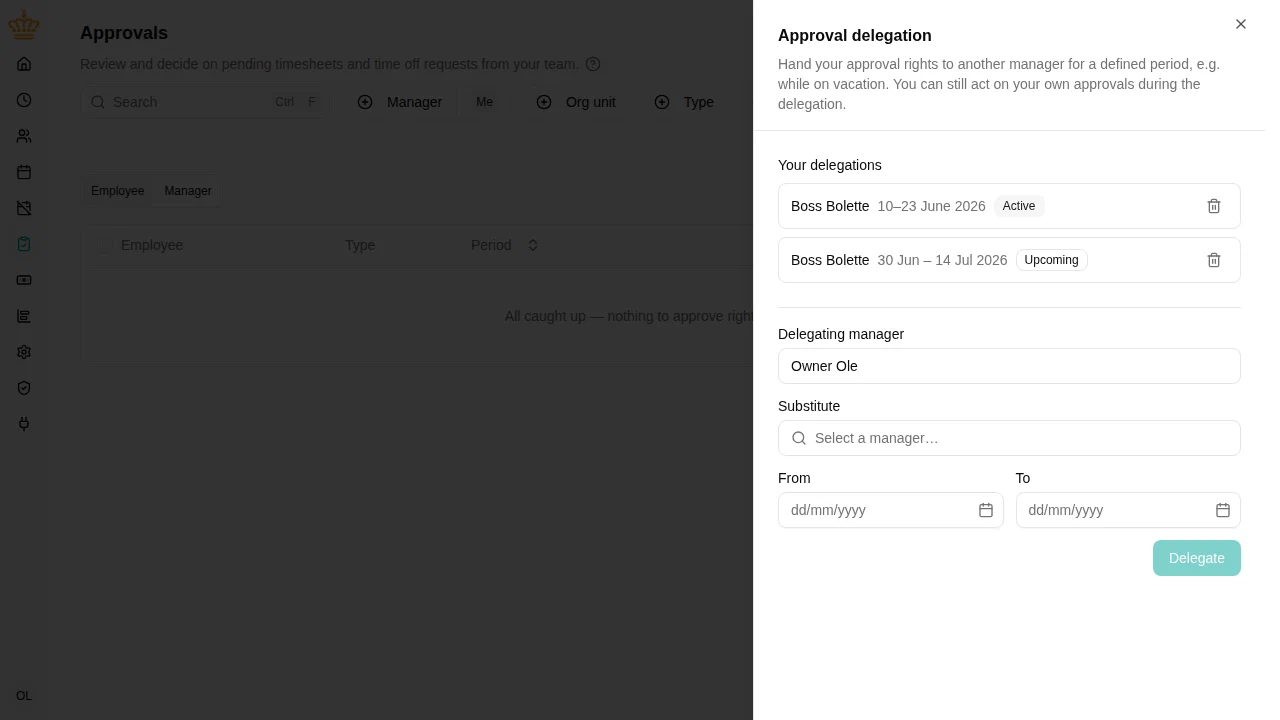
When you request time off for yourself, the request form offers the same thing in one step: turn on Delegate my approvals while I’m away, pick the substitute, and the delegation is created for the requested dates when you submit. The delegation stands on its own afterwards — if the time off is later declined or cancelled, remove the delegation from the inbox panel if you no longer need it.
Seeing ongoing and upcoming delegations
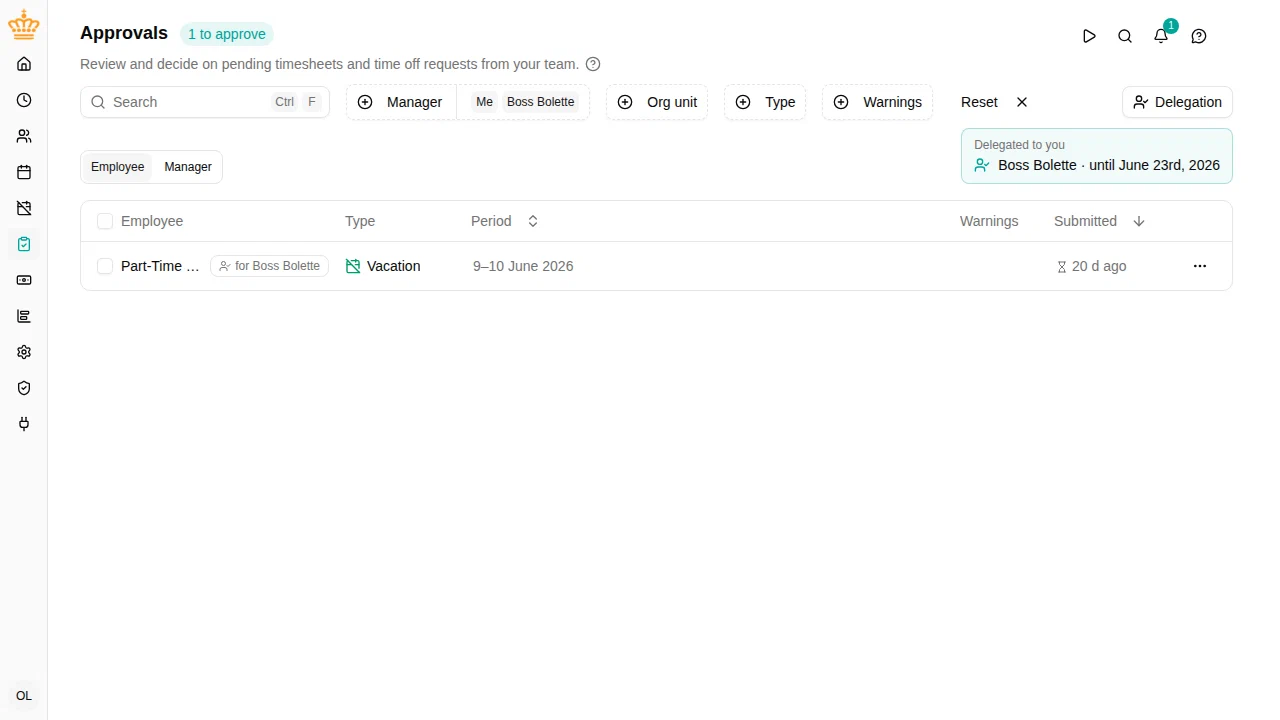
You don’t need to open the panel to know a delegation is in play. As soon as one exists, a summary box appears above the inbox, split into Delegated to you and Your delegations. Each line names the other manager and the period, and a delegation that hasn’t started yet carries an Upcoming badge — so a hand-over set up for later is visible from day one, for both the manager who delegated and the substitute. The entries in the delegation panel carry the same Active and Upcoming badges.
While the delegation is active
- The substitute sees your pending items in their own inbox, marked for you — both in the list and in the window that opens to approve or decline, so it’s always clear whose approvals are being handled. The manager filter includes you by default on their side.
- New requests from your team notify the substitute immediately; the nightly timesheet digest goes to them instead of you.
- Everything stays assigned to you: you can still see and decide your items as usual, and whoever acts first wins. Decisions made by the substitute are recorded in the audit trail as made on your behalf.

When you come back
Your notification bell was kept up to date the whole time — anything the substitute already handled was cleared automatically. Instead of an email per request while you were away, you receive one summary email on your first working day back, listing only the items that still need your attention.
Administrators can manage delegations on behalf of any manager from the same panel — useful when someone goes on sudden sick leave without having set one up.
Live updates
The inbox refreshes itself as items arrive, are decided, or are withdrawn — including changes triggered from other pages (an employee cancelling a time off request, for example). You do not need to reload the page.
Configuration
Timesheet approval
Timesheet approval is configured in the employment terms (whether manager sign-off is needed at all, and the period length) and per project (whether a specific project requires its own manager’s sign-off in addition).
See Timesheet statements for the full lifecycle, including submit, reopen, and admin overrides.
Time off approval
Time off approval is configured per policy through plugins:
- Requires Approval — every request under the policy needs manager sign-off.
- Conditional Approval — only requests over a threshold need manager sign-off; shorter ones auto-approve.
Requests under policies without either plugin auto-approve as long as the balance and other rules allow.