Scheduled and retroactive changes
Plan future changes to your organization structure and policies, and apply changes retroactively when needed.
Overview
mTime lets you schedule changes to take effect on a specific future date, or apply changes retroactively to a past date. This is useful when:
- Upcoming reorganizations — Schedule org unit changes to go live at a future date
- Policy updates — Set new time off or allowance policies to activate at the start of a period
- Employment changes — Update employment terms with a future effective date
- Corrections — Apply retroactive changes to fix historical data
Scheduled changes work with:
- Org units
- Employees
- Employment terms
- Time off policies
- Allowance policies
- Holiday calendars
Holiday calendars are forward-only: they can be scheduled, but not changed retroactively. Which employments a calendar covers decides the expected work time of every period it ever applied to, so a back-dated change would rewrite hours that have already been approved and paid. See Holiday calendars.
Scheduling a change
To schedule a change for a future date:
- Open the entity you want to change (org unit, employee, policy, etc.)
- Make your changes in the form
- Click the dropdown arrow next to Save
- Select Schedule


- Pick the effective date from the calendar
- Click Schedule

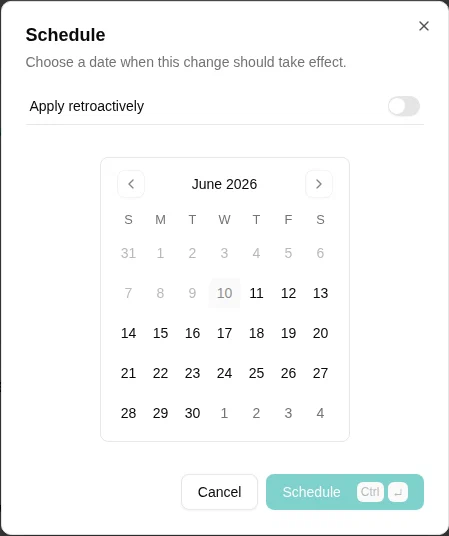
The change is saved but won’t take effect until the scheduled date.
Viewing scheduled changes
When an entity has pending scheduled changes, a calendar icon appears in the header.


Click this icon to open the version history drawer, which shows:
- Scheduled changes — Future changes waiting to be applied
- History — Past changes that have already been applied

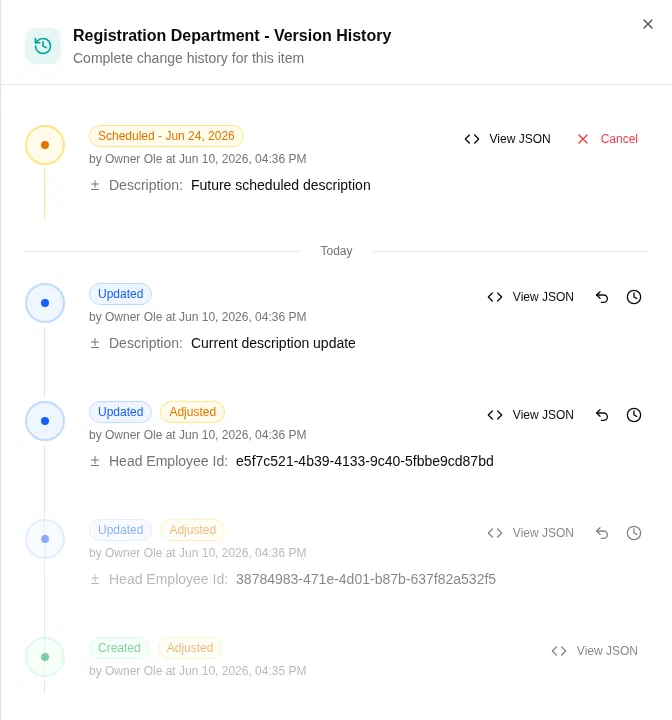
Each entry shows:
| Detail | Description |
|---|---|
| Status | Scheduled (future) or Updated/Created (applied) |
| Effective date | When the change takes effect |
| Changed by | Who made the change |
| Created at | When the change was created |
Reviewing changes
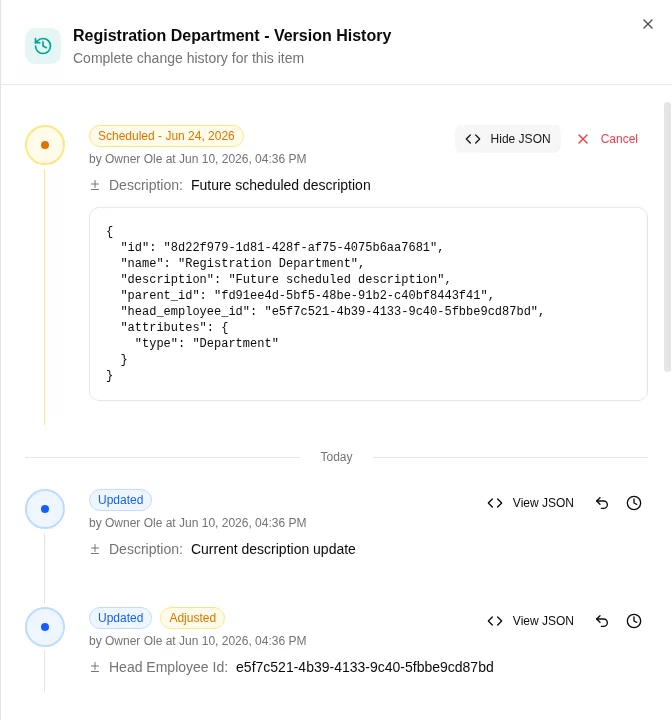
Click View JSON on any entry to see the exact changes that will be (or were) applied.

Cancelling a scheduled change
To cancel a scheduled change before it takes effect:
- Open the version history drawer
- Find the scheduled change you want to cancel
- Click Cancel
The scheduled change will be removed without affecting the current state of the entity.
How scheduled changes are applied
Scheduled changes are applied automatically by a daily batch job. When the effective date arrives:
- The Apply scheduled changes job runs (typically daily at midnight)
- All changes scheduled for that date (or earlier) are applied
- The entity is updated to reflect the new values
- The change moves from “scheduled” to “applied” in the version history
For more details, see Apply scheduled changes.
Retroactive changes
Retroactive changes let you apply updates with a past effective date. This is useful for:
- Correcting historical data
- Applying changes that should have been made earlier
Making a retroactive change
- Open the entity you want to change
- Make your changes in the form
- Click the dropdown arrow next to Save
- Select Apply retroactively
- Pick the effective date from the calendar (up to 90 days in the past)
- Click Apply

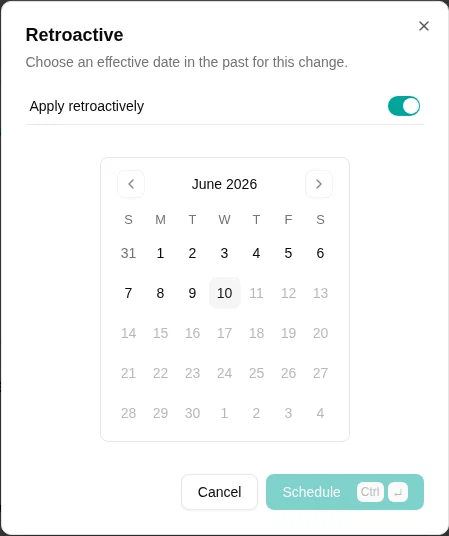
What a retroactive change does
A retroactive change takes effect from the date you pick, and mTime recalculates everything that depends on it from that date onwards — for example expected working time, time off accruals and balances. Past periods then reflect the corrected values.
Identifying retroactive changes
In the version history, entries carry badges that explain how each change relates to others:
- Retroactive — the change itself was applied with a past effective date.
- Adjusted — an existing entry whose values were recomputed because a later retroactive change was applied before its effective date. The entry is still the correct value for its own period; the badge just signals that a back-dated change reached into it.
Entries that have been genuinely replaced — a newer edit shares the same effective date — are shown dimmed, since they are no longer the active version for that date.
Timeline example
Here’s how changes appear in the version history for an org unit:

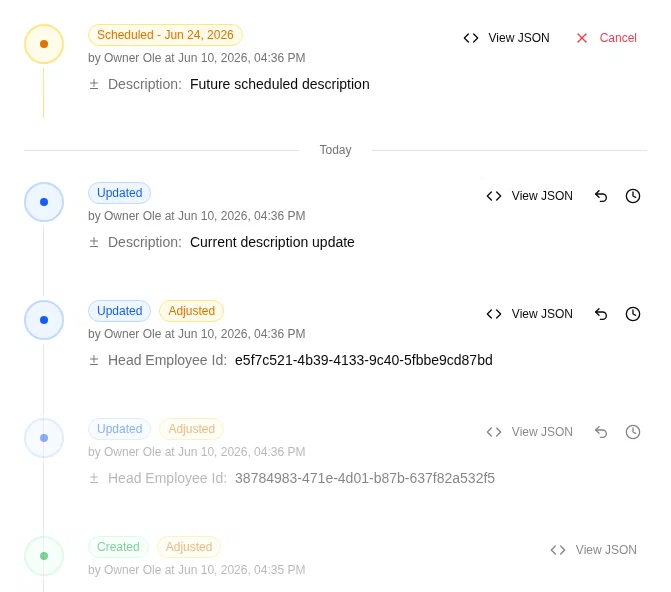
This example shows:
- A future scheduled change — Will be applied when the date arrives
- Today’s applied change — Currently in effect
- A past retroactive change — Applied with a historical effective date
Changes are displayed in chronological order by effective date, making it easy to understand how an entity evolved over time.
Permissions
| Action | Required permission |
|---|---|
| Schedule future changes | Edit permission for the entity |
| Apply retroactive changes | Edit permission + “retroactive” permission |
| View version history | View permission for the entity |
| Cancel scheduled changes | Edit permission for the entity |
Administrators can grant the retroactive permission through role configuration.