Event log
The event log is a workspace-wide audit trail. Every change in mTime — registrations, policy edits, employee updates, deletions — is recorded as an event you can search, filter, and inspect. Use it to answer “what happened, when, and who did it” when troubleshooting or reviewing changes.
Open the event log

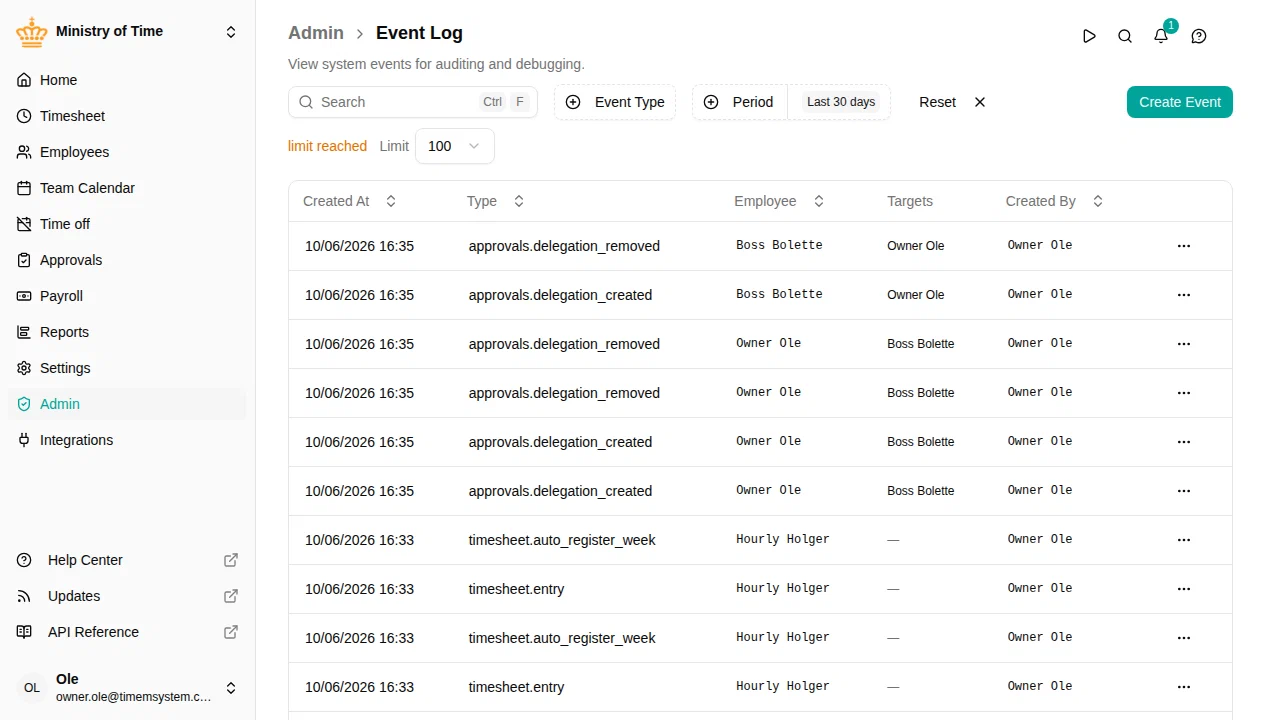
The log shows the most recent events, with these columns:
| Column | Shows |
|---|---|
| Timestamp | When the event occurred |
| Type | The kind of event |
| Employee | The employee the event relates to |
| Targets | The records the event touched |
| Created by | Who triggered the event |
Find events
Narrow the log using the toolbar:
- Event type — pick one or more types to show only those events
- Date range — choose a preset (today, last 7 days, last 30 days, last 3 months) or a custom range
- Search — type to match against the visible events
- Result limit — how many events to load at once (50 to 1000, default 100)
Your filters are remembered, so the log opens where you left off.
Inspect an event
Use View Details on a row to open its full detail panel. It shows the event’s metadata — timestamp, type, employee, targets, and who created it — together with the complete payload (the raw data captured with the event) for deeper investigation.
Create an event
Owners can record an event manually with Create Event . Choose a type, select the employee it relates to, and provide a JSON payload. This is an advanced tool intended for corrections and integrations; the payload must be valid JSON. A manually created event bypasses the checks the rest of mTime applies, so it is limited to owners, and each one is recorded in the security log as Event created.