Batch jobs
Batch jobs are background processes that run on a schedule to keep the system healthy, deliver notifications and emails, and keep calculated data up to date. A second category of jobs is reserved for troubleshooting — they don’t run on their own, but can be triggered manually to rebuild data or recover from problems.
Overview
Jobs are safe to repeat — running them several times on the same day gives the same result. Each job records every execution (a “job run”) so you can inspect what happened, or run it again, for example for a different date.
Scheduled jobs
These jobs run automatically every day. The scheduler decides which workspace needs each job — workspaces with nothing to do are skipped. You can still trigger any of them manually if you want to force a run or experiment with a different run date.
Other scheduled jobs
These jobs also run on their own, on the days they have something to do. They have no page of their own; follow the link to the feature each one serves.
| Job | What it does |
|---|---|
advisory-sweep | Sends the day’s emails for each active advisory. |
auto-register-work | Registers the norm on past working days left completely empty, for employees whose work time policy uses Auto-register norm time. |
payroll-close | Locks approved statements once the payroll cut-off has passed, for payroll integrations that deliver on approval. |
integration-retry | Sends integration updates again that did not reach the external system. |
holiday-calendar-repair | Finishes updating work time norms after a holiday calendar change, when the immediate update did not complete. |
approval-delegation-catchup | When a manager’s approval delegation ends, sends them one summary email of what is still waiting for them. |
employee-retention | Moves employees past the data retention period to the trash, and permanently deletes employees that have been in the trash for 30 days. |
security-log-retention | Deletes security log entries older than 24 months. |
export-cleanup | Deletes workspace exports older than 30 days. |
Troubleshooting jobs
These jobs are operator-driven. They do not run on their own. Use them to rebuild a derived data set, recover from a failed migration, or refresh search indexes after configuration changes.
Viewing job history
Go to to see the history of all batch job executions.

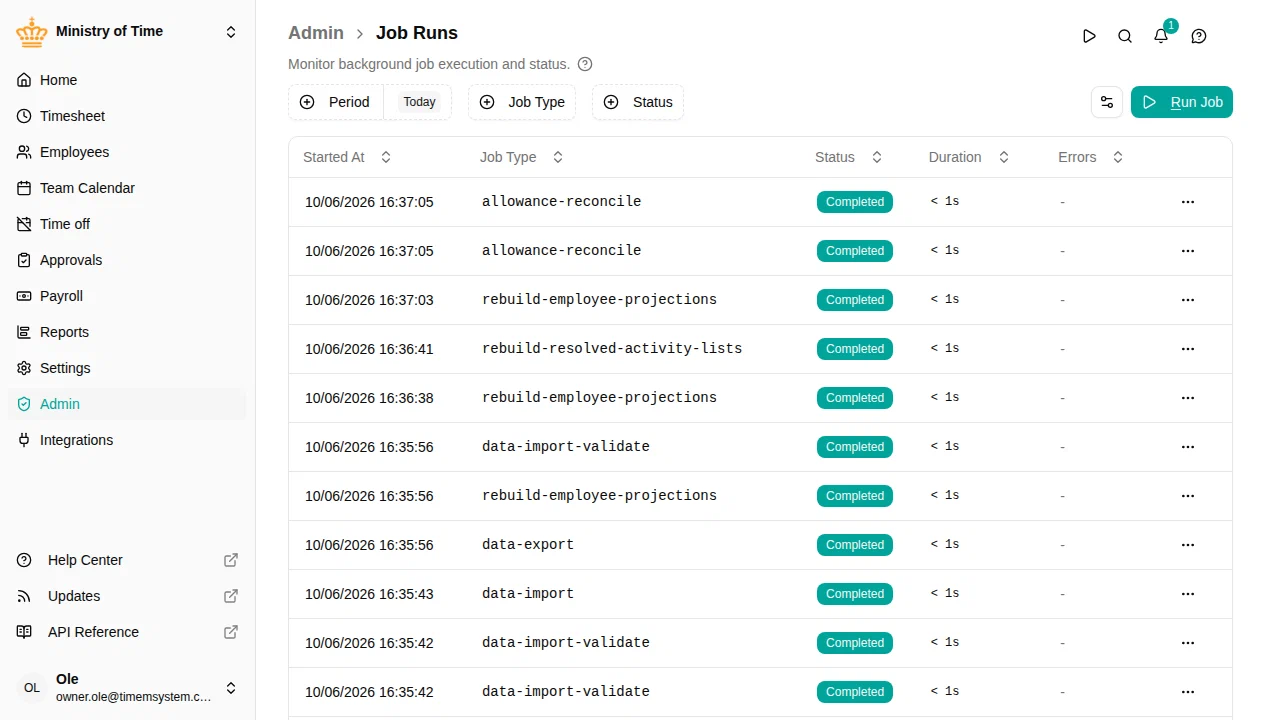
The list shows:
- Started At — when the job began executing
- Job Type — the type of job that was run
- Status — current state (Pending, Running, Completed, Stopped, Warning, or Failed)
- Duration — how long the job took to complete
- Errors — number of errors encountered (if any)
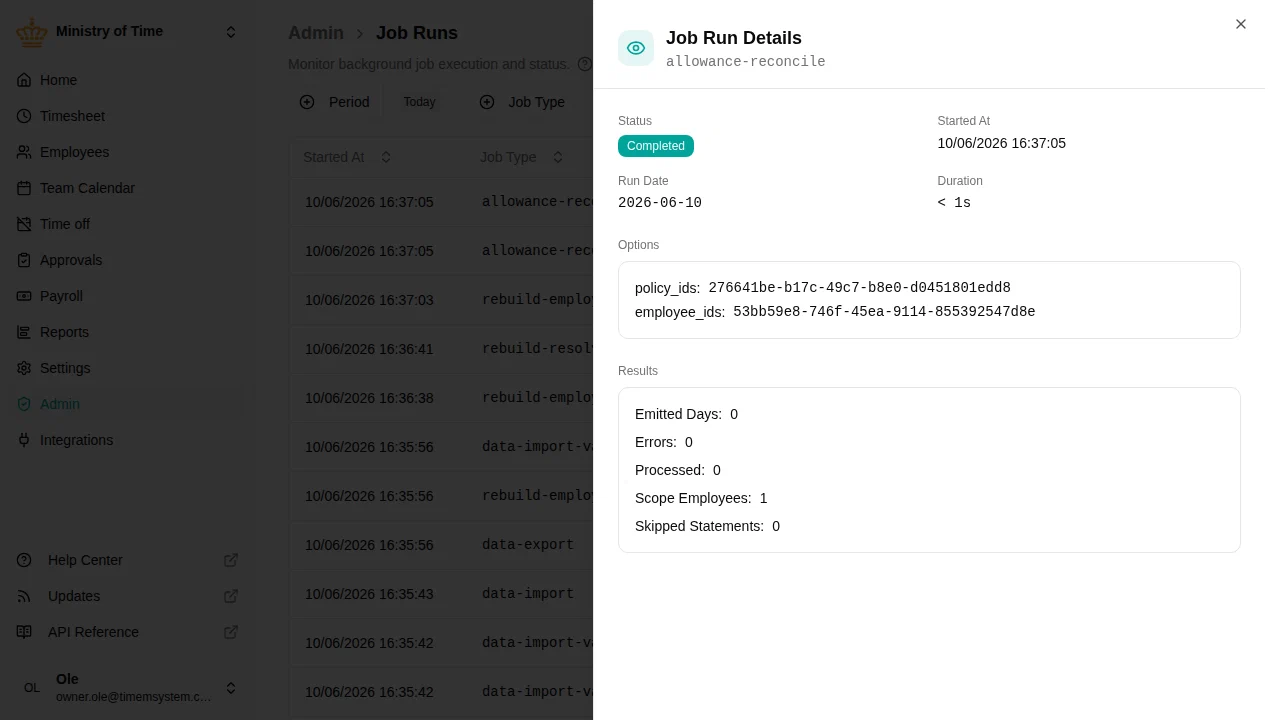
Click on any row to view detailed results for that job run, including the parameters that were used and the counters returned by the job.

Status meanings
| Status | Meaning |
|---|---|
| Pending | Queued, waiting to start |
| Running | Currently in progress |
| Completed | Finished successfully |
| Warning | Finished, but some records were skipped or had errors. The job did its work; the warnings are shown in the result counters |
| Failed | Hit an error it could not recover from, and stopped |
| Stopped | Stopped manually before completion |
Running a job manually
You can trigger any job manually at any time:
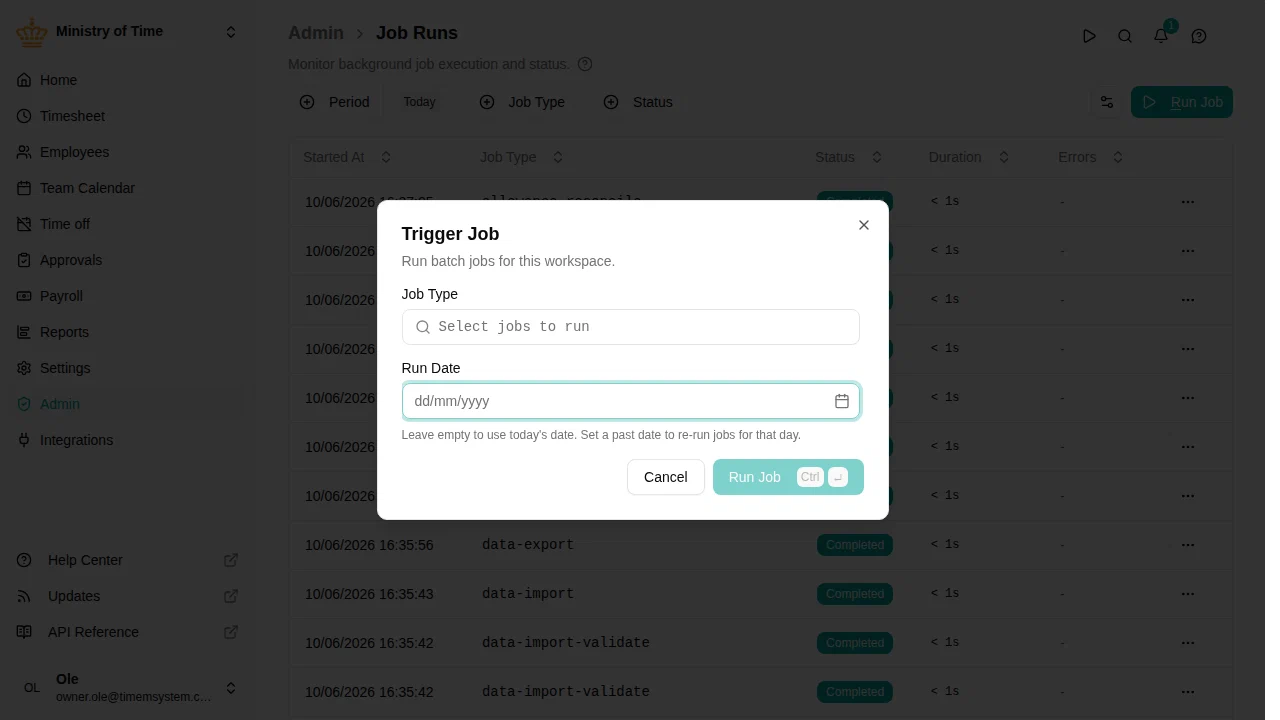
- Click Run Job
- Select one or more job types
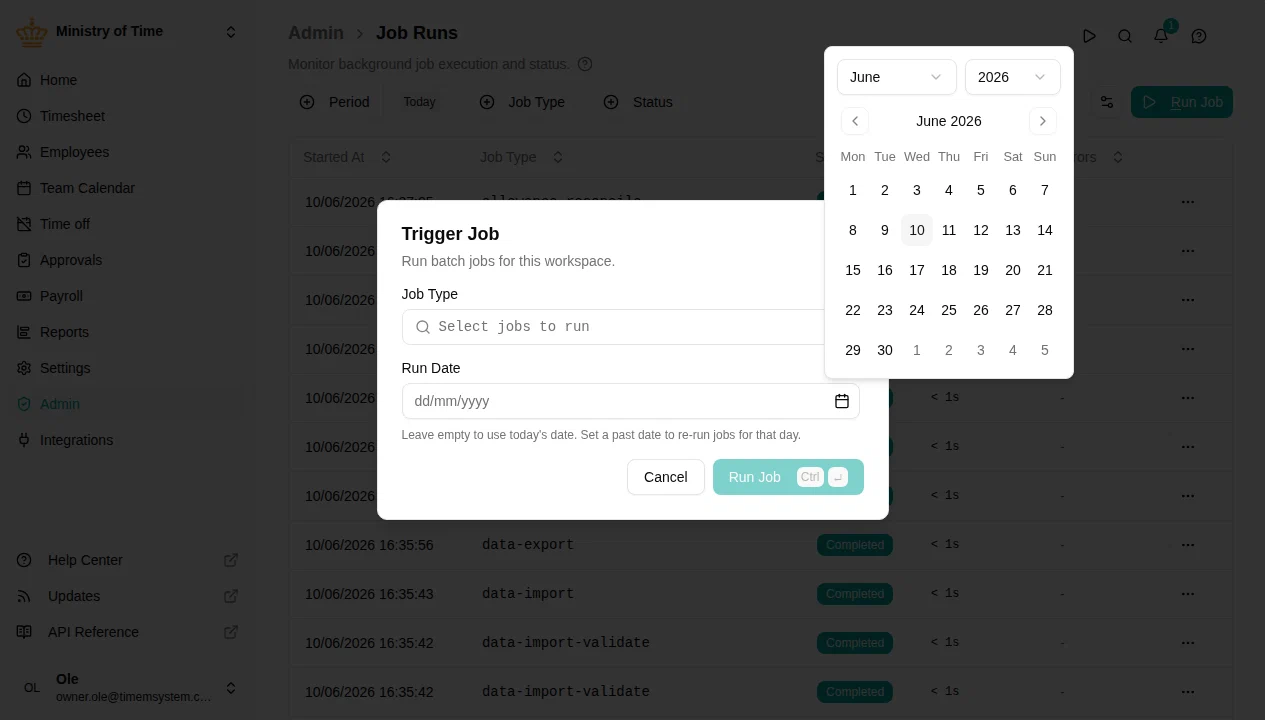
- (Optional) Pick a Run Date other than today
- (Optional) Fill in the Options specific to the selected job
- Click Run Job to start the job

When to use the run date
Most jobs interpret the run date as “the day this run is for”. The default is today. Picking another date is useful when you want to:
- Test what a job would do on a future day (e.g. an upcoming statement-period start)
- Catch up on a day the job did not run
- Re-run a job for a specific historical date

Parameters
When you select a job that accepts parameters, the dialog shows a form with that job’s options. Each job page documents its own parameters.
Common parameter types:
- Dry Run — report what the job would do without making any changes. Available on jobs that delete or sync data
- Force / Force Recompute — ignore the “already done” checks and process every item again
- Employee / Org Unit — limit a rebuild to a single employee or one branch of the org tree