Users & permissions
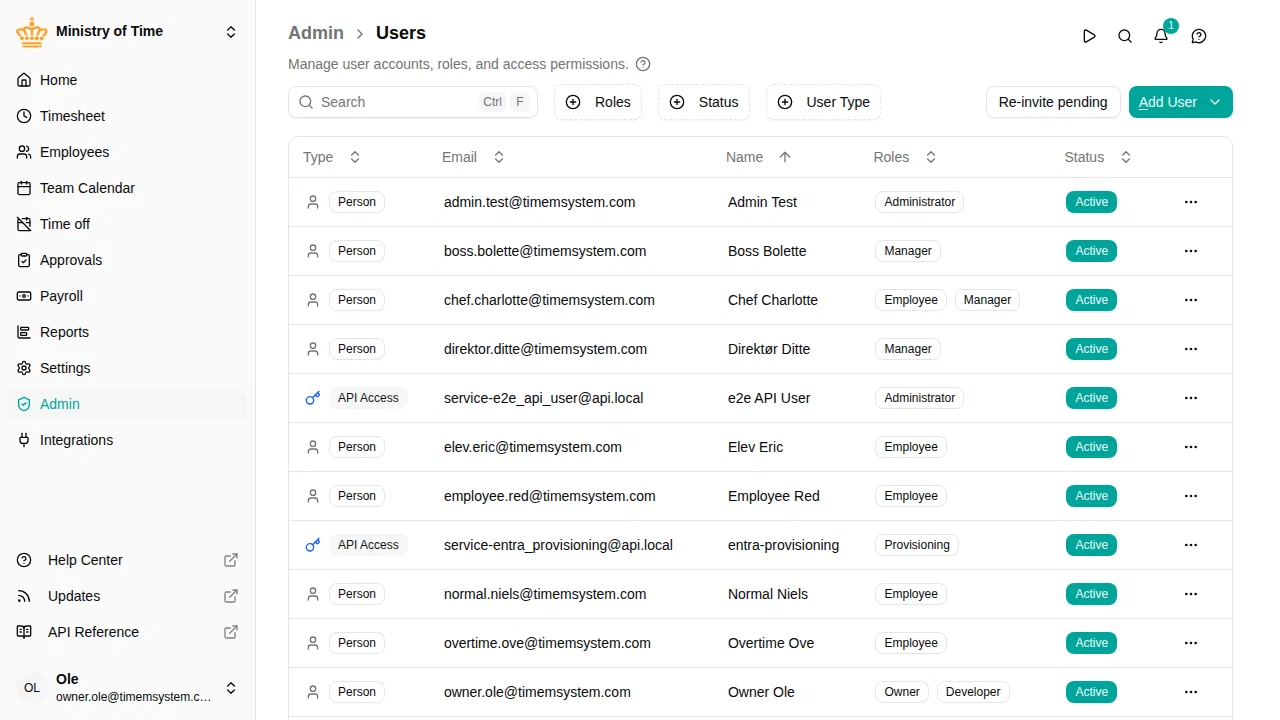
Control who has access to your workspace and what they can do by managing users and assigning roles.

Roles overview
Each user in a workspace has a role that determines what they can see and do.
| Role | What they can do |
|---|---|
| Owner | Full access to everything, including billing, the event log, data import and export, and deleting the workspace. Each workspace has one owner. |
| HR Administrator | Manage employee records, org units, time off, timesheets, payroll, reports, bulk changes and the HR settings, sensitive data included. Cannot manage users, roles or API keys. |
| Workspace Administrator | Manage users, roles, API keys, kiosks, integrations and the workspace configuration. Sees colleagues only as the directory shows them — no HR records, time off or timesheets. |
| Manager | View and manage employees in their team. Access depends on their org unit assignment. |
| Employee | View their own data, request time off, and manage personal settings. |
| Read-Only | View workspace data, without sensitive information. Cannot make any changes. |
| Developer | Shows the API reference in the menu, for technical users reading up on the API. Grants no access to data, settings or API keys — creating service users and API keys is a Workspace Administrator action. |
HR Administrator and Workspace Administrator
mTime has two administrator roles, so that the people who run your HR data and the people who run your IT setup each get only what their job needs. A typical setup gives the HR department HR Administrator and the IT department Workspace Administrator. Someone who does both jobs can hold both roles.
| HR Administrator | Workspace Administrator | |
|---|---|---|
| Employees, org units, projects | Yes, including sensitive data | Directory only (names and contact details) |
| Time off, timesheets, approvals, timebank | Yes | No |
| Payroll and payroll integrations (Dataløn, Intega HR, payroll file) | Yes | No |
| Reports | All employees | No |
| Yes | No | |
| Yes | No | |
| Users, invitations, service users and API keys | No | Yes |
| Roles | No | Yes, within the limits under Managing roles |
| Kiosks, , other integrations | No | Yes |
| Payroll integrations, in full | Every integration, without payroll details | |
| HR records and settings | Users, roles, kiosks and integrations | |
| Event log, data import and export | No — owner only | No — owner only |
Two pages under are shared, and each administrator sees only their part:
- Recycle Bin lists only the deleted items you are allowed to restore. An HR Administrator sees deleted employees, org units, projects, bulk changes and settings such as policies and employment terms; a Workspace Administrator sees deleted users, roles, kiosks and integrations. Deleted passkeys and linked sign-in accounts can only be restored by the owner.
- Integration Log shows a payroll integration’s details — codes, amounts, error text and the requests sent — only to roles that can send payroll. A Workspace Administrator still sees those rows, so a stuck or failed delivery is visible, but with the details hidden.
A page your role does not give you access to shows No access instead of its content.
Who can assign which role
- The Owner can assign every role, and is the only one who can make someone else the owner.
- A Workspace Administrator can assign every standard role except Owner — including HR Administrator and Workspace Administrator. Only the owner can change their own user, so a Workspace Administrator cannot give themselves HR Administrator.
- An HR Administrator cannot manage users and so assigns no roles.
Which roles may assign a custom role is set on the role itself, under Can be assigned by — see Custom roles.
Managing roles
A Workspace Administrator manages roles under , but only with permissions they hold themselves:
- They cannot add a permission to a role that their own role doesn’t have.
- They can only edit, revert or delete a role whose permissions they fully hold. Any other role — the HR Administrator role, for example — opens read-only, with You can't change this role and the permissions they are missing. Someone who holds them, or the owner, can change it.
See Custom roles for the details.
Existing administrators
Workspaces created before the split had a single Administrator role. Everyone who held it — users, pending invitations and service users — now holds both HR Administrator and Workspace Administrator, so nobody lost access, apart from the event log. Review your administrators under and remove whichever of the two roles a person does not need.
If your workspace had customised the Administrator role, that customised role is kept as it was, as a custom role named Administrator, and its holders keep it. Shared report presets, time off policies and custom roles that referred to the Administrator role now refer to both new roles.
Inviting users
- Go to
- Click Add User and choose Invite Person
- Enter the person’s email address
- Select a role for the new user
- Click Send Invitation
The person will receive an email with a link to join the workspace. Invitations expire after 7 days.
Resending an invitation
If an invitation has expired or the person didn’t receive it:
A new invitation email is sent with a fresh 7-day expiry.
Editing user roles
Reviewing what changed on a user
Changing a user’s role, status or linked employee changes what they can see and do, so mTime keeps a record of every such change.
The panel lists each change newest first, showing what changed, who made it and when — so you can answer questions like who gave this person the Owner role? or when was this user suspended, and by whom?
Some entries look slightly different:
- System — the change was made automatically rather than by a person. Automatic user provisioning, the data retention job and account name synchronisation all appear this way.
- Removed user — the change was made by someone who has since been removed from the workspace.
- Created, by System, dated when the user was added — every user that already existed when your workspace was updated to this release gets one of these. It records what the user looked like at that point, so later changes can be compared against it.
Removing a user is recorded separately: lists deleted users along with who deleted them.
Suspending and reactivating users
Suspend a user to revoke their access without deleting their account. This is useful when someone leaves the organization or should temporarily lose access.
Suspending a user
Suspended users cannot sign in to the workspace. Their data is preserved.
Reactivating a user
The user can sign in again with their previous role and settings.
Service users and API keys
Service users are special accounts used for API access and automations rather than interactive sign-in.
Creating a service user
- Go to
- Click Add User and choose Create Service User
- Give the service user a descriptive name (e.g., “Payroll export” or “Integration sync”)
- Click Create Service User
Managing API keys
Each service user can have API keys for authenticating API requests.
- Open the service user’s actions menu and click Manage API Keys
- Click Create New API Key
- Give the key a descriptive name and choose an expiration date
- Copy the key immediately — it is only shown once
Every key has an expiration date, and a key can last at most one year. The date is filled in a year ahead for you, so you only need to change it if you want the key to stop working sooner. A key that has expired cannot be extended — create a new one and remove the old one from your integration.
The key list shows who created each key and when it expires. Keys expiring within 30 days are marked Expiring Soon , which is your cue to create a replacement before the automation stops working.
Revoking an API key
- Open the service user’s actions menu and click Manage API Keys
- Find the key you want to revoke
- Click Revoke
Revoked keys stop working immediately. Any automations using the key will need to be updated.
A revoked key stays in the list, marked Revoked and showing who revoked it and when, so you keep a record of who issued and who withdrew each key. It cannot be reactivated — create a new key instead.
Linking users to employee records
A user account and an employee record are separate things in mTime. Linking them connects a person’s sign-in account to their employee data.
- Go to
- Click the user you want to link
- In the Employee field, select the matching employee record
- Click Save
This link enables features like viewing personal time off balances and seeing the team calendar filtered to the user’s team.
Why can’t a user see the Timesheet menu or time registration widgets?
If a user is an HR Administrator, Workspace Administrator or Owner in a workspace but the Timesheet menu is not visible in the sidebar, and the time off and time registration widgets are missing from the dashboard, their user account is not linked to an employee record. Link it following the steps above.
If the employee record does not exist yet, create an employee profile first, then link it to the user account.
Test profiles
On a test workspace you can give one sign-in several profiles, so a single login can act as different people while you try things out — for example, submit time as an employee and then approve it as their manager, without juggling separate accounts.
Adding a profile
- Go to
- Find the existing user you want extra profiles for
- Open the row’s actions menu and click Add profile
- Choose a different employee to link (each profile must be linked to its own employee record) and select the roles for that profile
- Click Add test profile
The new profile is added straight away — no second invitation email is sent, because the account already exists.
Switching between profiles
When your account has more than one profile in the current workspace, a Switch profile option appears in your account menu.
- Open your account menu (your name, at the bottom of the sidebar)
- Click Switch profile
- Choose the profile you want to act as
The app reloads with that profile’s employee, roles, and permissions.
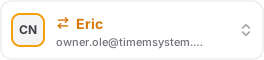
While you are on a profile other than your default one, the account button is highlighted in amber with a switch icon, so it is always clear which profile you are currently acting as. The sidebar and the dashboard greeting also name that profile rather than you, and switching back to your default profile restores your own name.