Custom roles
Create custom roles to tailor permissions to your organization’s needs.

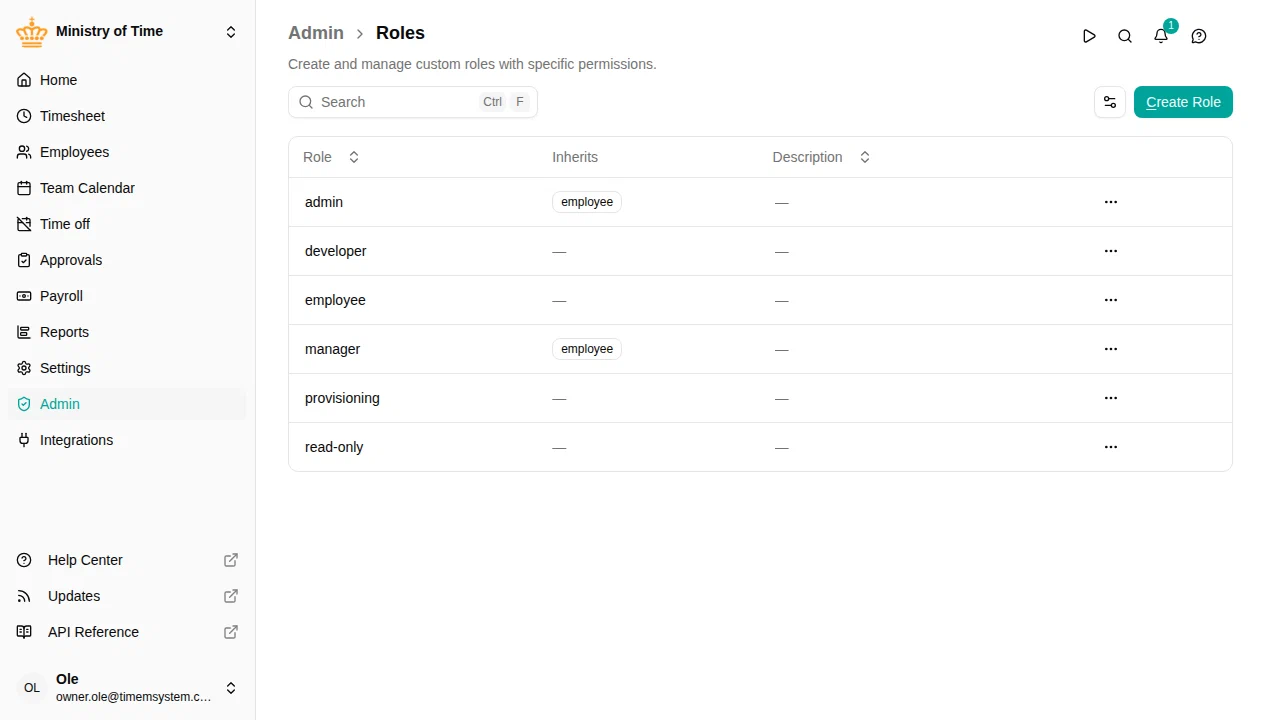
Overview
Every workspace comes with standard roles (HR Administrator, Workspace Administrator, Manager, Employee, Read-Only, Developer) that cover common permission needs. Custom roles let you go further by:
- Creating new roles with exactly the permissions you need (e.g., “Team Lead” or “HR Assistant”)
- Adjusting standard roles to add or remove specific permissions without creating a brand-new role
Standard roles
These built-in roles are available in every workspace:
| Role | What they can do |
|---|---|
| HR Administrator | Employees, org units, time off, timesheets, payroll, reports and settings, sensitive data included |
| Workspace Administrator | Users, roles, API keys, kiosks, integrations and the workspace configuration, with no access to HR data |
| Manager | View and manage employees in their team |
| Employee | View own data, request time off, manage personal settings |
| Read-Only | View workspace data, without sensitive information. Cannot make any changes |
| Developer | Shows the API reference in the menu. Grants no access to data or settings |
See Users & permissions for what each administrator role can and cannot do.
Who can manage roles
The Owner and Workspace Administrators manage roles under . A Workspace Administrator is limited to permissions they hold themselves:
- Adding permissions. You cannot give a role a permission you don’t have yourself.
- Changing an existing role. You can only edit, revert, delete or customize a role whose permissions you fully hold. A role that grants anything your own role doesn’t — for example the HR Administrator role, which grants access to sensitive employee data — opens read-only, with the message You can't change this role listing the permissions you are missing. Someone who holds them, or the owner, can change it.
This keeps the two administrator roles apart: a Workspace Administrator cannot quietly strip the HR Administrator role, or a role the owner built with HR permissions.
Creating a custom role
- Go to
- Click Create Role
- Enter a name and optional description
- Optionally select a role to Copy from — this pre-fills the permissions from an existing role as a starting point
- Configure the role settings (see below)
- Select the permissions you want to grant
- Click Save

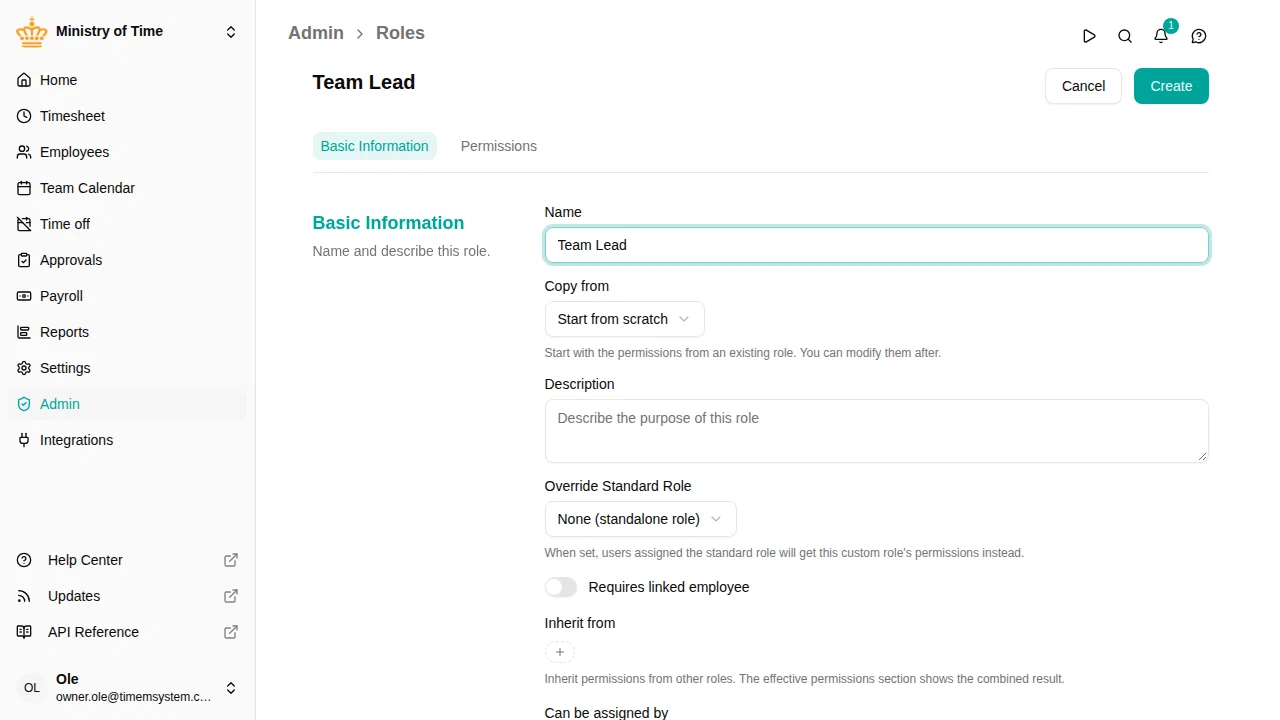
Copy from
When creating a new role, you can copy permissions from an existing role. This is useful when you want a role that is similar to an existing one but with some adjustments. The original role is not affected.
Editing a role
Customizing a standard role
To adjust the permissions of a standard role (e.g., give Managers access to sensitive employee data):
This creates a custom override that replaces the standard role’s permissions for your workspace. The role keeps its original name.

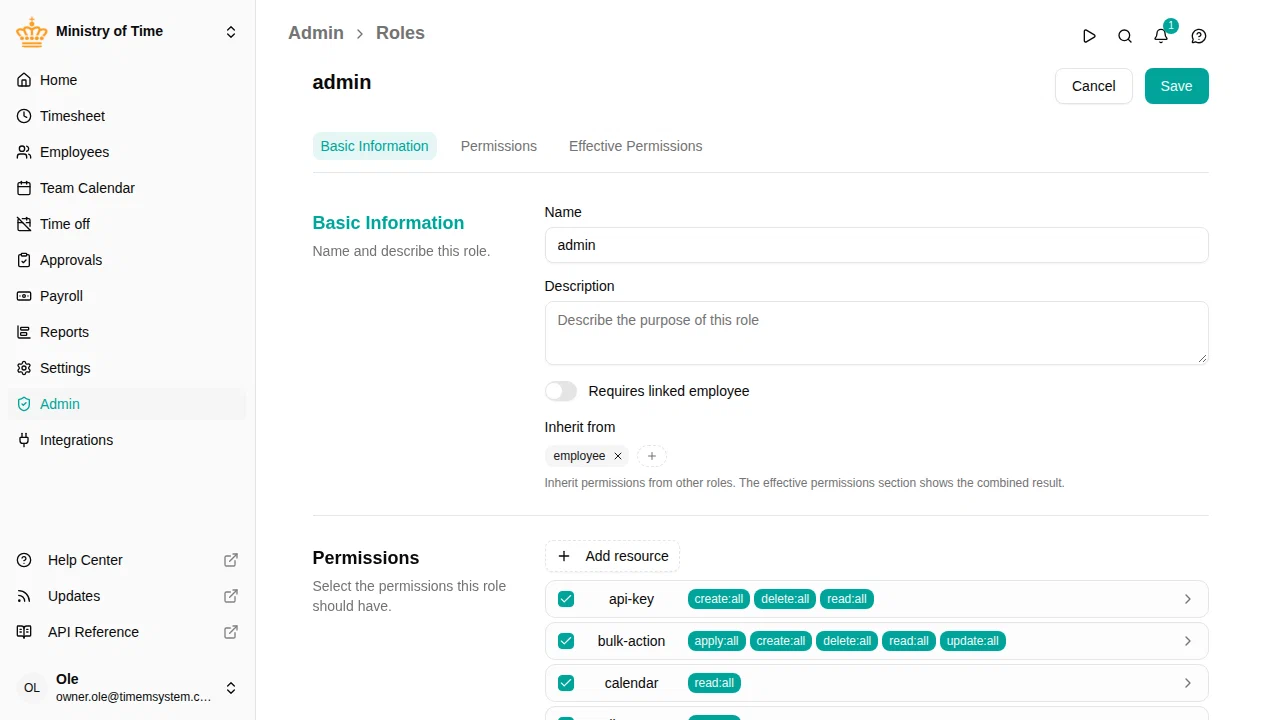
Reverting a customized standard role
If you’ve customized a standard role and want to go back to the default permissions:
- Open the customized role
- Click Revert to Standard
- Confirm the action
This removes all your customizations and restores the original permissions.
Duplicating a role
To create a new role based on an existing one:
- Open the role you want to duplicate
- Click the copy icon in the top-right corner
- Give the new role a name
- Adjust permissions as needed
- Click Save
Role settings
| Setting | Description |
|---|---|
| Name | The display name for the role |
| Description | Optional text explaining when this role should be used |
| Copy from | Pre-fill permissions from an existing role (only when creating) |
| Override Standard Role | Replace a standard role’s permissions instead of creating a standalone role (only when creating) |
| Requires linked employee | When turned on, users with this role must have a linked employee record |
| Inherit from | Include all permissions from one or more other roles automatically |
| Can be assigned by | Roles whose holders may assign this role to users. Add provisioning to let your identity provider manage the role’s members through SCIM provisioning |
Permissions
Permissions control what users with a role can see and do. Each permission has three parts:
- Resource — what the permission applies to (e.g., employees, time off, timesheets)
- Action — what the user can do (e.g., read, create, update, delete, approve)
- Scope — how broadly the permission applies:
- All — access everything in the workspace
- Managed — access only direct reports
- Self — access only own data
- Unit — access colleagues in the same team

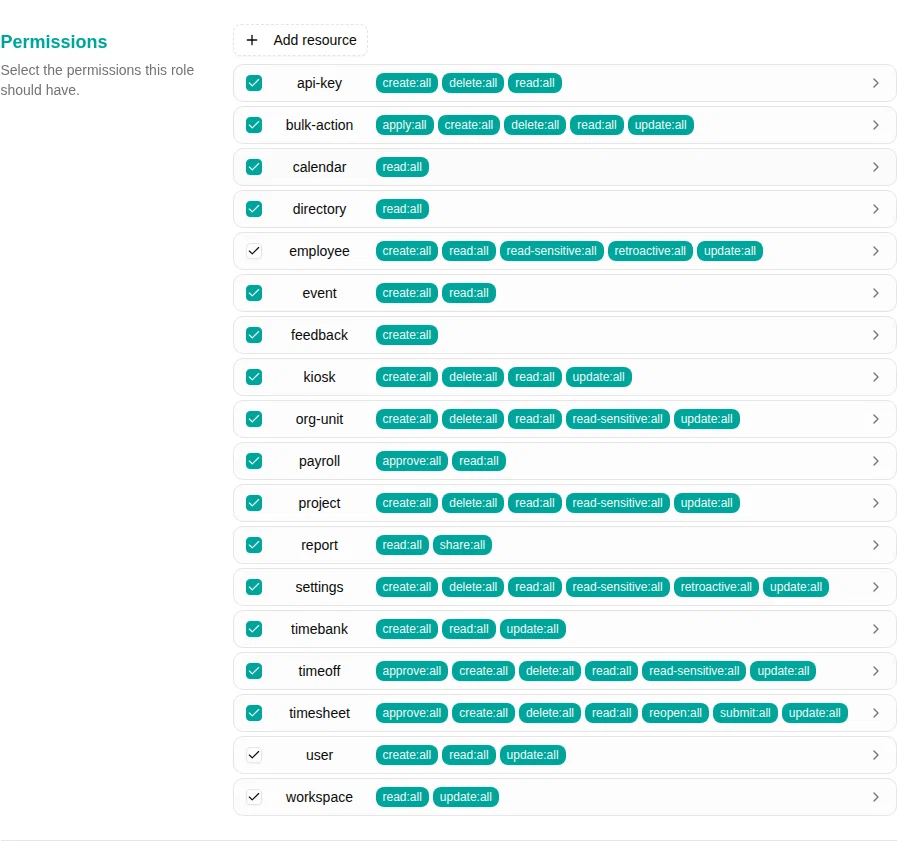
Not every action offers every scope
Where a scope would not actually limit anything, it is not offered: the cell in the permission grid shows a dash instead of a checkbox. So a permission you can tick is one the system genuinely enforces at that breadth.
Two patterns explain most of the dashes:
- Unit is offered for reading, not for changing. A colleague in your team is someone you may see — their time off, their hours, their entry in the directory. Editing their record or their time is a manager’s action, so actions like create, update and delete stop at Managed.
- Some actions only make sense from Managed upwards. Approving or reopening a timesheet is one of them: the underlying feature requires manager-level access to be usable at all, so Self and Unit are not offered for it.
Inheritance
When a role inherits from another role, it automatically receives all of that role’s permissions. This is useful for building roles that extend existing ones — for example, a “Senior Manager” role that inherits from “Manager” and adds extra permissions.
Inherited permissions are shown separately from directly assigned permissions, so you can always see where each permission comes from.
Roles managed by your identity provider
When SCIM provisioning is turned on, groups in your identity provider map to roles. Roles bound to an IdP group show a Managed by IdP group badge in the roles list: their members are granted and revoked by the IdP, and manual membership changes are realigned on the IdP’s next sync. What the role is allowed to do always stays in mTime — the IdP can never change permissions.
To let the IdP manage membership of a role that already exists (including standard roles like HR Administrator), open the role and add provisioning under Can be assigned by. The Owner role can never be managed this way.